Block Copy/Paste is used to copy data to an internal buffer of user named entries, which can later be selected from to paste data back into the same database, or via the clipboard to another database. Data substitution can be controlled at the time of paste (e.g. account name prefixes, transaction dates, etc.)
There are currently three types of data that can be copied and pasted:
We show an example of each below, explaining the typical steps involved.
NOTE: If you are unfamiliar with how to manage multiple option configurations please review Print/Tool Options Management.
Shown below is an account copy/paste "control" window (highlighted).
Across the top are command buttons. The Copy F5 button will copy a marked block of data, an income statement in this case, to the control window, saving it with the active name.
Across the bottom are entries for name substitution. For example, Search for IS and Replace with IS2 will, when you press the Paste F8 button, paste (i.e. create) a complete copy of the income statement.

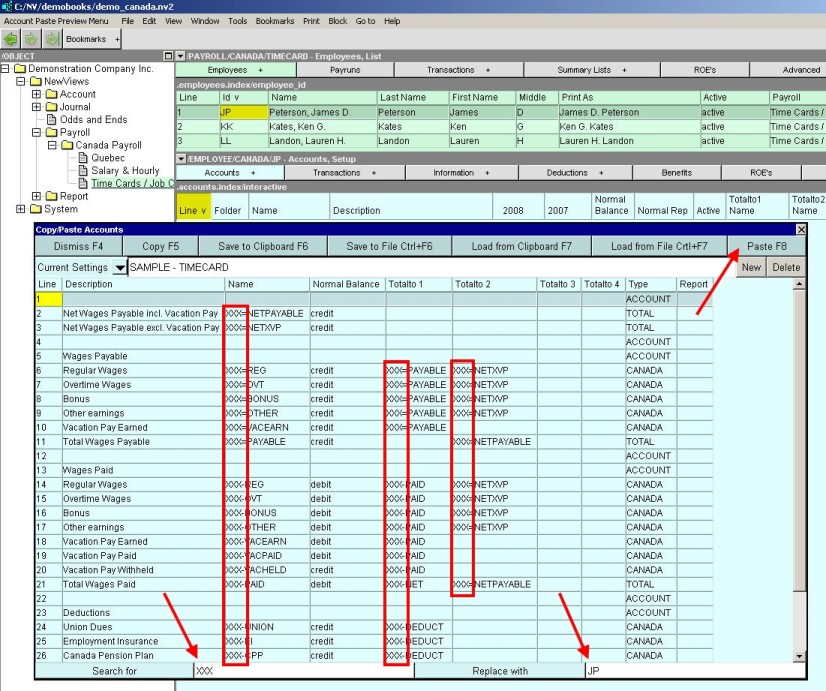
Shown below is another example of account copy/paste, this time to demonstrate copying an employee setup - typically done when a new employee is created. When the Paste F8 button is pressed, the characters XXX, highlighted in the vertical red outlines, will be replaced by JP, and then all of the accounts in the buffer entry will be pasted (i.e. created) for new employee JP.
Transactions can be copied from a "leaf" journal, or they can be copied from a "branch" journal. The branch case is useful for copying transactions from several journals at the same time - and pasting transactions into a branch will copy each transaction to the journal it originally came from. (more on branches below).
In version 2.10 Tools>Create Transactions>Duplicate was added. You can position on any transaction and create any number of duplicates of the transaction.
See Duplicating Transactions for more.
A leaf journal is one that has no sub-journals, just transactions entered directly. A leaf journal copy/paste typically happens when you want to quickly replicate a common transaction (i.e. copy once, paste many times with a date substitution), or replicate a block of recurring transactions, or replicate a vendor's last invoice, etc.
Shown below is an example, after a Block>Copy command was issued. The control window appears, parked on the last entry copied/pasted (in this case a Petty Cash check).
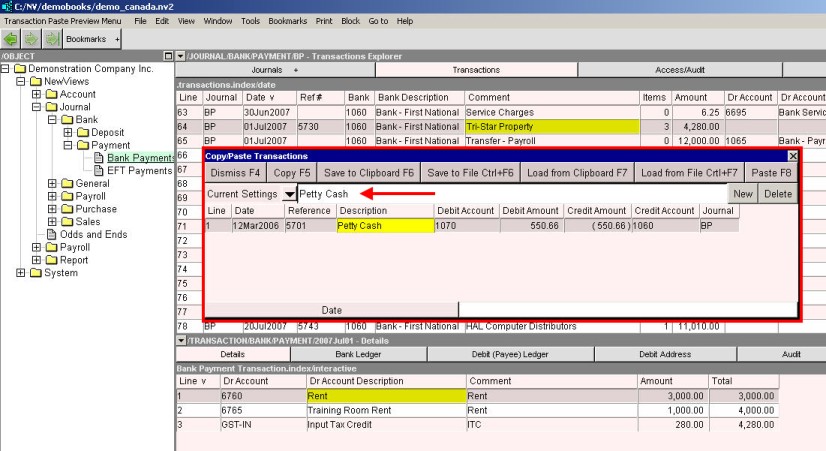
Imagine we wish to create a new copy/paste entry for a recurring monthly rent check. Pressing the New button will copy the active entry and invite you to rename it. This is shown below.
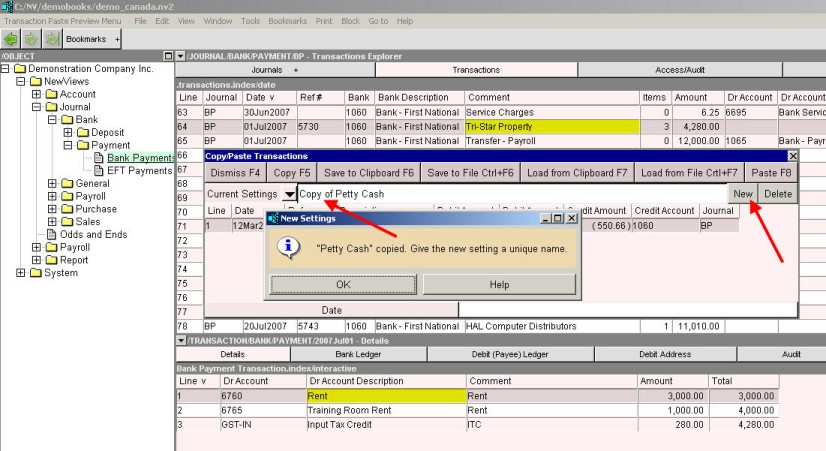
After giving the new entry a name ("Monthly Rent", shown below), pressing the Copy F5 button will copy the data from the active table row (a bank payment to the landlord Tri-Star Property) into the active paste buffer entry. You can copy a single bank payment row, or mark a block of rows and copy many transactions at once.

After selecting a date from a calendar <F3> or typing a new date, you are ready to paste. This is shown below.

In practice, the copy/paste feature is used one row at a time for quick, one-off transaction copy, or with some planning to capture a group of recurring entries.
A branch journal can display the closure (i.e. union) of all transactions in all sub-journals "below" the folder selected.
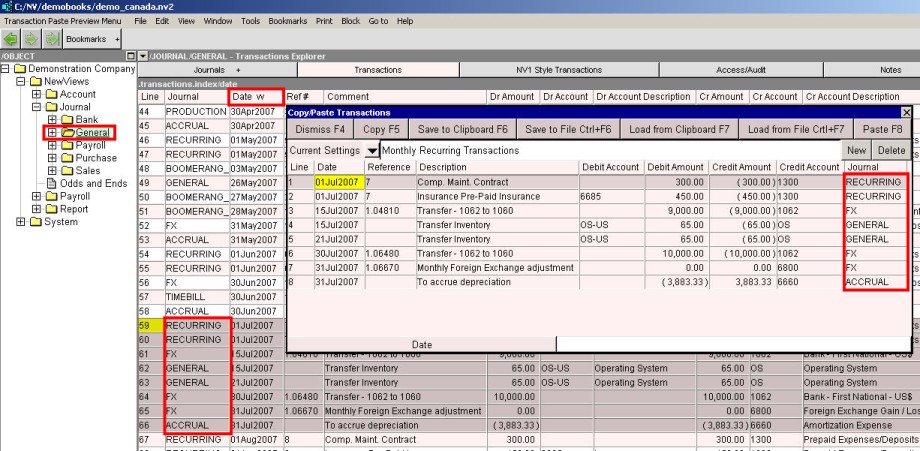
In the example shown below, the two small red highlights indicate that the branch General Journal is active, and that the date index is selected. Notice the double chevron vv beside the date column title - this is another visual cue that a branch is active ant the transactions displayed are from all sub-journals below.
The two larger red highlights show that the transactions are coming from different sub-journals below. A copy from a branch followed by a paste to a branch will attempt to copy each transaction to the journal it originally came from. (see "A word about named lookups", and "Inter-database Copy/Paste" below).
Ledgers can be copied from a "leaf" account, or they can be copied from a "branch" account. The branch case is useful for copying all transactions from several accounts at the same time.
In version 2.10 Tools>Create Transactions>Duplicate was added. You can position on any transaction and create any number of duplicates of the transaction.
See Duplicating Transactions for more.
The leaf account case typically happens when you do something like copy/paste a vendor's or customer's last invoice, with a date substitution. An example of this is shown below. The last invoice has been copied, and is ready to paste with a new date.
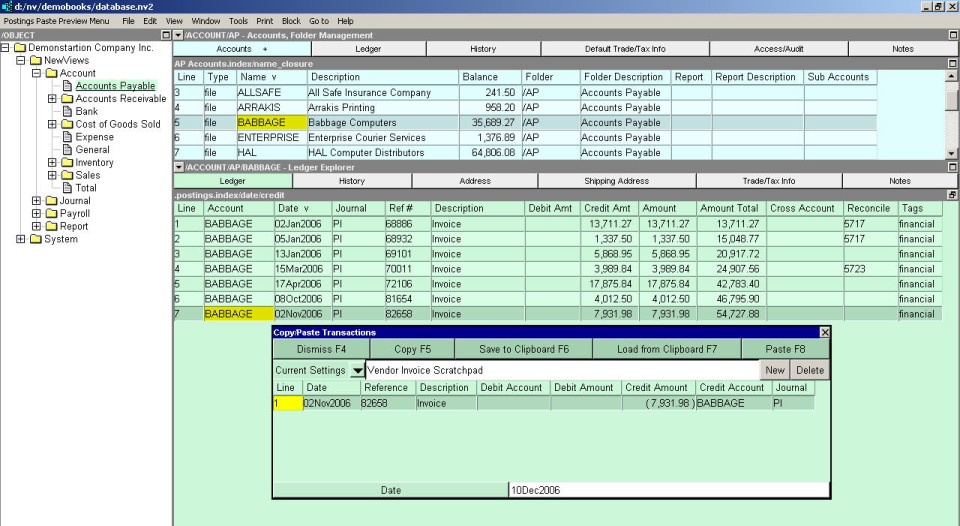
Branch account ledger copy/paste is virtually identical to branch journal transaction copy/paste, and all the comments apply is a similar way.
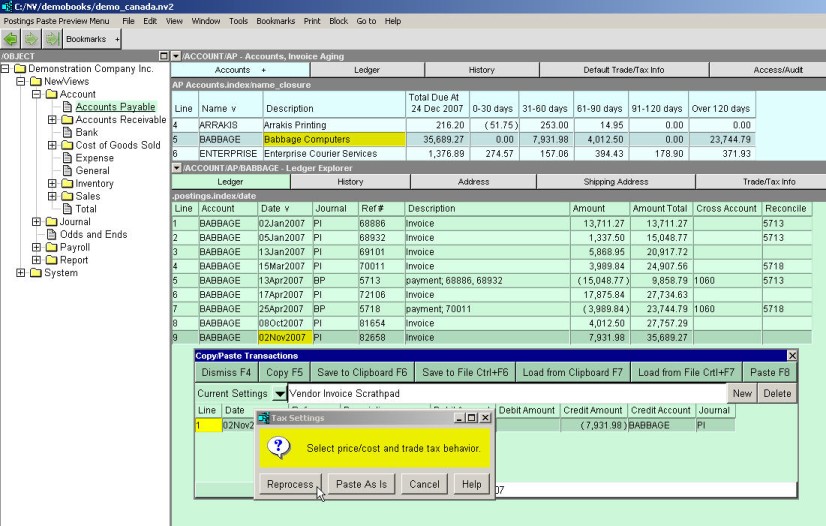
Pasting transactions or ledgers operates in one of two ways, and you will be prompted to choose:
Shown below is a sample prompt to choose paste processing behavior. It will appear whenever the paste operation could encounter a reprocess/as-is scenario. All purchase and sales journals will prompt, but the other journals will not (i.e. only purchases and sales process prices/costs and trade taxes). A paste of ledger items will always prompt. It was decided to always prompt just in case a purchase or sales transaction is involved in the paste, as opposed to wasting time pre-processing a block to determine if it is necessary to prompt.
NOTE: Inventory relief and cost of goods sold is ALWAYS reprocessed.
Block paste is "driven" by object names (e.g. account names, report names, journal names, etc.). When you paste a buffer entry, object lookups by name occur, and an exact or best fit choice is made. For example, when a transaction posts to an account, the account must be found. This is done as follows:
This behavior is designed to make the best possible fit of a paste that involves an old buffer entry, or a copy/paste from one database to another. Objects names are all we really have to get a handle on what to do. The theory is that a copy/paste operation is done in the same database with little time passed (i.e. no big changes have restructured the database), or that the source and destination databases have an identical or similar structure.
The copy/paste control window has buttons for "Save to" and "Load from" the clipboard. It also has buttons for "Save to" and "Load from" a file. These features allows you to copy data from one NewViews database to another. Note that these are advanced features, and you should probably backup your databases and try a few practice runs before using them.