Appendix F - Upgrading to a new version of NewViews
Basic Steps
Upgrading a single NewViews workstation or server consists of the
basic steps shown below.
Also, when you have a server and a number of workstations see
Upgrading a Server and Multiple Workstations.
-
Use a web browser to download the upgrade file.
You download from the NewViews web site -
see Downloading the latest NV2 version.
(The upgrade file is also sometimes called the installation file.)
It's name looks something like nv2.27.3.20140710-win32-ix86-nv2.exe.
-
Shut down NewViews.
You can't install the upgrade unless you exit NewViews, if running.
Also close the manual if open, and stop the NewViews Service (Windows Service)
if running.
Use the Windows Service Manager to stop the service, or you
can run the NewViews Service Installer command to uninstall it.
The service only needs to be stopped, not uninstalled, but either works.
If you use the NewViews Service Installer shut it too.
After the upgrade use the Windows Service Manager to re-start the
stopped service, or use the NewViews Service Installer to
re-install the serivce (which also re-starts it).
-
Run the upgrade file and follow the prompts.
There are various ways to run an executable program.
An often-used way is to position on it in the Windows Explorer and
double-click.
-
Restart NewViews.
Use the start menu to run the workstation and where appropriate,
the server.
If you stopped the NewViews Service earlier, use the Windows Service Manager to re-start it.
If you uninstalled the service, run the NewViews Service Installer
and re-install it (which also re-starts it).
Regardless how NewViews is used in your organization, it is only necessary to
download one copy of the upgrade file from Q.W.Page, even if the program is
installed on several computers.
You can then use that file to upgrade any number of computers.
To check the current version of NewViews,
start NewViews and issue the Help>About command.
A page is displayed with a NewViews Program section that lists the version,
service pack and release date.
Downloading the latest NV2 version
Most computers have access to the Internet.
If you don't Internet access, see No Internet access below.
Using a web browser, visit newviews.com for the current version.
The NewViews installation download file has a name like nv2.27.3.20140710-win32-ix86-nv2.exe.
The file size should be about 100 MB.
Each release of NewViews is uniquely identified by four numbers separated by dots in a form as shown below:
VersionMajor.VersionMinor.ServicePack.ReleaseDate
For example, 2.27.3.20140710 represents version 2.27, service pack 3,
released on July 10, 2014.
When an upgrade changes the version number, (i.e. 2.26 to 2.27) automatic data conversion
is performed when the new version is first used.
This doesn't happen when only the service pack changes (i.e. 2.27.3 to 2.27.4).
If you have several computers that need the same update, we recommend using a
shared folder like c:/downloads/newviews on your file server or local machine.
The same file can then be used to update the other computers.
So again note that only one copy of the upgrade file needs to be downloaded
from the web.
-
Using a web browser visit https://newviews.com/downloads.
Fill in the appropriate user name and password.
Read the license agreement.
-
Fill in the appropriate user name and password.
-
Click on the appropriate file link to start the download.
A dialog similar to the one shown below appears:
-
Save the file.
The file downloads to the browser's default download folder which
is often set to c:/downloads or "my documents".
The default download folder can be changed in the browser options.
-
Run the file to install the upgrade.
Use Window Explorer to position on the upgrade file and
double-click to run it.
Then follow the prompts to install the upgrade.
No direct Internet access
If you are using NewViews on a computer that does not have Internet access,
download the file on a computer with Internet access and then copy the file
to the computer that needs the upgrade.
The file can be copied to an usb drive to perform the transfer.
Upgrading a Server and Multiple Workstations
Consider the situation where you have a server and a relatively large number of
workstations.
As described above, you could download the upgrade file to a shared folder and then install
the upgrade on the server and the workstations using that single shared upgrade file.
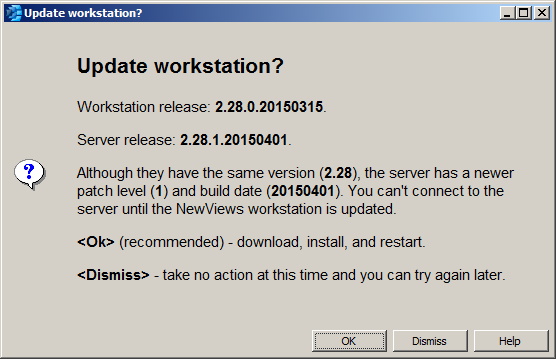
However, workstations automatically upgrade whenever they
connect to a server with a newer NewViews program as shown in the dialog below.
So you can download the upgrade from the Q.W.Page web site, install on the
server, and then the workstations will automatically upgrade on demand, i.e. when they
first connect to the server.
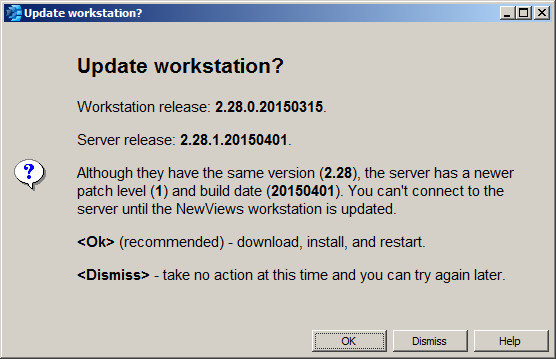
A workstation has attempted to connect to a server with a newer release of
NewViews.
When you click <Ok> the workstation will automatically upgrade itself
to the same release as the server.
The workstation will download, exit NewViews, install the upgrade,
and restart the workstation without further input from the user.
Prior to version 2.28 the installation of the upgrade had to
be performed manually on each workstation.
It was sometimes difficult for an adminstrator to co-ordinate this
activity across all workstations.
Now the administrator can upgrade the server, knowing that the
workstations will upgrade automatically on demand.
Copyright (c) 2003-2026 Q.W.Page Associates Inc., All Rights Reserved.