-
Position on any table of accounts (blue), or table of reports (brown).
This can be anywhere accounts appear as rows of a (blue) table, including reports.
-
Either position on the account/report you want to print or mark a block of accounts/reports.
If no block is marked then the current account/report is processed.
Note that in this case, many accounts may still be printed.
For example, if the current account is a total account and you
specified breakdown in the Total Account Option
field, then all posting accounts that total to the current account are printed.
In fact, this is a very good way to select the accounts to print and
it is often preferred over marking a block (for example, a Balance Sheet or
Trial Balance proof account will likely pick up everything of interest).
If you want to explicitly select a number of accounts to be printed then
use the Block>Start and Block>End commands
to mark the accounts in a block.
Note again that if the Total Account Option field is set to breakdown
and there are total accounts in the block, then instead of printing the total accounts,
the posting accounts that total to them are printed.
A further note in this case is that a particular posting account may appear in the block
and also may total to other accounts that are in the block. If an account has already been printed,
it is skipped if encountered again during the same print operation.
-
Issue the Print>Account Ledgers command.
A print settings window will appear as shown below.
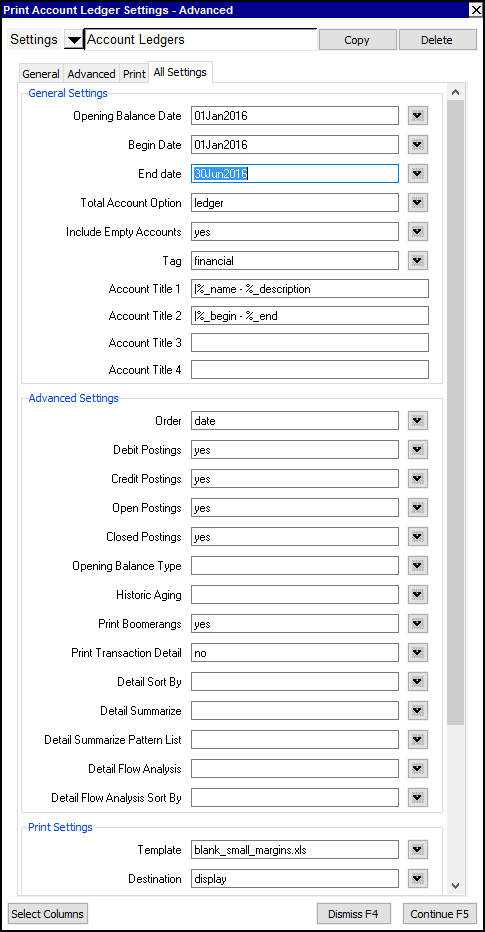
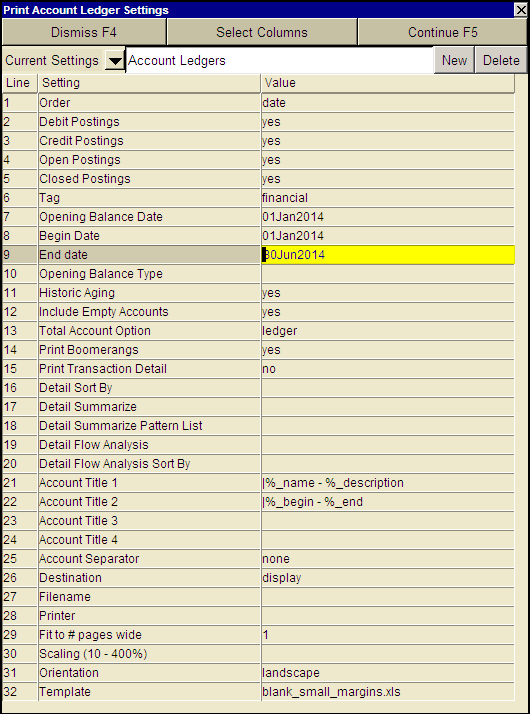
You can use the User Option,
Prompt Display Style
to switch between modern and classic styles for the prompt.
-
Fill in the print settings fields.
The meaning of each setting is described later in this section.
-
Click the <Continue> button or press <F5> to print the account ledgers.
When <Continue> is clicked, the output might be sent to
Excel or to a file instead of the printer, depending on the value
set in the Destination field.
Print Account Ledger Settings
|
Line
| Field
| Values
| Comments
|
1
| Order
| date
| The postings are printed in this order. Only date order is allowed in this version.
|
2
| Debit Postings
| yes
no
| yes - debit postings are printed.
no - debit postings are skipped.
|
3
| Credit Postings
| yes
no
| yes - credit postings are printed.
no - credit postings are skipped.
|
4
| Open Postings
| yes
no
| yes - open (unreconciled) postings are printed.
no - open (unreconciled) postings are skipped.
|
5
| Closed Postings
| yes
no
| yes - closed (reconciled) postings are printed.
no - closed (reconciled) postings are skipped.
|
6
| Tag
| financial
order
budget
empty
| specified - only postings with the specified tag are printed. financial, order, and budget are built-in partition tags but you can add custom tags as well.
empty - all postings are printed regardless of their tag.
|
7
| Opening Balance Date
|
| Periodic account running balances begin at zero on this date. It has no effect on perpetual or opening accounts. See Setting the Opening Balance Date
|
8
| Begin Date
|
| Only postings dated on or after the begin date are printed. See Setting Begin and End Dates
|
9
| End Date
|
| Only postings dated on or before the end date are printed. See Setting Begin and End Dates
|
10
| Opening Balance Type
| zero
open
closed
ledger
all_closed
| If you are in the open view and select all_closed. The running amount total column will include the sum of all reconciled items. If you select zero, the running amount total column will only include the sum of all unreconciled items. See Ledger/Posting Table Views - Opening Balance for more.
|
11
| Historic Aging
| yes
no
| yes - to print an aged analysis report as at the End Date set in line 9. See Historic - Aged Receivables
|
12
| Include Empty Accounts
| yes
no
| yes - any account for which no postings match the selection criteria, is simply skipped.
no - prints accounts (headers only) even when there are no postings.
|
13
| Total Account Option
| ledger
breakdown
| ledger - total account ledgers are printed. No attempt is made to print the sub-tree that totals to any total account.
breakdown - total accounts are not printed but instead each posting account in the sub-tree that ultimately totals to it is printed.
|
14
| Print Boomerangs
| yes
no
| yes - boomerang postings are printed.
no - boomerang postings are not printed.
|
15
| Print Transaction Details
| no
yes
| no - only the ledger level is printed, detail lines are skipped.
yes - detail lines are printed.
See Selecting Columns to be Printed
SeePrint Transaction Details.
|
16
| Detail Sort By
| date
account
| date - transaction details are sorted in date order
account - transaction details are sorted by cross account
|
17
| Detail Summarize
| no
yes
| no - full details are printed
yes - transactions details are summarized
|
18
| Detail Summarize Pattern List
| account path
*
?
| An optional pattern list may be entered to summarize transactions
see Pattern List
|
19
| Detail Flow Analysis
| no
yes
| no - prints default account ledger details
yes - generates a Flows Analysis Report.
|
20
| Detail Flow Analysis
Sort By
| amount_descending
name
description
path
| amount_descending - default sort order, sorts the transactions by value
name - sorts the transactions by the cross account's name
description - sorts the transactions by the cross account's description
path - sorts the transactions by the cross account's path
|
21
| Account Title 1
|
%_today
%_path
%_report_path
%_name
%_description
%_report_name
%_report_description %_begin
%_end
%_view
| Text to print at the top of each account ledger.
Today's Date
Account's Path
Report's Path
Account's Name
Account's Description
Report's Name
Report's Description
Date Range Begin
Date Range End
View
|
22
| Account Title 2
| as above
|
|
23
| Account Title 3
| as above
|
|
24
| Account Title 4
| as above
|
|
25
| Account Separator
| page
sheet
none
| page - each account ledger starts a new page.
sheet - each account ledger is sent to a new Excel sheet.
none - multiple accounts are printed per page.
|
26
| Destination
| display
file
printer
| display - exports to Excel and opens Excel for a preview.
file - sends output to the file specified in Filename.
printer - sends output to the printer identified by Printer.
|
27
| Filename
|
| The output file name. The file type must be {".xls"}, {".xlt"} or {".pdf"}. Important see note on Output File Names options.
|
28
| Printer
|
| If Destination is printer then output is sent to the printer specified here. If this field is empty then output will be sent to the Windows default printer. Press <F3> to select from a list of available printers. NOTE: To clear the Printer field Press <F3> to select from the list of printers, and click on <Cancel>
|
29
| Fit to # pages wide
|
| Shrinks the output, if necessary, to fit on the number of pages wide specified here.
|
30
| Scaling (10 - 400%)
|
| Stretches the output (shrinks or expands).
|
31
| Orientation
| portrait
landscape
| Prints pages vertically (portrait) or horizontally (landscape).
|
32
| Template
|
|
|
Normally, begin and end dates are straight forward. One exception is the case
when you want to print all ledger items, certain that you have missed none.
NewViews dates are restricted to most of the Unix Epoch, meaning Jan 01, 1904 to Dec 31, 2036.
Transactions outside this date range are prohibited, so setting the range to these dates
will guarantee that all ledger items are printed.
Each account has a normal representation field that can be set to
perpetual, periodic, or opening.
Perpetual is used for balance sheet accounts such as assets, liabilities,
customer and vendor accounts, etc., periodic is used for income statement
accounts such as revenues and expenses, and opening is used for special
accounts that bridge the gap, such as opening retained earnings.
Note, any account whose normal representation field is empty, i.e. not filled in,
is treated as a perpetual account.
The opening balance date offers more control over the running balances printed for periodic accounts.
Here are three examples of how it might be used:
-
For periodic running balances set the opening balance date the same as the begin date.
The opening date and the begin date are set to the same value in
the majority of cases.
Suppose the begin and end dates are Jun 01, 2007 and Jun 30, 2007,
which selects all postings for June 2007.
The running balance of periodic accounts will start at zero
and end at the sum of postings for the month of June.
-
For year-to-date running balances set the opening date to the beginning of the year.
Again suppose the begin and end dates are Jun 01, 2007 and Jun 30, 2007,
which selects all postings for June 2007.
If the opening date is Jan 01, 2007 then the running
balance starts with the total for all postings from the beginning of the
year to the beginning of June, i.e. the year-to-date, and continues
through June, ending with the year-to-date total at the end of June.
-
For perpetual running balances set the opening balance date to a date that precedes any transaction date in the books.
For example, you could set it to Jan 01, 1904. (NewViews dates are restricted to most of the Unix Epoch, meaning
Jan 01, 1904 to Dec 31, 2036.)
Again suppose the begin and end dates are Jun 01, 2007 and Jun 30, 2007,
which selects all postings for June 2007.
This time the running balance for a periodic account will behave exactly
as it would for a perpetual account, i.e. the balance starts with the balance
as at the end of May 31, 2007 and continues as a perpetual amount
right to the end of June.
If the periodic accounts were sales and/or expenses then the running balance would
display the total perpetual sales or expenses since the
"beginning of time".
Perpetual running balances for periodic accounts are rarely, if ever used.