-
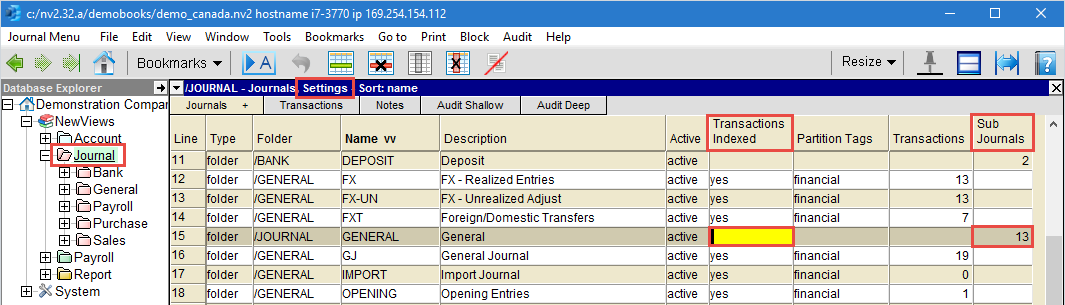
Position on a table of journals (brown).
There are three types of journals: General, Purchase and Sales.
Included in the General type are the Bank, General and Payroll journals.
-
Position on the journal you want to print or mark a block of journals to be printed.
If no block is marked, the current journal is processed.
Note that in this case, many transactions may still be printed.
For example, if the current journal is a branch journal
(i.e. with sub-journals) and you specified yes in the Transactions Indexed
setting of the journal table (brown), then all the transactions on the sub-journals
within the branch are printed.
If you want to explicitly select the number of journals/transactions to be printed,
then use the Block>Start and Block>End commands
to mark the journals/transactions in a block.
-
Issue the Print>Journal Transactions command.
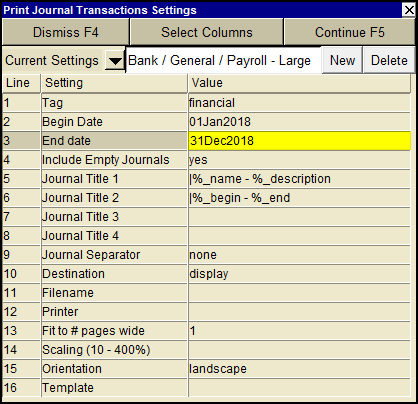
A print settings window will appear shown below.
Four groups of preset print settings are provided:
three for each of the basic journal types, plus one that
can be used if the command is run from the root journal.
Each group contains presets from small to large or XL.
Small prints a minimum set of columns/fields,
Medium prints a more extensive set of columns/fields,
and Large and XL prints a very comprehensive set of columns/fields.
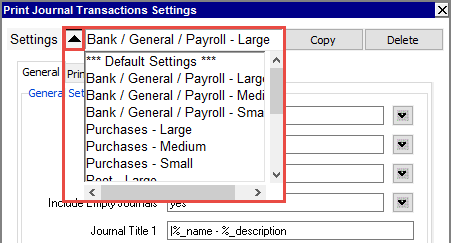

Use can use User Options to switch between modern and classic styles for the prompt.
-
Fill in the print settings fields.
For the meaning of each setting, refer to the Print Settings Field Summary, found below.
-
Click the <Continue> button or press <F5> to print the account ledgers.
When <Continue> is clicked, the output might be sent to
Excel or to a file instead of the printer, depending on the value
set in the Destination field.
Print Journal Transactions Settings
|
Line
| Field
| Values
| Comments
|
1
| Tag
| financial
order
budget
empty
| specified - only transactions with the specified tag are printed. financial, order, and budget are built-in partition tags but you can add custom tags as well.
|
2
| Begin Date
|
| Only transactions dated on or after the begin date are printed. See Setting Begin and End Dates
|
3
| End Date
|
| Only transactions dated on or before the end date are printed. See Setting Begin and End Dates
|
4
| Include Empty Journals
| yes
no
| yes - any journal for which no transactions match the selection criteria, is simply skipped.
no - prints journal (headers only) even when there are no transactions.
|
5
| Journal Title 1
|
%_today
%_path
%_report_path
%_name
%_description
%_report_name
%_report_description %_begin
%_end
%_view
| Text to print at the top of each journal.
Today's Date
Journal's Path
Report's Path
Journal's Name
Journal's Description
Report's Name
Report's Description
Date Range Begin
Date Range End
View
|
6
| Journal Title 2
| as above
|
|
7
| Journal Title 3
| as above
|
|
8
| Journal Title 4
| as above
|
|
9
| Journal Separator
| page
sheet
none
| page - each journal starts a new page.
sheet - each journal is sent to a new Excel sheet.
none - multiple journals are printed per page.
|
10
| Destination
| display
file
printer
| display - exports to Excel and opens Excel for a preview.
file - sends output to the file specified in Filename.
printer - sends output to the printer identified by Printer.
|
11
| Filename
|
| The output file name. The file type must be {".xls"}, {".xlt"} or {".pdf"}. Important see note on Output File Names options.
|
12
| Printer
|
| If Destination is printer then output is sent to the printer specified here. If this field is empty then output will be sent to the Windows default printer. Press <F3> to select from a list of available printers. NOTE: To clear the Printer field Press <F3> to select from the list of printers, and click on <Cancel>
|
13
| Fit to # pages wide
|
| Shrinks the output, if necessary, to fit on the number of pages wide specified here.
|
14
| Scaling (10 - 400%)
|
| Stretches the output (shrinks or expands).
|
15
| Orientation
| portrait
landscape
| Prints pages vertically (portrait) or horizontally (landscape).
|
16
| Template
|
|
|
Normally, begin and end dates are straightforward. One exception is when you want to
print all transactions, and be certain that you have not missed any.
NewViews dates are restricted to most of the Unix Epoch, meaning Jan 01, 1904 to Dec 31, 2036.
Transactions outside this date range are prohibited, so setting the range to these dates
will guarantee that all ledger items are printed.