Position on any table of journal transactions (pink).
If no block is marked the current journal transaction is processed.
Transactions can be sorted by any available order, i.e. Date order,
Reference order, Comment order, Line number order or in reverse.
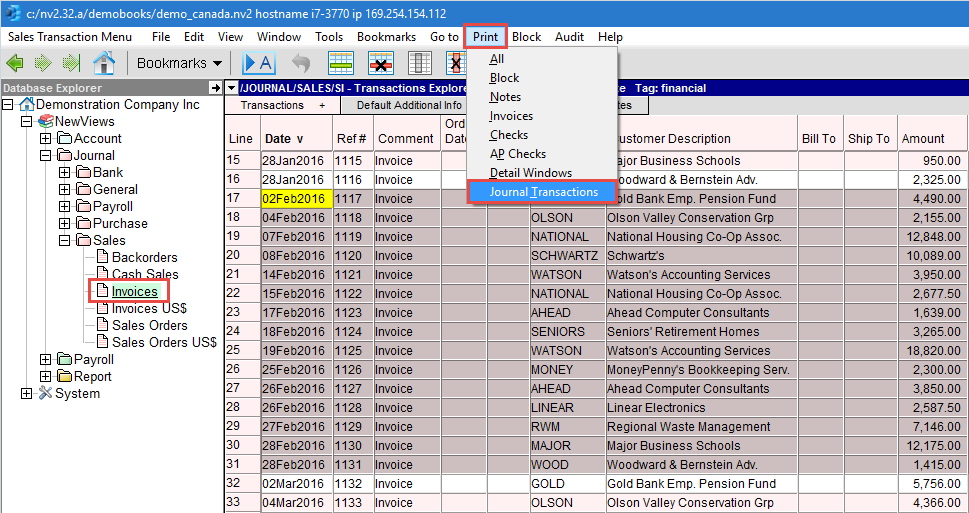
Issue the Print>Journal Transactions command.
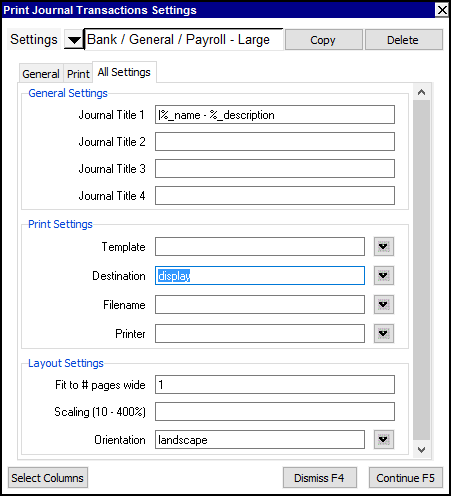
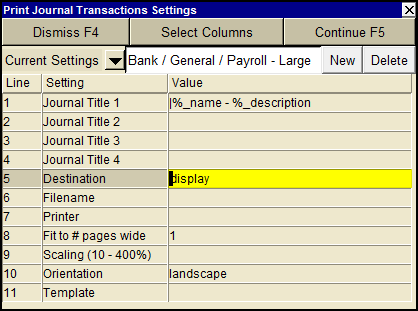
A print settings window will appear as shown below.
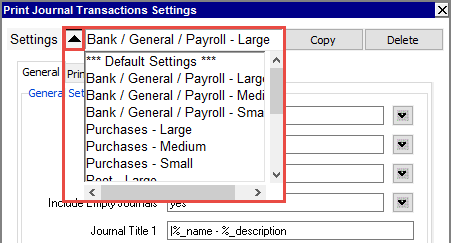
Four groups of preset print settings are provided:
three for each of the basic journal types, plus one that
can be used if the command is run from the root journal.
Each group contains presets from small to large or XL.
Small prints a minimum set of columns/fields,
Medium prints a more extensive set of columns/fields,
and Large and XL prints a very comprehensive set of columns/fields.
You can use the User Options, to switch between modern and classic styles for the prompt.
Fill in the print settings fields.
For the meaning of each setting, refer to the Print Settings Field Summary found below.
Click the <Continue> button or press <F5> to print the account ledgers.
When <Continue> is clicked, the output might be sent to Excel or to a file instead of the printer, depending on the value set in the Destination field.
| Print Journal Transactions Settings | |||
| Line | Field | Values | Comments |
| 1 | Journal Title 1 | %_today %_path %_report_path %_name %_description %_report_name %_end %_view | Text to print at the top of each journal. Today's Date Journal's Path Report's Path Journal's Name Journal's Description Report's Name Report's Description Date Range Begin Date Range End View |
| 2 | Journal Title 2 | as above | |
| 3 | Journal Title 3 | as above | |
| 4 | Journal Title 4 | as above | |
| 5 | Destination | display file printer | display - exports to Excel and opens Excel for a preview. file - sends output to the file specified in Filename. printer - sends output to the printer identified by Printer. |
| 6 | Filename | | The output file name. The file type must be {".xls"}, {".xlt"} or {".pdf"}. Important see note on Output File Names options. |
| 7 | Printer | | If Destination is printer then output is sent to the printer specified here. If this field is empty then output will be sent to the Windows default printer. Press <F3> to select from a list of available printers. NOTE: To clear the Printer field Press <F3> to select from the list of printers, and click on <Cancel> |
| 8 | Fit to # pages wide | | Shrinks the output, if necessary, to fit on the number of pages wide specified here. |
| 9 | Scaling (10 - 400%) | | Stretches the output (shrinks or expands). |
| 10 | Orientation | portrait landscape | Prints pages vertically (portrait) or horizontally (landscape). |
| 11 | Template | | |