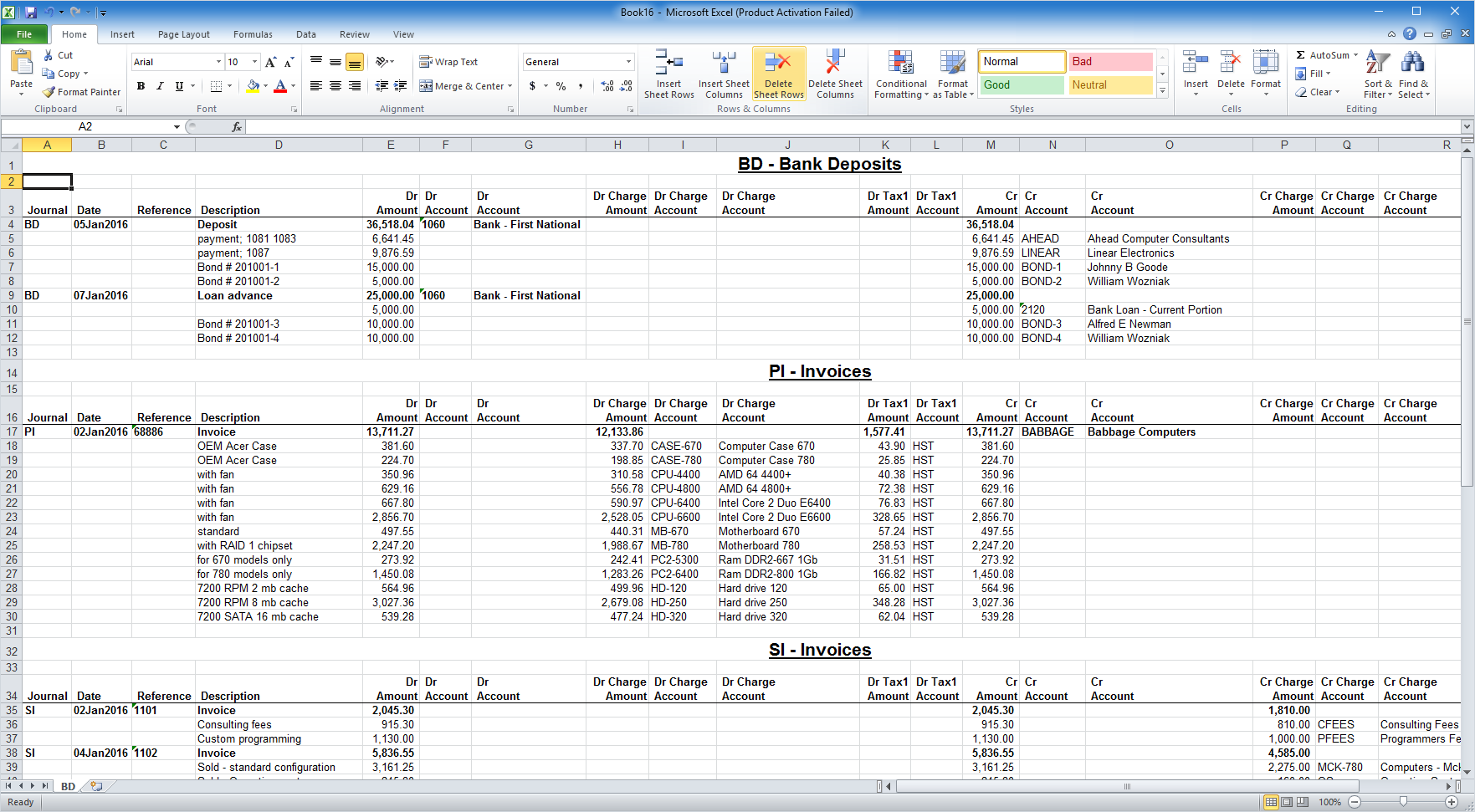
Print Journal Transactions is typically run from one of two places, and the results will be the same.
1. Run from a table of journals (brown table) as shown below - this is the method to use when
printing transactions from more than one journal at once.
2. Run from a table of journal transactions (pink table) - this is the method to use when
printing transactions (all or a block) from one journal.
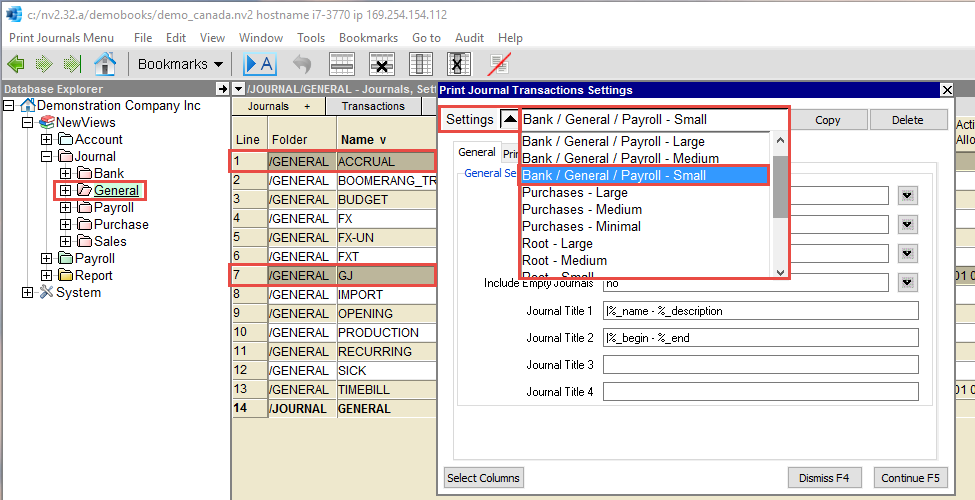
There are three basic types of journals.
Over 70 different fields can be printed for transactions. To make the selection simpler, we have provided several preset groups of fields/columns to meet typical requirements. These presets are grouped per journal type: General, Purchase and Sales, plus one additional group Root if printing from the root journal folder. Be aware of the type of journal you are printing to select one of the appropriate preset column selections.
Journals of type General have very basic debit and credit fields. When printing transactions from journals of type: Bank, General or Payroll, you should select one of the preset print settings starting with the word Bank / General / Payroll.
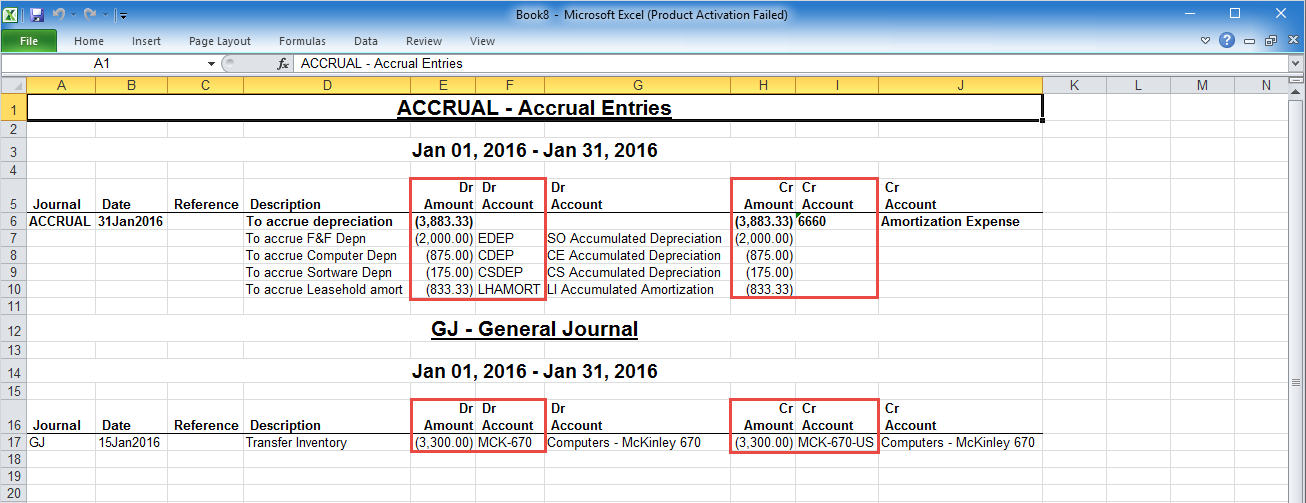
Shown below is a printout of two journals. Run from a table of journals (brown table), with the Accrual and General journals selected. The date range was set from Jan 1, 2016 to Jan 31, 2016. From the Print Journal Transactions settings prompt, we selected the Bank / General / Payroll - Small setting, as shown above.
Row one below is the heading for the 1st journal, followed by one sample transaction, an accrual entry on Jan 31, 2016 on row 6. Row 12 is the heading for the 2nd journal, with a simple transaction on row 17. Both journals are displaying the Debit amounts and accounts in columns E and F with the Credit amounts and accounts in columns H and I.
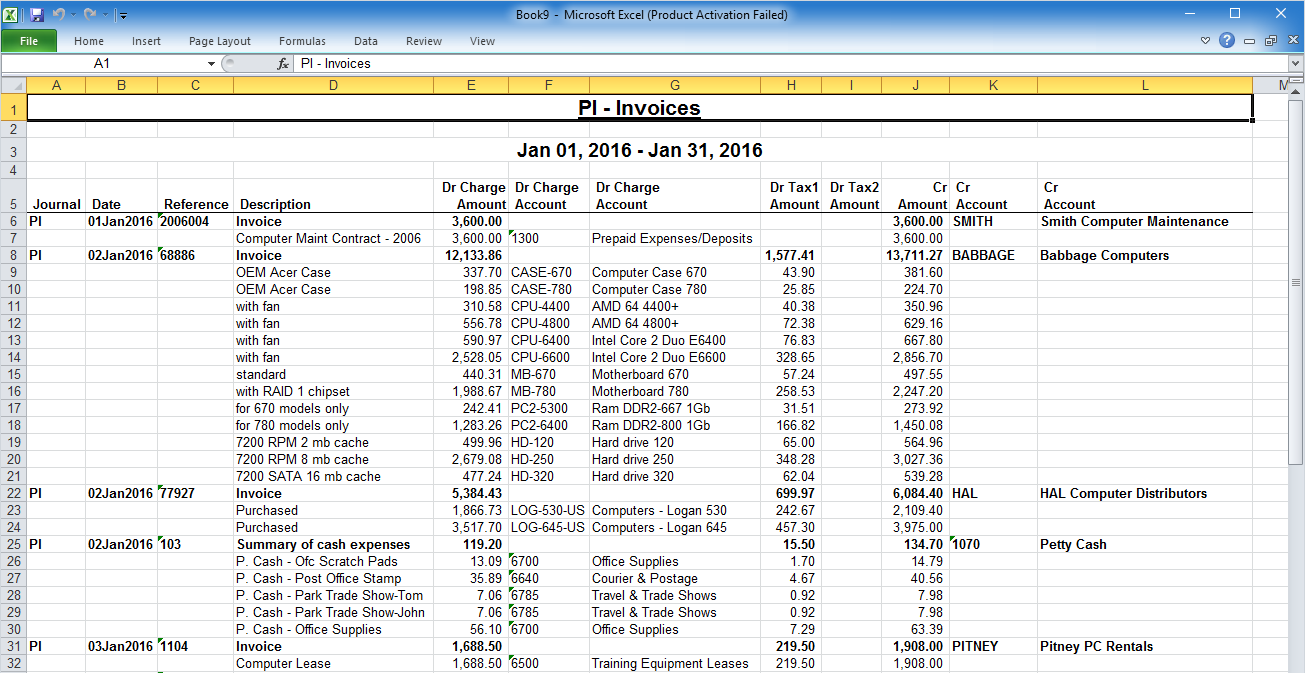
Journals of type Purchase have additional fields such as Debit charge amount, Debit charge account, TAX1, TAX2, etc. When printing transactions from journals of type purchase you should select one of the preset print settings starting with the word Purchase.
Purchase transactions typically are not just simple debit and credit postings. Show below are transactions with Debit charges posted to Inventory, Expense and Tax accounts and Credits posted to Vendor accounts. Note that no postings where debited to the TAX2 account. From the Print Journal Transactions settings prompt, we selected the Purchase - Small setting.
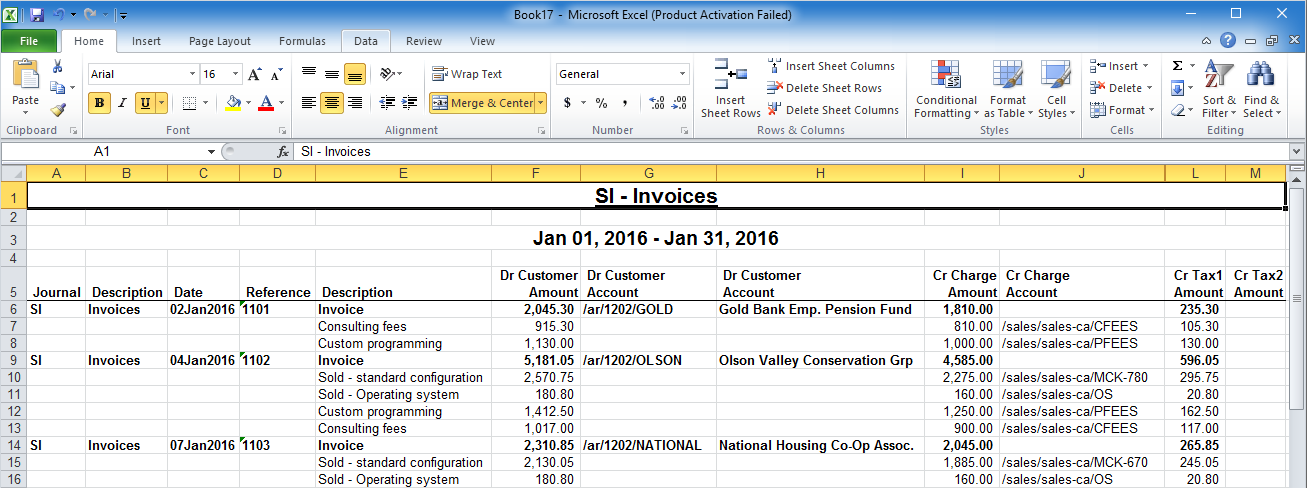
Journals of type Sales have additional fields such as Debit customer amount, Debit CGS, Credit Inventory, TAX1, TAX2, etc. When printing transactions from journals of type purchase you should select one of the preset print settings starting with the word Sales.
Sales transactions typically are also not just simple debit and credit postings. Show below are transactions with Debit charges posted to Customer accounts and Credits posted to Sales and Tax accounts. From the Print Journal Transactions settings prompt, we selected the Sales - Small setting.
When an accountant asks to have all transactions printed for a period, it's best to print from the root journal.
The Root journal is the folder with the description Journal.
When you position on this folder in the Database Explorer,
the window to the right should show a brown table of all journals.
You may select all journals here, or block a smaller selection.
Since you will likely be printing transactions from all types of different journals, it best to select one of the preset print settings starting with the word Root. There are four (4) preset print settings for Root: Small, Medium, Large and XL. Small will print simple Dr and Cr amounts and accounts. Large will print several Dr amounts and accounts as well as several Cr amounts and accounts. Try printing a small sample of transactions with each setting and see which you and your accountant prefer. Each preset may be modified by adding or removing fields (see Selecting Columns to Be Printed).