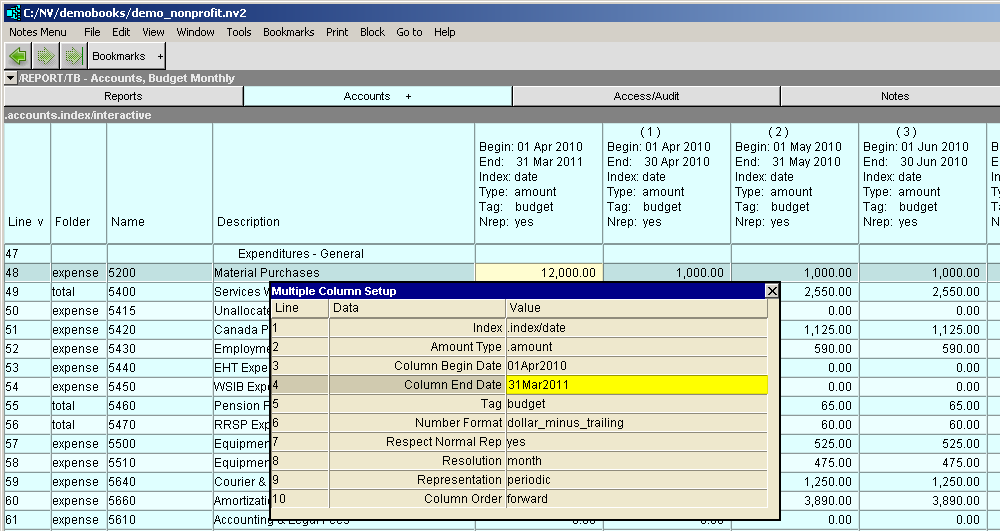
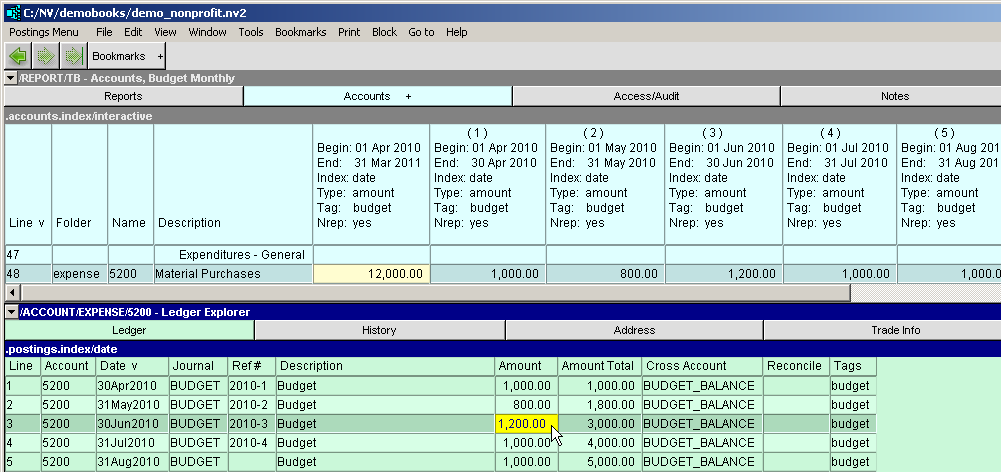
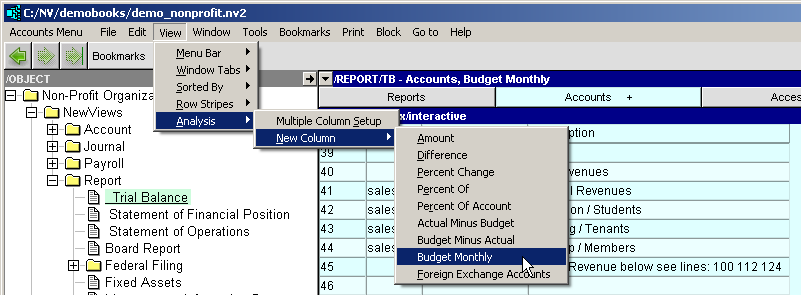
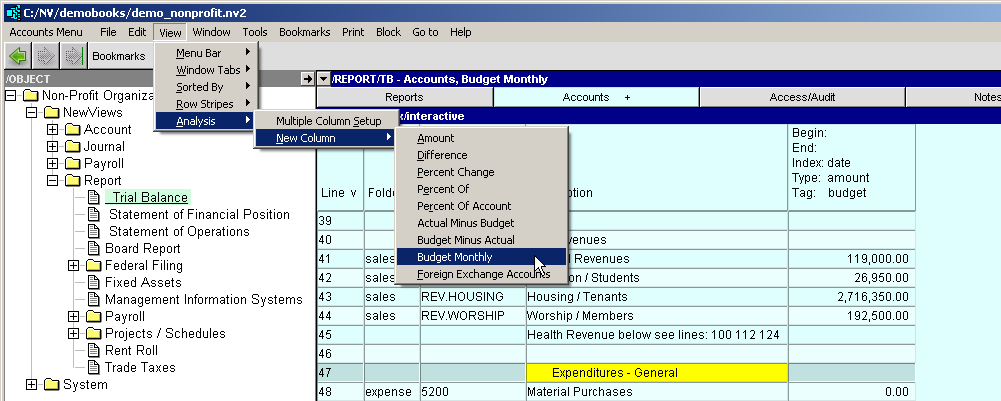
The View>Analysis>New Column>Budget Monthly creates an amount column on any blue table. The Budget Monthly column is similar to the Budget column on the Account's Budget view. You enter budget amounts directly on the blue Monthly Budget column.
The date range set in the Budget Monthly column controls the number of budget transactions that will be created. i.e., if the date range in the Budget Monthly column is set to a year, then 12 budget entries will be created.
Note: the account must be a posting account. If you get error Attempted to budget a TOTAL account, navigate to a posting account that is totaled to the TOTAL account and enter the budget amount there.
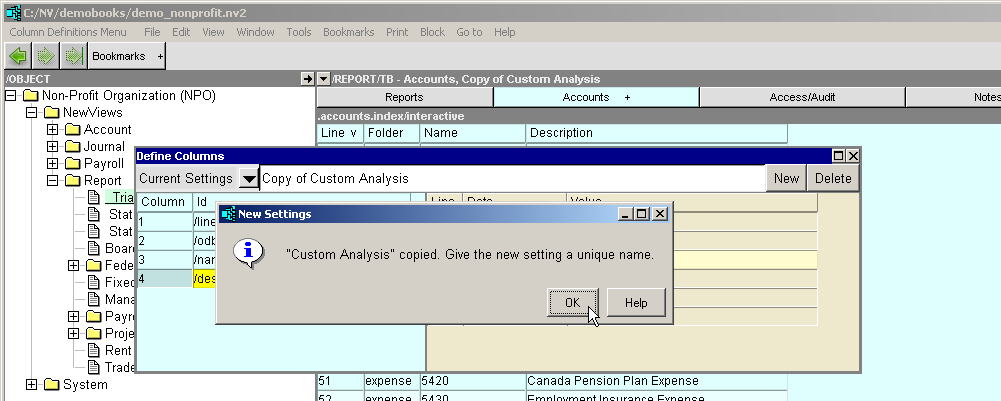
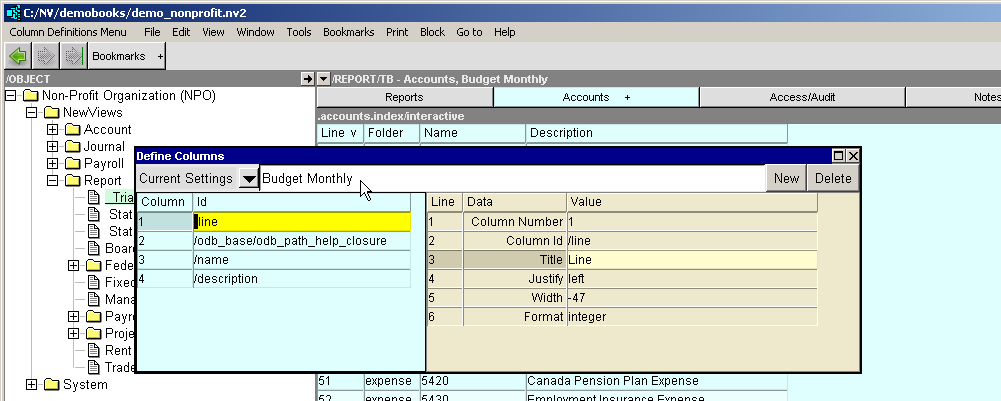
Shown below are the steps to creating the Budget Monthly view.
The Budget Monthly column can be added to any Account's view, but we recommend starting with a clean slate. If your Custom Analysis view has more than the three default columns, continue with the create, copy and naming of the table (steps 1 to 5). After step 5, delete all but the basic three columns (Folder, Name & Description), (see Modifying Tables).
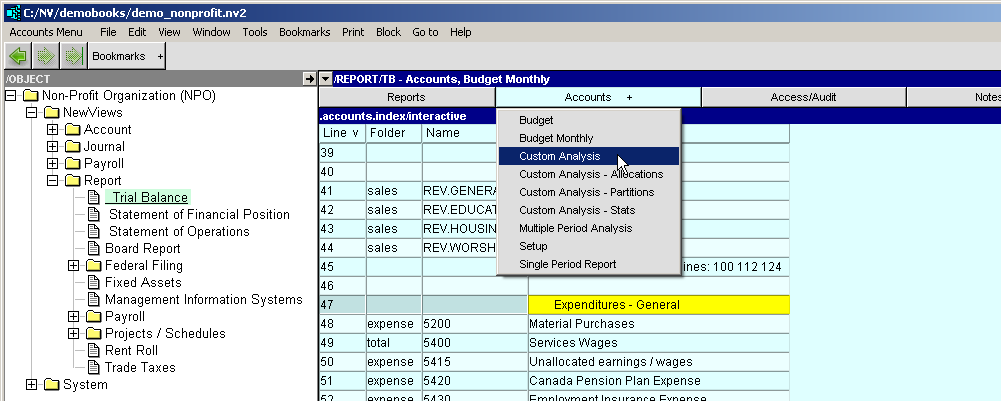
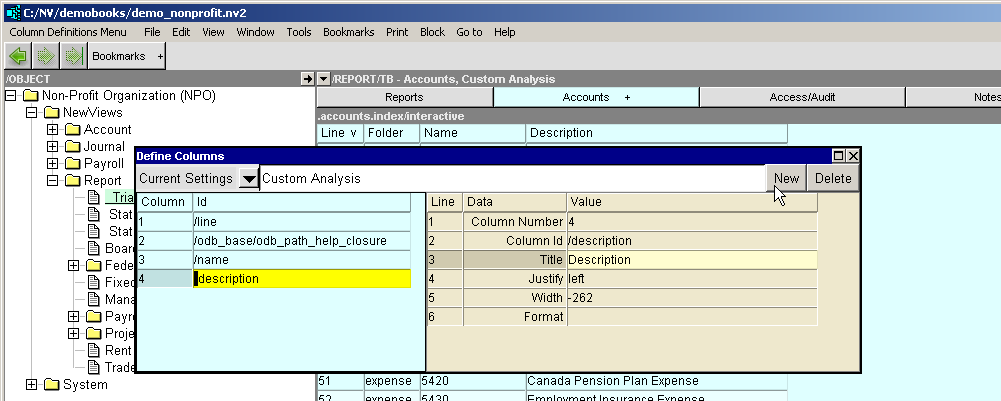
All new table views are added to the list in the Accounts + tab. For a full explanation see Managing Column Layouts .
Although the Budget Monthly column has the appearance of an amount column, it has specific behavior.
The date range set in the Budget Monthly column controls the number of budget transactions that will be created. i.e., if the date range in the Budget Monthly column is set to a year, then 12 budget entries will be created. Any date range greater than a month can be set, e.g. 18 months, or 3 years.

Since the Budget Monthly column's tag is set to budget, the ledger/posting table is restricted to budget transactions. See Ledger/Posting Table Views.
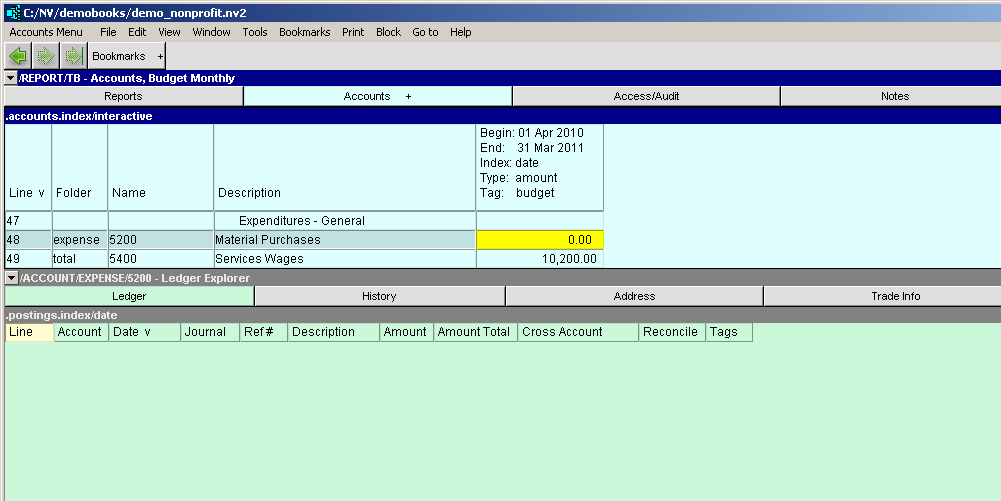
The behavior of the budget values entered on the blue table are similar to the Accounts Budget view. However budget entries through the book of Final Entry will now generate negative values for credit postings.
Note: the account must be a posting account. If you get error Attempted to budget a TOTAL account, navigate to a posting account that is totaled to the TOTAL account and enter the budget amount there.
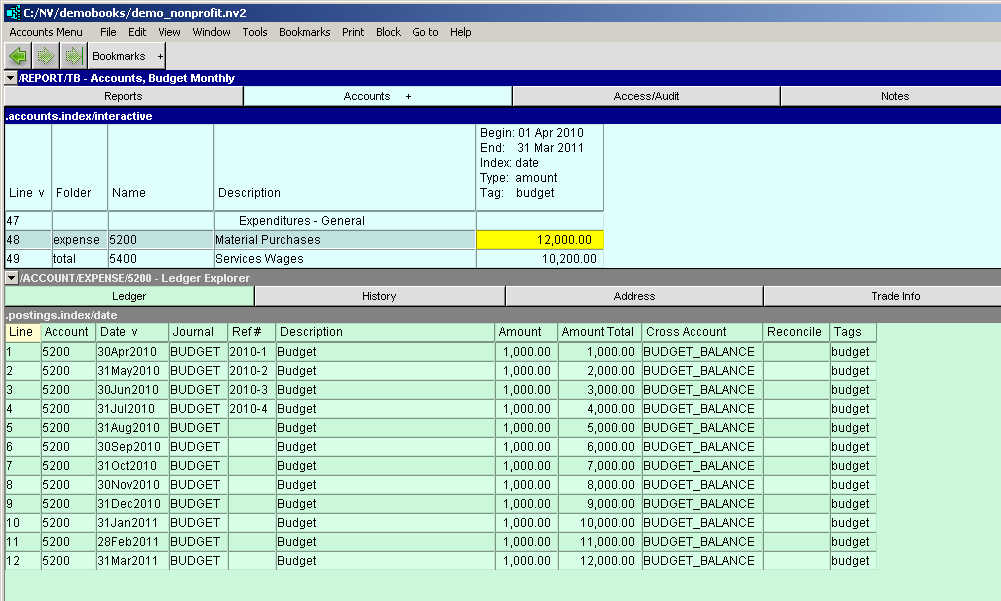
Steps 9 to 11 are optional. We recommend using Multiple Columns as a quick reality check of all budget amounts and balances for a given date range.
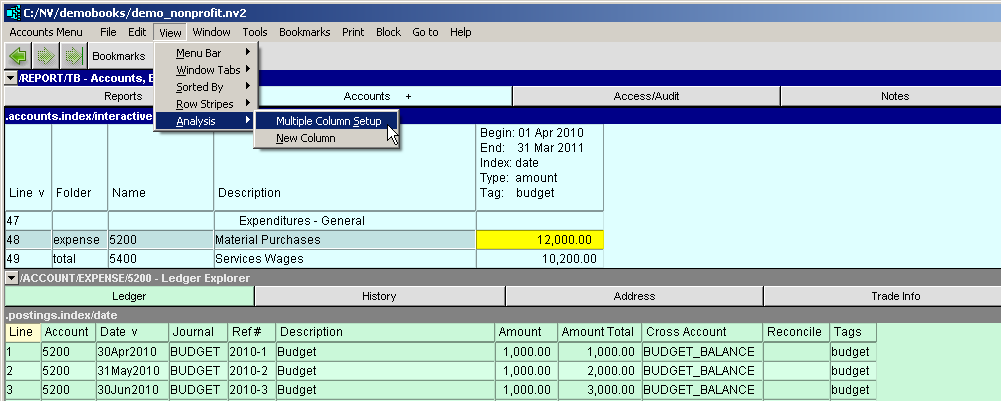
The Multiple Columns are not coupled to the Budget Monthly column. When you change the date range on the Budget Monthly column you will also need to change the date range on the Multiple Column Setup.