To view/edit the geographic sales tax codes for ALL customer accounts:
Click NewViews/Account/Accounts Receivable.
Use the window tab Geographic Tax Codes or window list button at the left of the title bar that reads /ACCOUNT/AR to select the Geographic Tax Codes window.
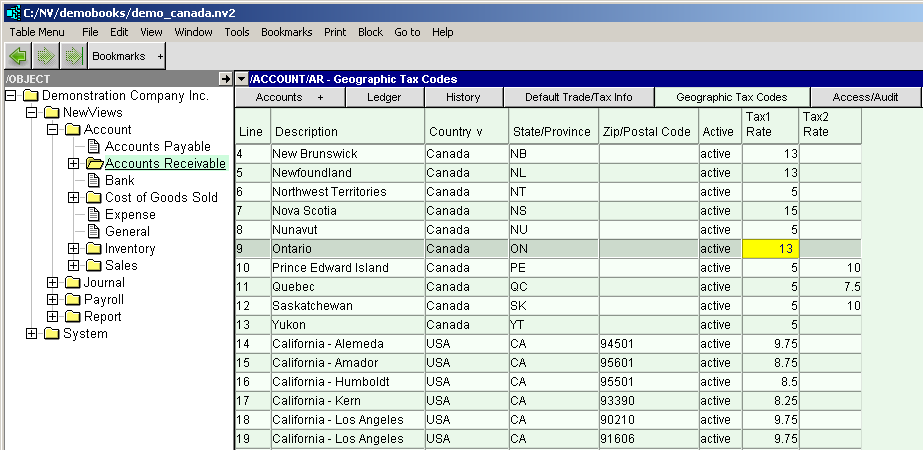
Add rows to the table as per the screen shot below.
If you sell across borders into tax jurisdictions with separate tax rates, you may need to use those rates. If you have an office in that destination jurisdiction you may also have to charge the local tax.
So how does NewViews handle this? NewViews has a geographic tax code table that serves as a lookup for regional tax rates. The regions can be defined by country, state, province, and zip/postal code. As an example, Canadian companies selling into separate provinces can use a table with 12 rows; one per province and territory. In the USA, you can add rows to the level of resolution needed, i.e. typically by state, or when necessary by zip code.
On a sales transaction the customer's shipping address is used to find the closest match in the geographic tax table for the purpose of retrieving a tax rate. If the shipping address is blank then the billing address is used. Finally, if the shipping address is blank and no address information can be mapped to the geographic table, then the sales journal rate will be used.
You most often do not need to use special geographic rates.
Example: If you only have a business in California then you only need to charge the various sales tax rates within California. Add rows for each zip code and corresponding tax rate you deal with in California. If you sell to New York from California, then there is no tax. However, if a California company also has a branch office in New York then they must charge the various New York sales tax rates. Add rows for each zip code and corresponding tax rate you deal with in California. Also add rows for each zip code and corresponding tax rate you deal with in New York.
Example: If you only have a business in Ontario then you only need to charge sales tax within Ontario. If you sell to Quebec from Ontario, then you only charge GST/HST (5%). However, if an Ontario company also has a branch office in Quebec then they must charge the Quebec QST (7.5%) provincial sales tax.
If you have a branch office in another state or province, we recommend that you set up a sales journal specific to that state or province. With the additional journal you can set the tax account specific to that jurisdiction. If the branch office is in Manitoba, PEI, Quebec or Saskatchewan you need to set up Tax 2.
Further note that when matching address information to the geographic tax table you must be consistent with the address. For example, "New York" in a customer address would not match "NY" in the table, and vice versa.
| Geographic Tax Codes | |
| Field | Description |
| Name | Optional name of geographic tax code row. |
| Description | Optional description of geographic tax code row. |
| Country | Optional. |
| State/Province | In Canada, the Province should be used as a geographic region to specify sales tax rates. In the USA, the County can be used as a geographic region to specify sales tax rates. |
| Zip/Postal Code | Optional in Canada. Used in the USA to specify County sales tax rates. |
| Active | If inactive then this item is ignored. It is treated just as if it were not there. This allows you to make an item inactive without actually deleting it. |
| Tax1 Rate | Rate of sales tax 1 in effect in this geographic region. |
| Tax2 Rate | Rate of sales tax 2 in effect in this geographic region. |
NOTE: Default trade taxes for a specific customer are set by accessing the Trade/Tax Info window for that customer and changing the settings.