T4A Slips are printed from the T4A List window:
To print one employee's T4A slip, simply click on the appropriate employee line.
To print T4A slips for multiple employees, use the menu commands Block>Start and Block>End to block the employees. (Note: Employees in the block that have "no" in the "Print T4A" column are skipped.)
Issue the menu command Print>T4As
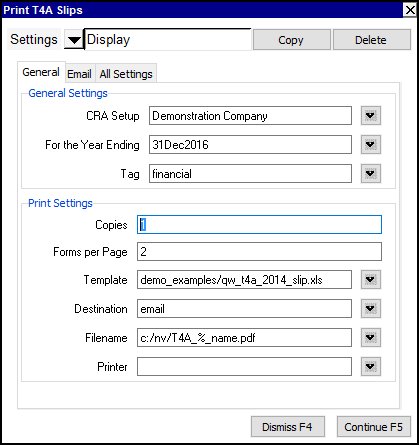
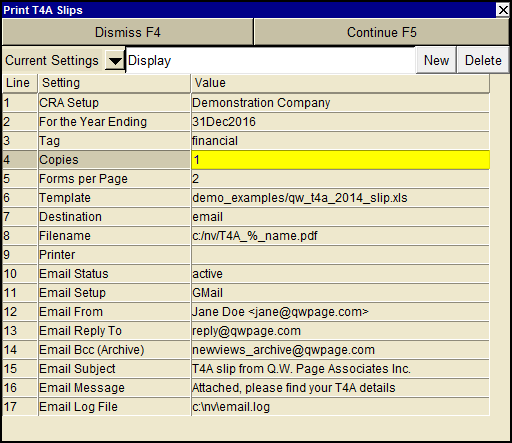
Fill in the print settings window as described below.
| Print T4A | |||
| Line | Field | Value | |
| 1 | CRA Setup | Select the appropriate settings from the CRA Setup. | |
| 2 | For the year ending | Enter the year end date for which you are printing the slip. | |
| 3 | Tag | Select "financial" for all debits for the year. Select "t5" for all "tagged" debits for the year. See Selecting Transactions with Tags for more. | |
| 4 | Copies | This sets the number of times each recipient's T4A information is printed. Please see the How Many Copies & Forms To Set? for a full explanation of this. | |
| 5 | Forms per page | This sets the number of T4A forms on each T4A page. (As of 2005 there are 2 forms per page.) Please see the How Many Copies & Forms To Set? for a full explanation of this. | |
| 6 | Template | The template to be used to print the T4A(s). Press <F3> to select the template from an explorer (double click to select). | |
| 7 | Destination | display file printer | display - exports to Excel and opens Excel for a preview. file - sends output to the file specified in Filename. printer - sends output to the printer identified by Printer. |
| 8 | Filename | The output file name. The file type must be {".xls"}, {".xlt"} or {".pdf"}. Important see note on Output File Names options. | |
| 9 | Printer | If Destination is printer then output is sent to the printer specified here. If this field is empty then output will be sent to the Windows default printer. Press <F3> to select from a list of available printers. NOTE: To clear the Printer field Press <F3> to select from the list of printers, and click on <Cancel> | |
| 10 - 17 | Email | See email Print Settings for more. | |
At the present, there are 2 T4A forms per page on the forms provided by CRA, and you are required to:
This is easily accomplished by following these steps:
Print the recipient' (2) copies: Set "Copies per recipient" to 2 and print all recipients T4As.
This will result in one page per recipient, with the T4A information for that recipient repeated twice.
Print your (1) copy: Set "Copies per recipient" to 1 and print all recipients T4As.
Print CRA's (1) copy: Leave "Copies per recipient" to 1 and print all recipients T4As again.
In steps 3 & 4, each page will contain the T4A information for two recipients. You keep the T4A forms printed in step 3, and send the forms printed in step 4 to CRA.