The T5 Summary is printed from an Accounts Payable sub-folder.
Position on the appropriate accounts payable sub-folder.
If your accounts payable is a single flat list with no sub-folders, you may use Discontiguous Blocks. This will ensure that only T5 accounts are included.
Issue the menu command Print>T5>Summary
On Line 1 of the Print T5 Summary prompt, select the appropriate settings from the CRA Setup.
Fill in the rest of the print settings window as described below.
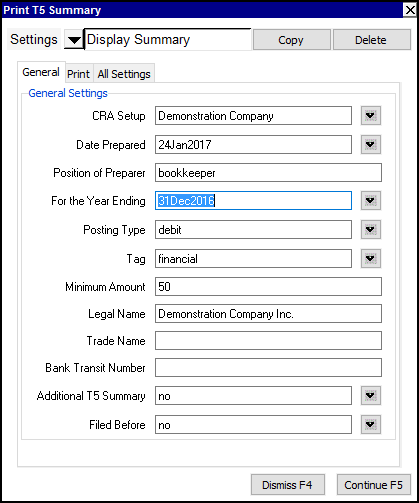
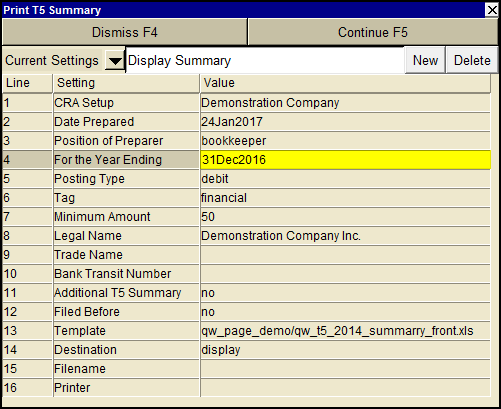
| Print T5 Summary | |||
| Line | Field | Value | |
| 1 | CRA Setup | Select the appropriate settings from the CRA Setup. | |
| 2 | Date prepared | Enter the date that the T4 summary is being prepared. | |
| 3 | Position of preparer | Enter the position of the preparer to be printed on the T4 summary. | |
| 4 | For the year ending | Enter the year end date for which you are filing the return. | |
| 5 | Posting Type | debit credit | debit - to report the debit flow, (payments to the account) credit - to report the credit flow, (charges to the account) |
| 6 | Tag | Select "financial" for all debits/credits for the year. Select "t5" for all "tagged" debits/credits for the year. See Selecting Transactions with Tags for more. | |
| 7 | Minimum Amount | If required, you can restrict the 1099s to be printed for amounts over a specified dollar value. For example, to print only accounts with an amount of $600 or more, set this field to $600.00 | |
| 8 | Legal Name | Enter your (the payer's) legal name. | |
| 9 | Trade Name | Enter your (the payer's) trade name. | |
| 10 | Bank Transit Number | If you are reporting for a financial institution or any similar business, enter the recipient's transit code or branch identification code (up to eight characters). | |
| 11 | Additional T5 Summary | yes no | yes - have filed for this year. no - this is the first time filing this year. |
| 12 | Filed Before | yes no | yes - have filed in the past. no - this is the first time filing. |
| 13 | Template | The template to be used to print the T5 summary. Press <F3> to select the template from explorer (double click to select). | |
| 14 | Destination | display file printer file_xml | display - exports to Excel and opens Excel for a preview. file - sends output to the file specified in Filename. printer - sends output to the printer identified by Printer. file_xml - sends output to an xml file for transmittal to Revenue Canada. |
| 15 | Filename | The output file name. The file type must be {".xls"}, {".xlt"} or {".pdf"}. Important see note on Output File Names options. | |
| 16 | Printer | If Destination is printer then output is sent to the printer specified here. If this field is empty then output will be sent to the Windows default printer. Press <F3> to select from a list of available printers. NOTE: To clear the Printer field Press <F3> to select from the list of printers, and click on <Cancel> | |