Opening a Set of Books
In order to open a set of books, the file name corresponding to the books must be specified
in the File field in the workstation login table.
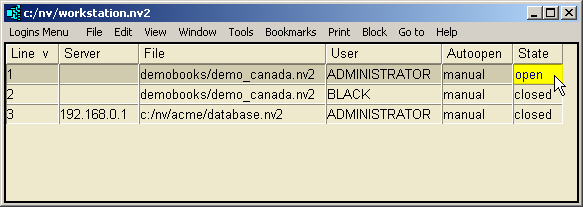
Assuming that NewViews 2 was installed on drive C in a
directory called NV (the default location for a standard NewViews installation),
file names for books typically have the following format:
yourbooks.nv2
where yourbooks is the name that has been given to a set of books (usually the name of the
company or organization, or some variation thereof) and nv2 is the extension assigned to
NV2 databases.
Books can also be stored in folders, in which case the path to the books is specified in the file
name. When books are converted from NV1, they are assigned the name database.nv2 and stored in a
folder within the NewViews directory. For example, an NV1 set of books called acme that
was converted to NV2 might appear in the File field of the NewViews workstation as follows:
c:/nv/acme/database.nv2
Note that NewViews uses a forward slash ( / ) as a separator in file paths and will not
recognize the backslash ( \ ) character.
Books can be stored anywhere on a local hard drive or peripheral storage device, in which case
the file name must include the complete path.
To open a local set of books (single user installation):
-
If the books you want to open are displayed in the File field in the NewViews workstation
login table, cursor to the State field, press <F3> and select <Open>.
Or, you can simply double click the State field to open the books.
Note that the same set of books can be listed multiple times in the login table for
different users (the default user is ADMINISTRATOR). If you are not the administrator
for a set of books, choose the version of the books that display the user name you have
been given in the User field.
-
If the books you want to open are not listed in the workstation login table, you will have
to add them before you can open them (e.g. if this is the first time the NewViews workstation
has been run, no books will be listed).
To add a set of books to the workstation login table:
-
Insert a new row in the login table with the Edit>Insert command.
Or, you can simply press the <Insert> key.
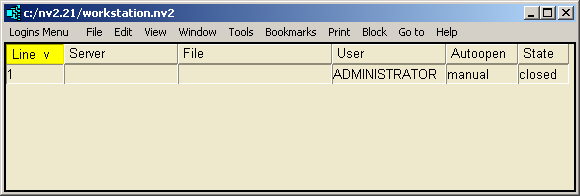
A blank row will appear in the table; the User, Autoopen and
State fields will be filled in automatically as follows:
For information on the Autoopen field, see Opening Databases Automatically.
For information on the User field, see Setting Up Security.
-
Position on the File field and press <F3>.
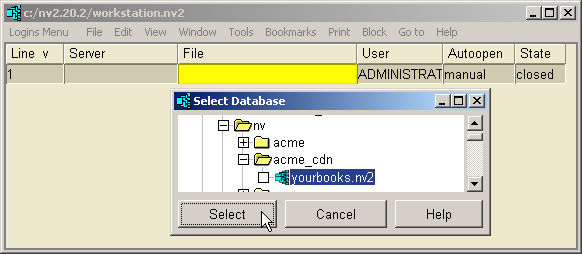
Using the file explorer that pops up when you press <F3>, navigate to the
appropriate file name and click <Select>, or just double click the file name.
By default, the file explorer points to the folder in which NewViews is installed as a
starting point.
Alternatively, you can type the exact file name for the books (including the complete path)
in the File field.
Be sure to use a forward slash ( / ) and not a backslash ( \ ) as the separator in the file path.
Once the books you want to open have been added to the login table, you can open them as described above.
To open a remote set of books (multi-user installation):
When opening a local set of books, the Server field is left empty. To open a remote set of books
(i.e. books stored on a computer that is running the NewViews server), the server name or IP address
must be entered in the Server field.
Once the server name/IP address is specified, the books are opened in exactly the same manner as a
local set of books (see above).
For more information on accessing books remotely, see Remote Access
in the NewViews manual.
To close a set of books:
Books are normally closed using the File>Close command, or by clicking the
 button in the top right hand corner of the window, while in a set of books.
Books can also be closed from the NewViews workstation by positioning on their State field,
pressing <F3>, and selecting <Close>.
Clicking the button in the top right hand corner of the workstation will close all
books that are open and exit NewViews.
Copyright (c) 2003-2026 Q.W.Page Associates Inc., All Rights Reserved.