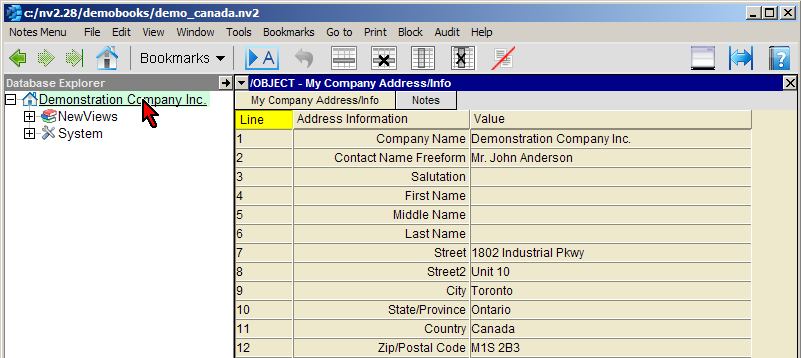
General information about the company (e.g. the company address) is entered in the My Company Address/Info window. This information can also be edited at any time.
Note: For cross border EFT transactions (NACHA International ACH Transactions), the company name and complete address (street, city, province and postal code) must be entered.
| My Company Address/Info | ||
| Line | Address Information | Value |
| 1 | Company Name | Enter the company name in this field. The value entered here will be displayed as the description of the root folder for all Database Explorers in this set of books. |
| 2 to 6 | Contact Name Freeform, Salutation, First, Middle and Last Name | If you do not have any requirement to use different components of the contact name separately (e.g. last name), enter the name of the company's contact person in this field. Otherwise, enter the components of the contact name separately, using the Salutation, First Name, Middle Name and Last Name fields. |
| 7 to 12 | Street City State/Province Country Zip/Postal Code | Enter the complete address in these fields. |
| 13 | Phone Freeform | If you do not have any requirement to use different components of the phone number separately (e.g. area code), enter the phone number in this field. Otherwise, enter the components of the phone number separately, using the country code, area code, prefix, suffix and extension fields. |
| 19 | Fax Freeform | If you do not have any requirement to use different components of the fax number separately (e.g. area code), enter the fax number in this field. Otherwise, enter the components of the phone number separately, using the country code, area code, prefix, suffix and extension fields. |
| 25 | Email | Enter the email address in this field. |
| 26 | Web Site | Enter the web site URL in this field. |