Adding Reports
The suggestions below may assist you in adding reports to a set of books.
-
You do not have to anticipate all possible future requirements before adding
reports although some planning is advisable.
Determine what information you need and, when in doubt, keep it simple.
More reports can be added later as the need arises.
-
The position of reports is not important since they can be rearranged at any time.
Accounts can also be moved from report to report, and report arithmetic can be changed as well.
-
Add reports that contain posting accounts first.
Summary reports (e.g. financial statements) and consolidated reports that contain only
total accounts can be added later.
To add a new report to a set of books:
-
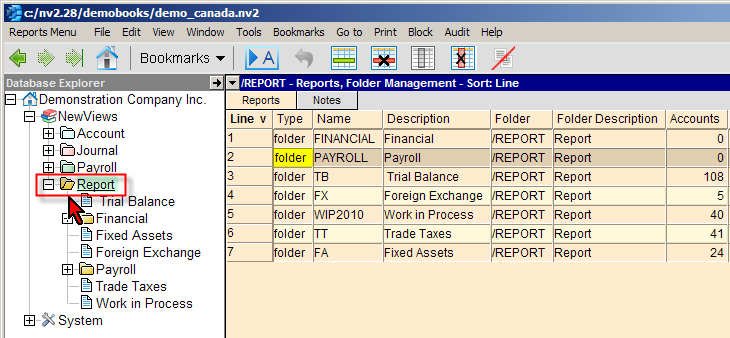
In the Database Explorer, click the Reports folder.
(If necessary, click the NewViews folder to display the Reports folder.)
-
If the new report is to be added directly below the Reports folder, proceed to step 3.
If the new report is to be added to one of the Report sub-folders (e.g. Financial),
click the folder to which the report is to be added.
-
Make sure a report table is displayed in the top window on the right (the title bar will
read REPORT - Reports, Folder Management).
If not, click the Reports tab at the top of the window.
-
In the report table, position on the line where the new report is to be added.
(Note: This step is not crucial as the report can always be moved later.
See Moving Accounts for more information.)
-
Issue the command Edit>Insert to add the new report above the active line or Edit>Append to
add the new report below the active line.
NOTE: The positioning of the new report is only an issue if the report table is in line (interactive) order. If the report table is in name or description order, the Edit>Insert and Edit>Append commands can be used interchangeably since the report will automatically be placed in the appropriate position.
-
Fill in the name and description fields for the new report (all other fields are filled in automatically).
Reports names can be as long as required, and contain any combination of letters, numbers, hyphens ( - ) and underscores ( _ ).
Report names are not case-sensitive and are automatically converted to upper case characters.
-
Moving off the line will automatically save the new report.
Copyright (c) 2003-2026 Q.W.Page Associates Inc., All Rights Reserved.