If you are having trouble with printing templates from NewViews, here are some Questions and Answers. Keep in mind that we print to any version of Excel, (97, 2000, 2002, 2003, 2007, 2010 and 2013). Newer versions of Excel have commands and settings that did not exist in prior versions.
If you upgraded to Microsoft Excel® 2007 (version 12) or 2010 (version 14) from a prior version
you may have experienced a substantial performance slow down.
Excel 2007 increased the maximum number of rows per worksheet from 65,536 to over 1 million,
and the number of columns from 256 (IV) to 16,384 (XFD).
NewViews has an command line option that works around the Excel 2007 or 2010 problem and templated
printing should run between 1.5 and 6 times faster, depending on the complexity of the template.
The default behavior of NewViews is to run with more compatible, slower print code.
The faster print code can be selected by using the command line argument -template_print_speedup.
See Command Line Options for more on running NewViews with command line control switches. Please try your templates with the faster printing turned on and report any problems to Q.W. Page.
Note: If you are using a version of Microsoft Excel prior to 2007 (version 12) you may not notice a change in performance no matter what you do.
This is most commonly caused by Excel not running properly. Check your processes in the Windows task manager and see if Excel is listed. If Excel did not shut down fully/properly, a process stub may be left in memory. If you do not see any evidence of Excel on the desktop or in the Window's Taskbar, use End Task to terminate Excel from the task manager.
After terminating Excel, shut down NewViews with Alt-X and restart NewViews.
We have also seen similar error messages when more than one copy of Excel is installed on the same computer.
This is most commonly caused by not having the correct default printer set. Check under Devices and Printers, see if the correct printer is the default. If the Excel template you are printing does not fit the paper size on the default printer it may put up this error.
Change the default printer in Windows to match the correct printer you wish to print to.
The various versions of Excel have different default margins sizes and scaling options. Open the template file with Excel.
When an Excel file .xls (printing template) is created in Excel '97 that contains an image or logo, and is then printed using Excel 2007 or 2010 you may see several duplicate copies of the image or logo.
There is a behaviour change in the newest versions of Excel. Every image has properties. One way to resolve this printing problem is:
If you have dot matrix forms that are 7" long you may need to set your computer's print server to use 7" long forms.
The new paper size should now be available in all installed printers connected to your computer.
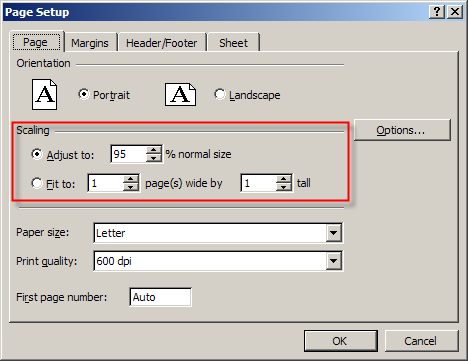
The Excel Page Setup properties has a section on Scaling. Verify that the scaling is set to % normal size, if it is set to Fit to: 1 pages(s) wide by 1 tall you may get the error message.