Start by opening Microsoft Word
Click on File>Open and select qw_professional_letter.doc
In the current document select Tools>Mail Merge
Under the "Main Document" heading, select "Create - Form Letters"
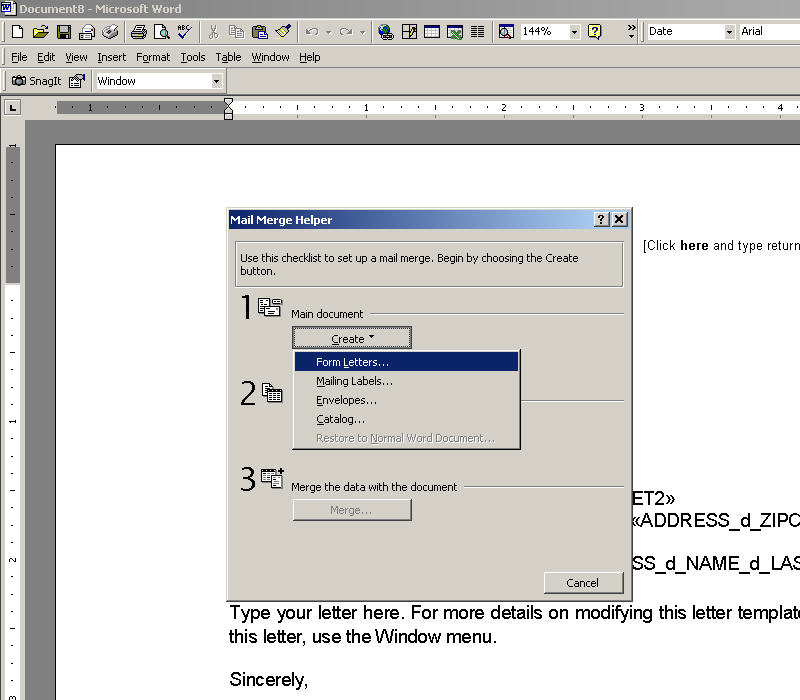
Select "Active Window"
Under the "Data Source" heading, select "Get Data - Open Data Source".
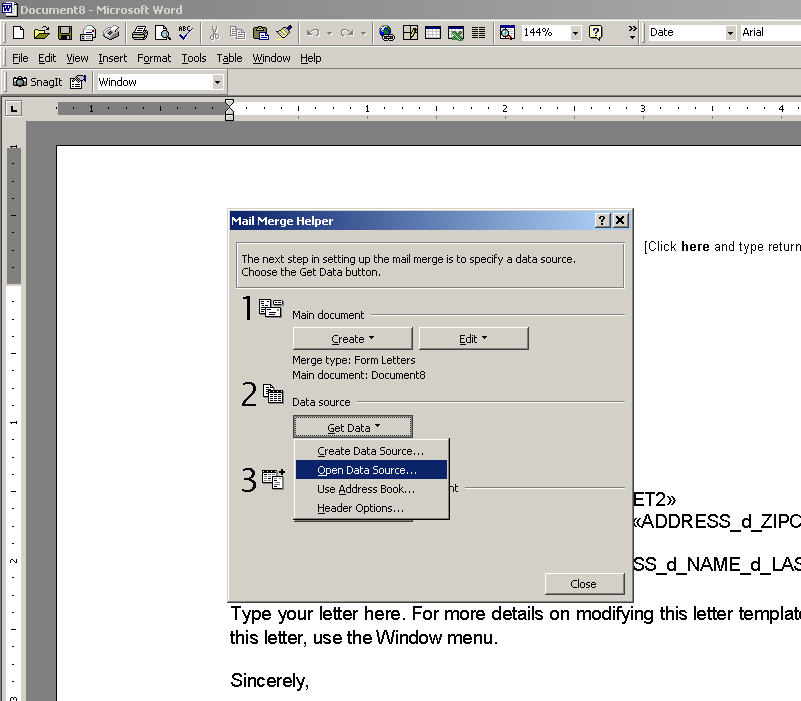
Open the "MyData.doc" file that was created using the instructions above
If Microsoft Word asks you to confirm the data source, click ok.
Click "Edit Main Document"
You should now see a button labeled "Insert Merge Field"

Click on "Insert Merge Field" to get a list of the field names.

Click on a field name to add it to your document.
Continue adding field names wherever appropriate.
Add text to this document to create a form letter.

To delete a field, position the cursor on the field and press the delete key.
When you are finished modifying the template, save it as a .doc document.