Up to ten (10) additional string/text fields and up to five (5) additional date fields can be added to any blue account table, pink journal table or green account's ledger table.
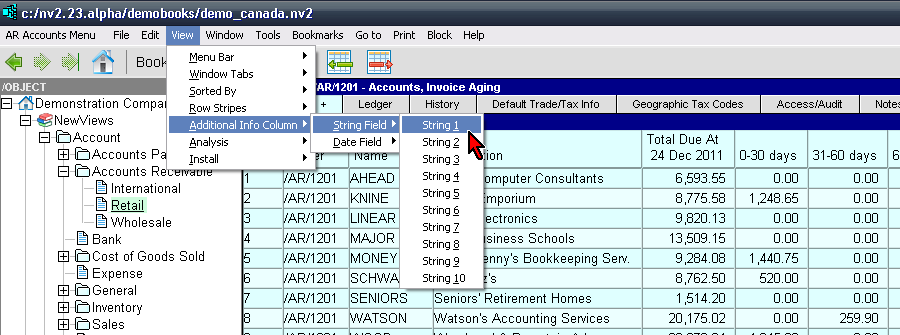
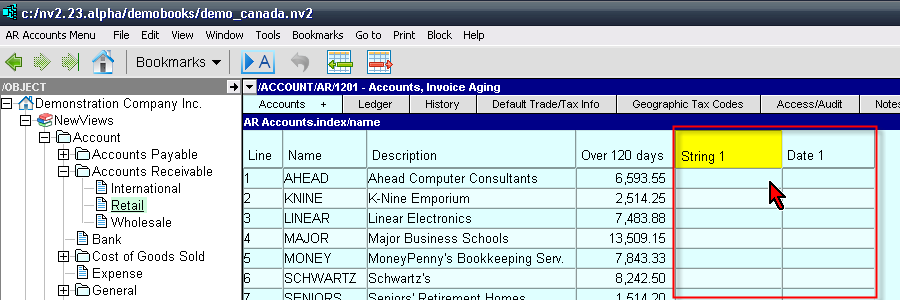
The menu command View>Additional Info Column>String Field is used to add new string/text/amount columns to tables. e.g. to add a Contract or a Contract Expire Date fields to your customer list. When the command is executed the new columns will be appended on the right side of the table. Use the <Ctrl+Right Arrow> to move the column to the right, or <Ctrl+Left Arrow> to move the column to the left.
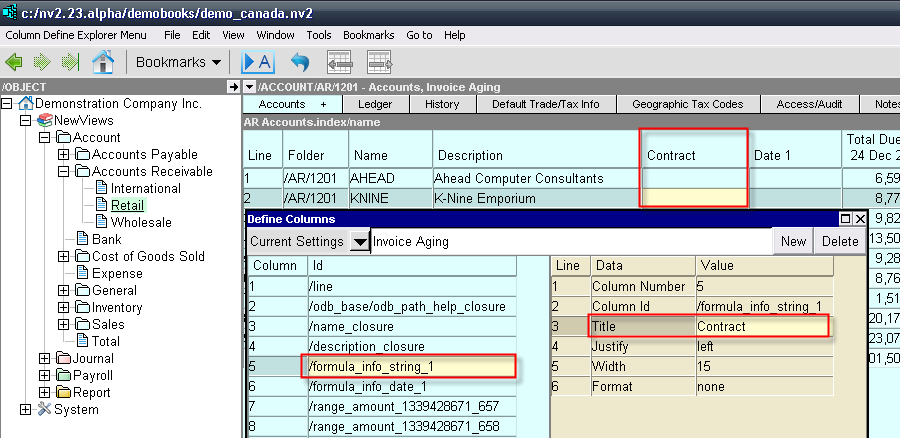
Use Window>Define column or <F11> to change the title of the column.
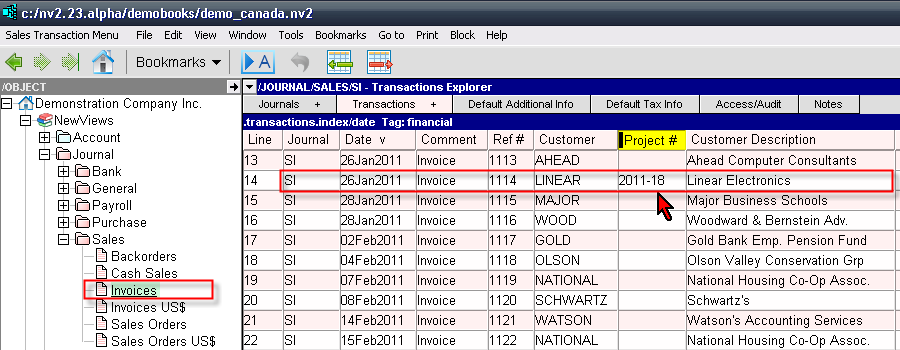
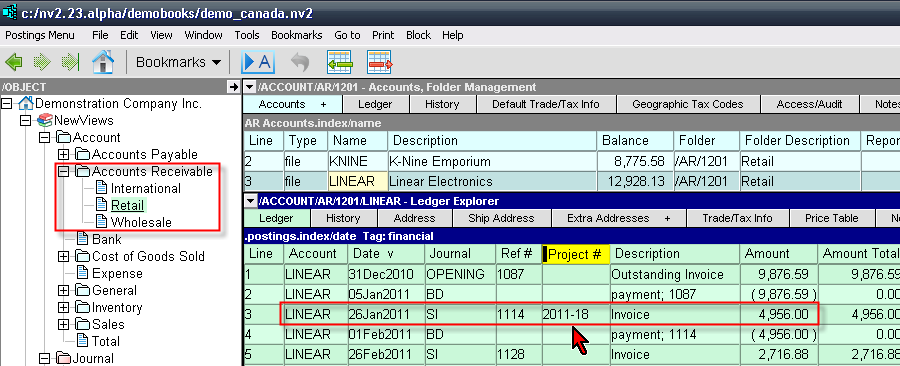
When an Info Column is added to a Journal, the same information can be viewed from an AR account using that same Journal. e.g. when we add a Project # column to the Sales Invoice journal, you can view the same information on the customer ledger.
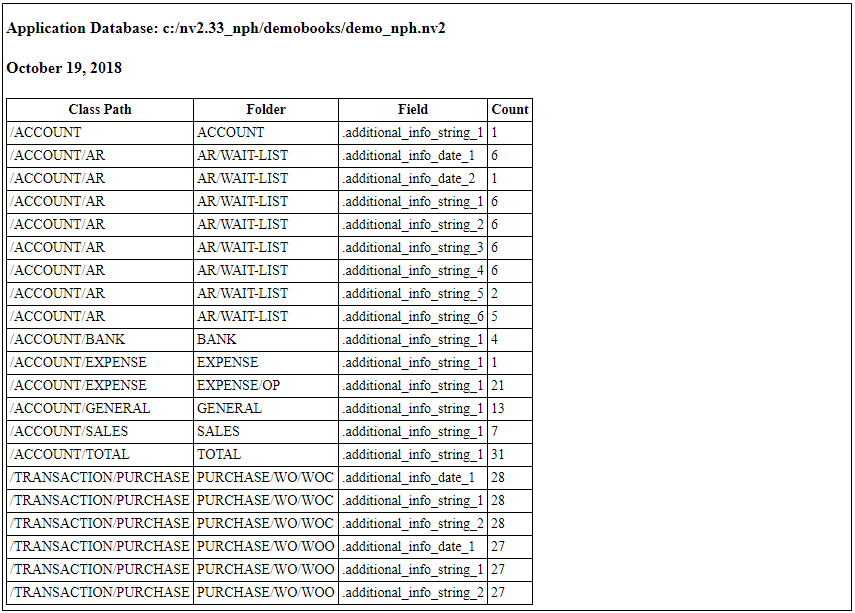
Shown below is a sample output (sent to your browser for review or print). It is displayed when you log into an application database (positioned anywhere) and execute the menu command Tools>Script Evaluate. Select the List button, then select the Browse button, and finally select the script named custom_data_report_objects_with_additional_info.qw_script.
The report displays the data object Class Path and the Folder (so you can find the data in your database explorer), the name of the additional info field, and the count of objects that have an non-empty value.
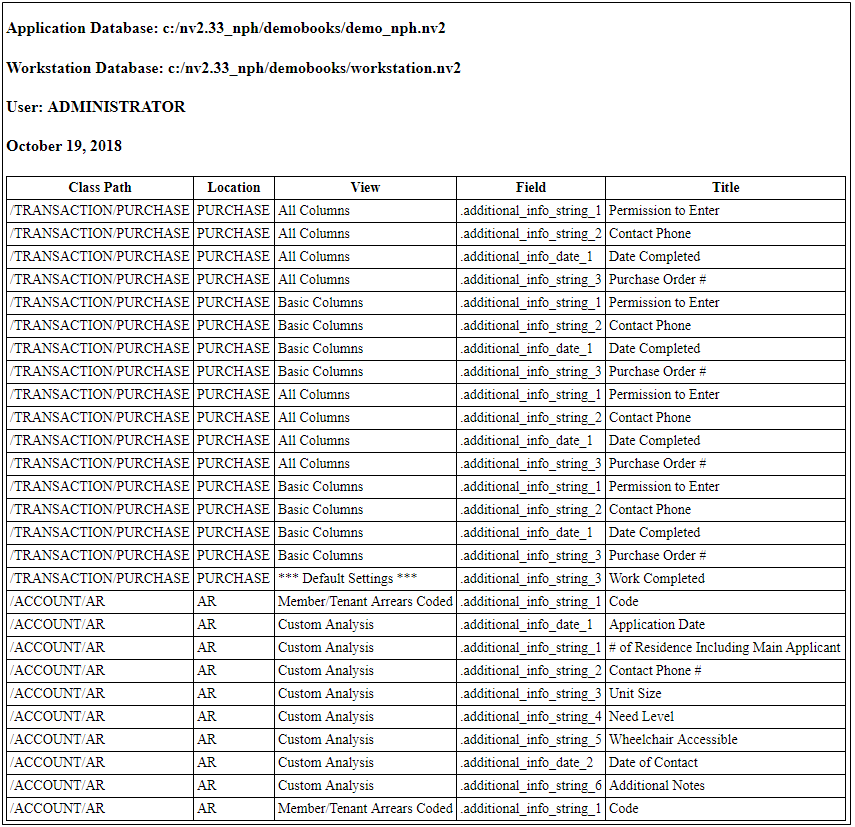
Shown below is a sample output (sent to your browser for review or print). It is displayed when you log into an application database (positioned anywhere) and execute the menu command Tools>Script Evaluate. Select the List button, then select the Browse button, and finally select the script named custom_data_report_tables_with_additional_info.qw_script.
The report displays the table Class Path, Location and View (so you can find the table in your database explorer), the name of the additional info field, and the column title.
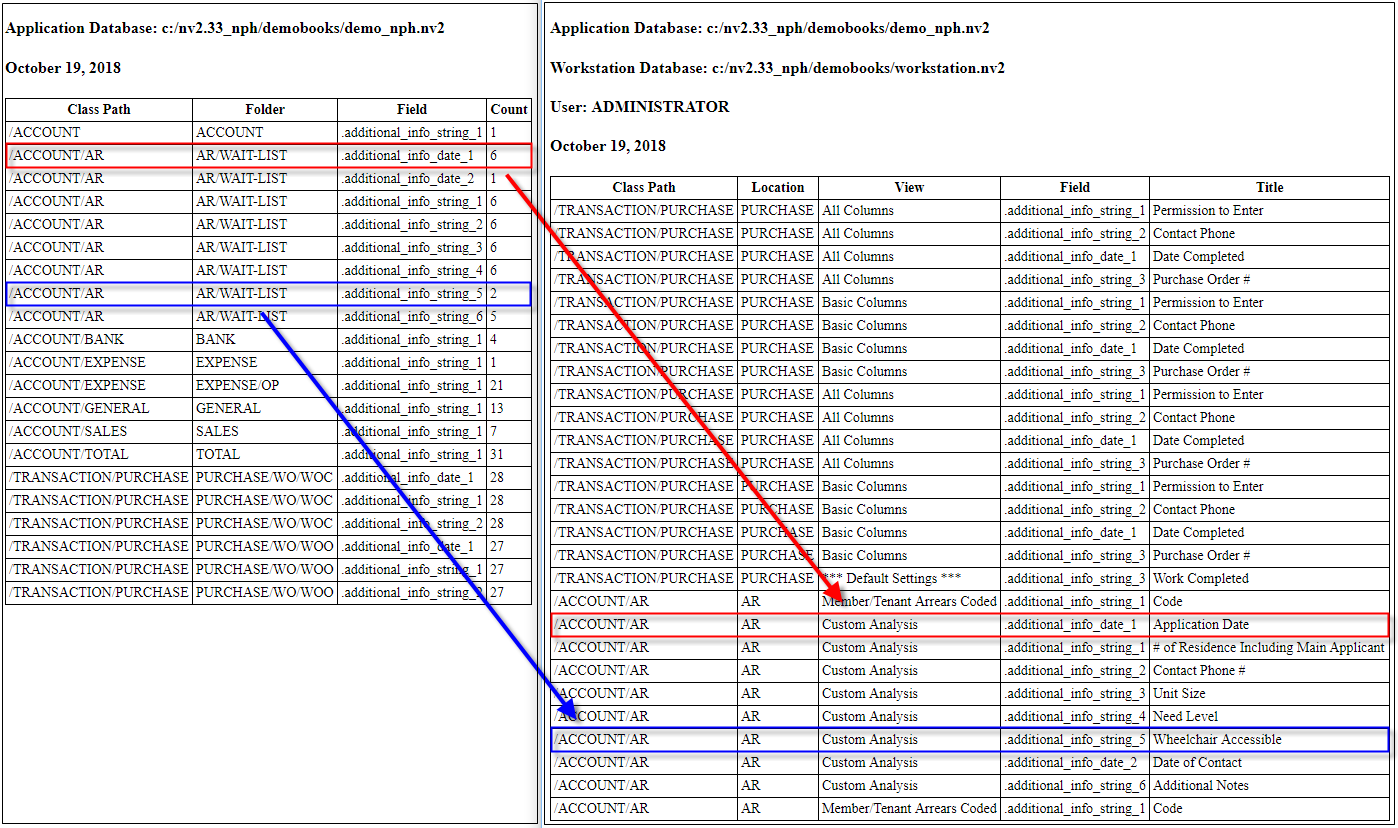
Once you have both reports, a visual inspection is required to line them up. Show below are both reports side-by-side, with two examples of how the data and the table columns match up.
A careful look at the first (red) matchup shows that accounts in the AR/WAIT_LIST folder are using .additional_info_date_1, and six accounts have a value in the field. You can also see that the workstation has an AR Custom Analysis view that has titled the column Application Date.
Similarly, the second (blue) matchup shows that accounts in the AR/WAIT_LIST folder are using .additional_info_string_5, and two accounts have a value in the field. You can also see that the workstation has an AR Custom Analysis view that has titled the column Wheelchair Accessible.