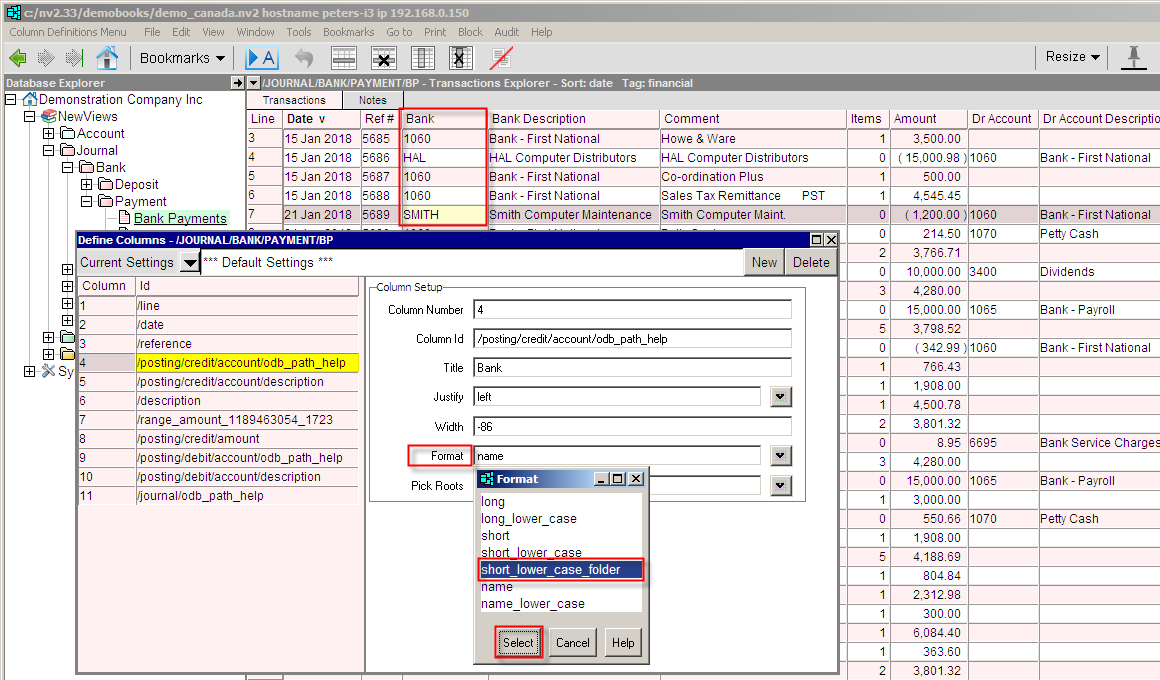
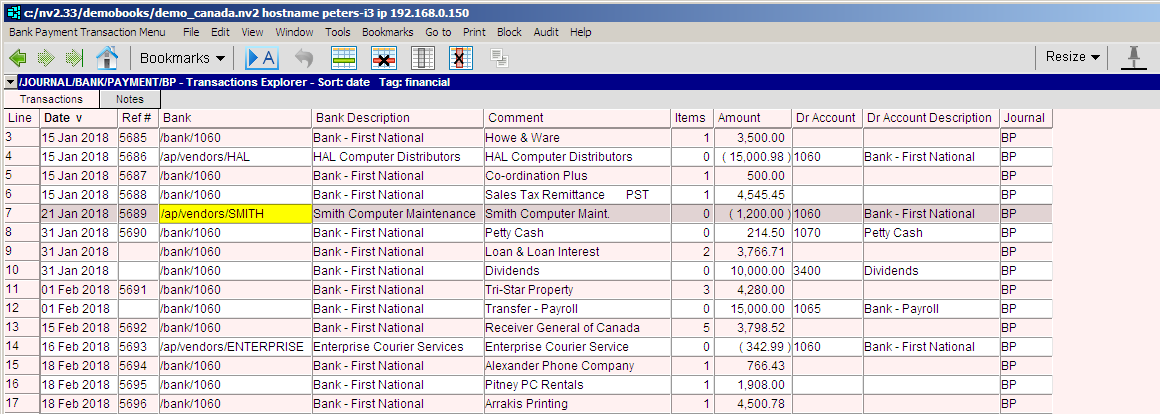
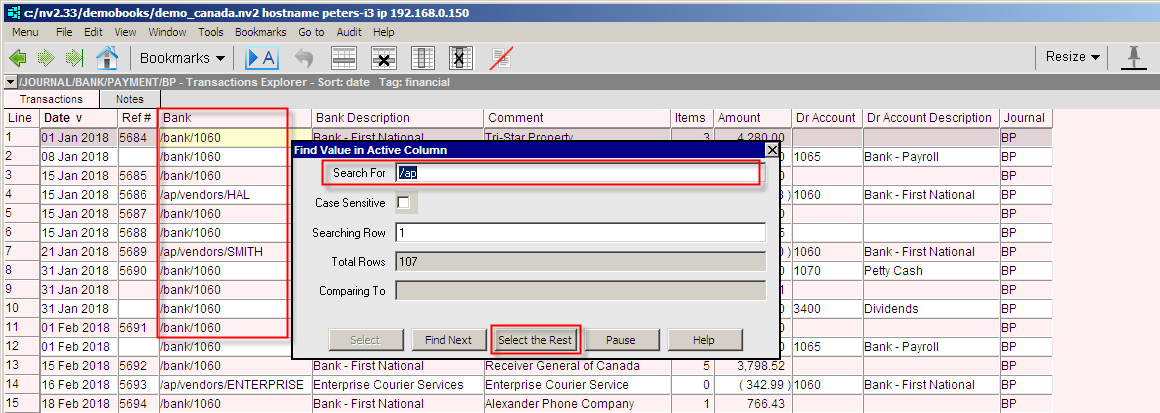
Three scripts can be run to create views of information of interest to external auditors.
See below for an explanation of Shallow versus DeepCan be added to any table
This script can be run on any table of NewViews objects (e.g. accounts, journal transactions, ledger postings, etc.). Five new columns are appended to the current table to display:

This script can only be run on the "root" Journal folder.
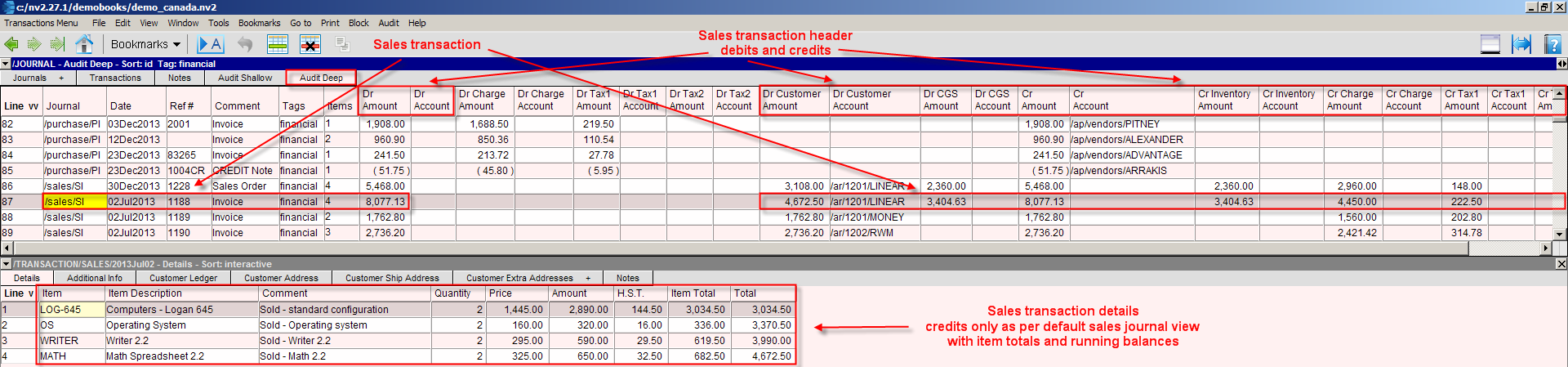
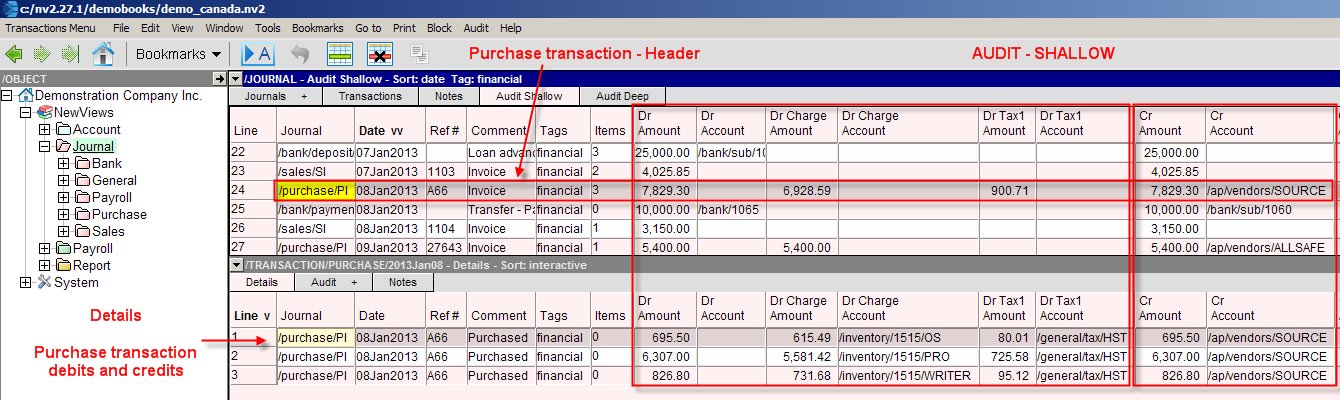
A new window tab is added to explore transaction headers and detail items in the companion window pane. The difference is that the view of both headers and detail items will show the union of all possible posting columns from all types of transactions.
The detail window pane will not respect the type of transaction active in the controlling window pane, and all types of detail items will display using the same column layout as the headers.
Important Tip: This view is most clearly seen when the column widths of the transaction headers (in the controlling window pane) are identical to the columns widths of the transaction detail items (in the detail window pane).
To synchronize the column widths execute a Window>Copy Table Columns command in either window, activate the other window and execute a Window>Paste Table Columns command. Be sure to press the Replace button to replace all columns when you are prompted to "Select column paste behavior".
Important Tip: Columns that will never contain data can be deleted.
For example, if you are certain that no inventory or cost of goods sold transactions are in the database then you can delete these columns (by pressing <Ctrl+Delete> when positioned in the column you want to delete). See Hiding (Deleting) Columns for more.
It is only necessary to delete the extra columns in one window pane since you can use the Window>Copy Table Columns and Window>Paste Table Columns technique described above to synchronize the columns. Be sure to press the Replace button to replace all columns when you are prompted to "Select column paste behavior".

This script can only be run on the "root" Journal folder. A new window tab is added to explore transaction headers and detail items in the companion window pane. The difference is that the view of headers will show the union of all possible posting columns from all types of transactions.
The detail window pane will respect the type of transaction active in the controlling window pane, and it will switch to the view commonly available for each type of detail items.
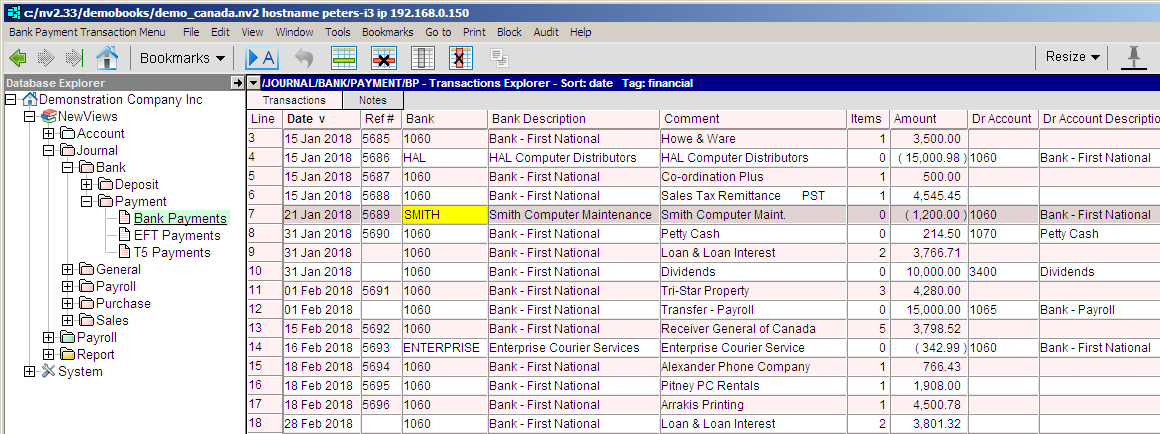
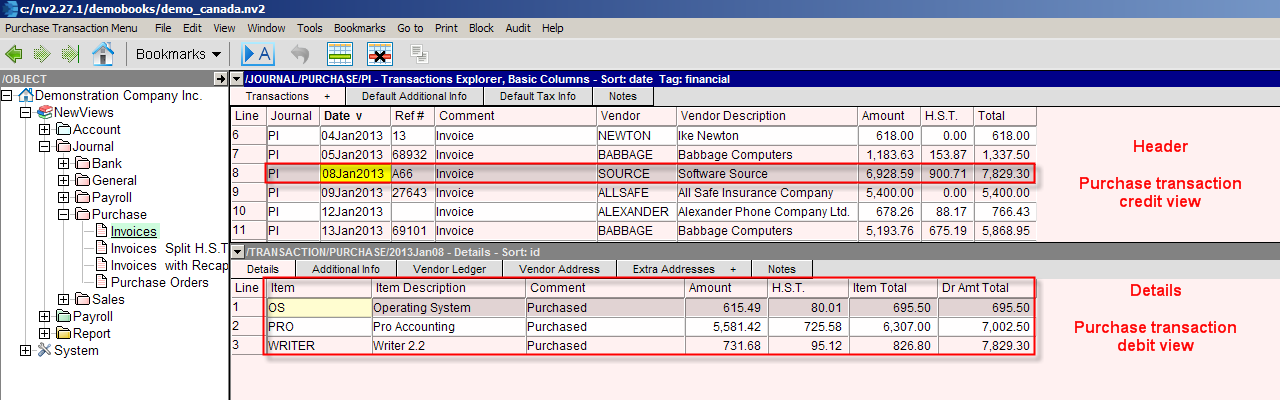
As a default, NV2 is set to Explore Deep. This means that every transaction you look at in a set of books will display as much detail as possible for that particular type of transaction. You can limit how much of this detail is displayed at any one time by manipulating the windows (maximizing, restoring, resizing, etc.), but the information is always there and can be accessed in an instant.
NV2 remembers the state of each desktop when you leave it, and that is what you see when you return to that desktop. So, for example, if you move from a general journal to a purchase journal, the transaction (top) table will switch a basic debit and credit column layout to a purchase transaction (credit only) layout. At the same time the detail window below will also switch from a basic debit and credit column layout to a purchase transaction (debit only) layout.
Normally, it is beneficial to be looking at customized journals. However, if you want to examine all transactions in the books in a comparative fashion, it is more useful to look at desktops that remain consistent from one type of account to another.
To look at a list of all transactions in the books, activate the root journal (Object/NewViews/Journal). Switch to the audit shallow tab. The journal desktop displayed in the bottom window will have consistent columns as you move from one transaction type to another as you move up and down through the transaction table in the top window.