Reconciliation is the process of comparing an account ledger to a statement received from an external organization such as a bank, credit card company, or vendor, to systematically identify and resolve differences.
After you reconcile the bank account, it is often useful to print a bank reconciliation statement. For details, see Printing Bank Reconciliation Statements.
The basic reconciliation process that works on all account types is described here. A more specific process that speeds up reconciliation for bank and general accounts is described later; see the reconcile view.
Check the opening balance of the bank statement.
Compare the opening balance on the bank statement to the closing balance of the NewViews bank account. If they are equal, proceed. Otherwise, you did not complete the reconciliation of the last statement, or you are missing a previous statement, or you have inadvertently modified reconciled items.
For the closing balance of the bank account, when on a green ledger, issue the View>Closed (X) command to switch to the closed view, and look at the running balance of the last row on the view.
Reconcile the bank statement items.
Go through the bank statement and for each item, reconcile the corresponding item on the NewViews bank account.
You reconcile an item by entering a value in the item's reconcile field. Any non-empty value causes the item to be deemed reconciled. Typically you enter something like 2007-05-38, where this item is being reconciled against the May 2007 bank statement, and it is the 38th item being reconciled; see reconcile value prefixes.
We recommend that you perform this step on the open view of the account. When on a green ledger, issue the View>Open command to switch to the open view. As you reconcile items they become closed items and automatically disappear from the open view. This gets reconciled items out of your way. If you keep another window on the closed view of the bank account, items will reappear there as they are closed.
Add missing transactions.
During the previous step you may encounter items on the bank statement that do not appear on the NewViews bank account. Service charges, interest adjustments, automatic withdrawals, and so on, may appear on the statement but not on your account. You can add them right away, without leaving the window used for the reconciliation, and you can reconcile them as you add them.
Check the closing balance of the bank statement.
Compare the closing balance on the bank statement to the closing balance of the NewViews bank account. If they are equal then the reconciliation is complete. Otherwise you have made an error in the reconciliation procedure, or there is an error on the account or statement.
For the closing balance of the bank account, when on a green ledger, issue the View>Closed (X) command to switch to the closed view, and look at the running balance of the last row on the view.
You reconcile a ledger item (posting) by entering a value in the item's reconcile field. But what should this value be? Any non-empty value causes the item to be deemed reconciled, and in very early versions of DOS NewViews, a single letter was used, serving as a "check-mark". However, we recommend that you enter values such as 2007-05-38, where 2007-05 indicates that the item belongs to the May 2007 statement, and it is the 38th item on that statement. Using this protocol, the first item for the May 2007 statement would be 2007-05-1 and subsequent items would be reconciled with values 2007-05-2, 2007-05-3, and so on. You would later reconcile the first item on the June 2007 statement with value 2007-06-1, and so on.
Using this style you can immediately see which items belong on each statement. The statements appear end-to-end on the closed account ledger and within each statement on the ledger the items are sorted in exactly the same order as they appear on the bank statement. This has a very important advantage when things go wrong. The NewViews account ledger has a running balance and most bank statements also have a running balance, either for each item, or at least at the end of each day. Therefore, if the account and the statement do not reconcile, the running balance can be used to quickly identify where they ceased to line with each other.
As described above, the open view of a ledger is a convenient place to reconcile an account with any external statement. However, bank and general accounts also offer a reconcile view which you can switch to using the Reconcile tab.
The reconcile view has three panes as shown in the figure below. The top pane is a table of accounts, either bank or general accounts, and for each one it displays the current account balance, the reconciled (closed) balance, the unreconciled (open) balance, and the number of unreconciled items in the account. The middle pane displays the bank account's reconciled (closed) postings and the bottom pane displays the unreconciled (open) postings.
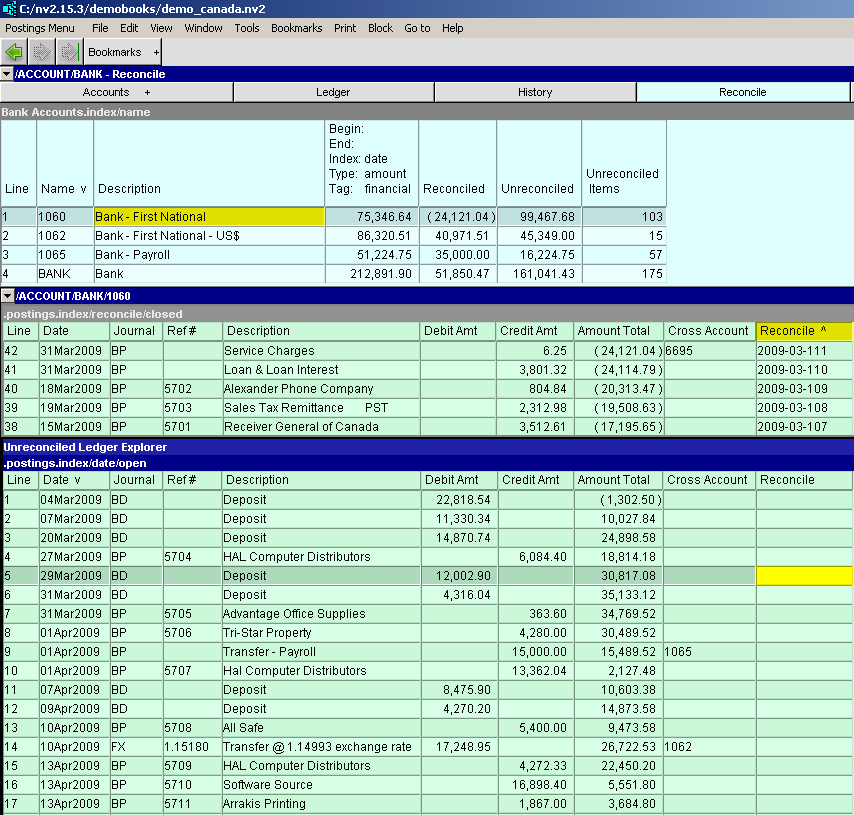
Bank account transactions are reconciled by entering a value (typically something like 2007-05-38) in the reconcile field. You do this on the open items in the bottom pane and as the items are reconciled they move to the middle (closed) pane. This gets them out of your way as you reconcile. If you make a mistake you can unreconcile an item by clearing its reconcile field in the middle pane and it will move back to the bottom pane. We now describe how to use the reconcile view in more detail.
Position on a table of bank accounts or general accounts.
A good way to do this is to click on NewViews/Account/Bank in a database explorer as shown in the left pane above. The bank accounts will appear in the top-right pane.
Similarly, you can click on NewViews/Account/General (or its sub-accounts, if any) in the explorer so that general accounts appear on the right. In NewViews you can use the technique described here to reconcile either bank accounts or general accounts. We recommend that if you have credit card accounts that you want to reconcile then they should be created as general accounts.
Switch to the reconcile view.
The top-right pane has a Reconcile tab. When you click it to switch to the reconcile view, three panes are displayed as shown on the right above. Note that only bank and general accounts have a Reconcile tab and corresponding reconcile view.
Position on the account you want to reconcile.
Move to the item in the top pane that represents the account you want to reconcile. In the example above we are positioned on bank account 1060.
Check the opening balance of the bank statement.
Prior to reconciling any items, i.e. before starting a new month's reconciliation, you should make sure that the reconciled balance of the NewViews bank account matches the balance forward on the bank statement (also called it's opening balance). The reconciled balance appears on the bank account in the top pane, and it is also the closing running balance of the ledger items in the middle pane, i.e. the closed view.
Note that once the reconciliation is complete, it is the goal for the closing balance of the account to equal the closing balance of the bank statement.
Switch to the bottom pane.
The bottom pane displays the open items. These are the items that you want to reconcile with the bank statement.
Reconcile the first item.
To reconcile the first item, type in the full reconcile value. We recommend that you use a prefix that identifies the month of the statement, followed by the number 1, which will be incremented with each subsequent item reconciled.
For example, to reconcile an April 2007 bank statement, manually enter 2007-04-1 in the reconcile field of the first item. You only have to enter the entire value of the first statement item in order to indicate that a new statement is starting. See Reconcile Value Prefixes. The change is committed when you press <F5> or simply move off the item, and at that time the item will disappear from the open view in the bottom pane, and re-appear in the closed view in the middle pane.
Reconcile the rest of the statement using <F3>.
After the first item has been reconciled, the rest can be more easily processed using the <F3> key. Position on the reconcile field of an item in the bottom pane and press <F3>. The item will be reconciled with value 2007-04-2, and it will move to the closed view in the middle pane. Subsequent items will be reconciled with 2007-04-3, 2007-04-4, and so on. Each will move from the closed view to the open view as you proceed, thus getting out of your way.
If you make a mistake such as reconciling the wrong item, position on the item's reconcile field in the closed view in the middle pane and clear it's value. This "unreconciles" the item and it moves from the closed view (middle pane) back to the open view (bottom pane).
Check the closing balance of the bank statement.
After reconciling all items on the bank statement, you should make sure that the reconciled balance of the NewViews bank account matches the closing balance of the bank statement. As described above, the reconciled balance appears on the bank account in the top pane, and it is also the closing running balance of the ledger items in the middle pane, i.e. the closed view. If these match, the reconciliation is complete.
For the middle and bottom panes to display the correct postings, and to function properly, the account table in the top pane must be positioned on the Name or Description, i.e. not on one of the amount fields. If you position on an amount then the items displayed below will be restricted to those that contributed to the amount, which is not what you want here.
As described above you can position on an item in the bottom pane of the reconcile view and press <F3> to automatically fill in the reconcile field with an auto-incremented value. We described the use of values such as 2007-04-1, where the month of May 2007 is represented in an obvious way. However, you can use any alternate form that you want for reconcile values. Only the last component of the value is incremented each time. Suppose that each bank statement has an identifier such as ABC001. Then you could enter ABC001-1 for the first value and subsequent auto-incremented values would be ABC001-2, ABC001-3, and so on.
However, an important thing to remember is to enter the full value including a new prefix, when you are starting a new statement. If you forget, then you will inadvertently start reconciling items for the new statement with the prefix used for the previous month, and you will have to unreconcile the items and start over. To help prevent this, NewViews will warn you when you press <F3> if the last reconciled posting was reconciled on a different day. The idea is that you usually start a reconciliation and finish it on the same day, and the next reconciliation will occur on a different day, usually about a month later.
Sometimes the period covered by a bank statement does not line up with the last day of the month, and can be in the middle of the month. It really doesn't matter. There will always be a statement date and you can use the month in that date as the unique prefix.
A common question, not easily answered until this version, is "how do I print an open ledger view, with an opening balance coming from the end of the closed view?"
Viewing this information on screen has long been simple enough. For example, shown below is a ledger open view, with the menu positioned to show the opening balance choices. Notice also the three amount columns in the blue table of accounts. They are configured to show the actual balance, closed balance and open balance, respectively.
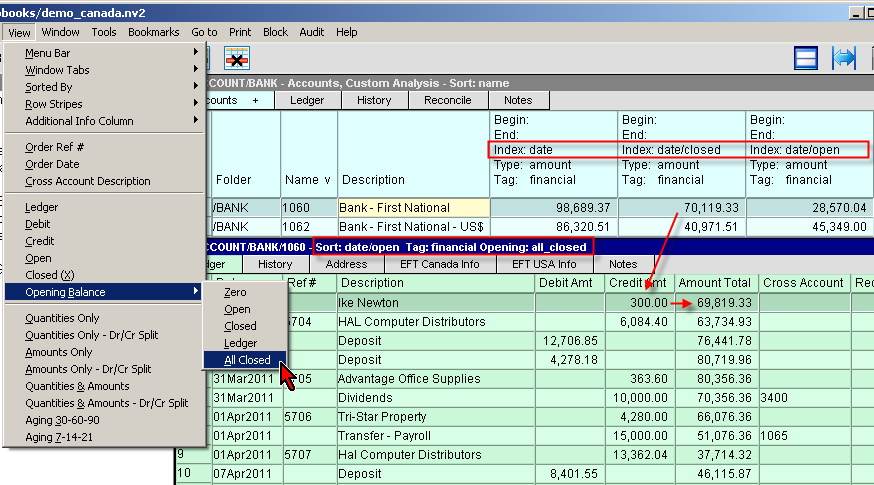
However, getting a simple printed version of this information was difficult. Print>Account Ledgers>Simple doesn't support open and closed printing, and the date range control found in Print>Account Ledgers>Advanced can be confusing, and tedious to configure.
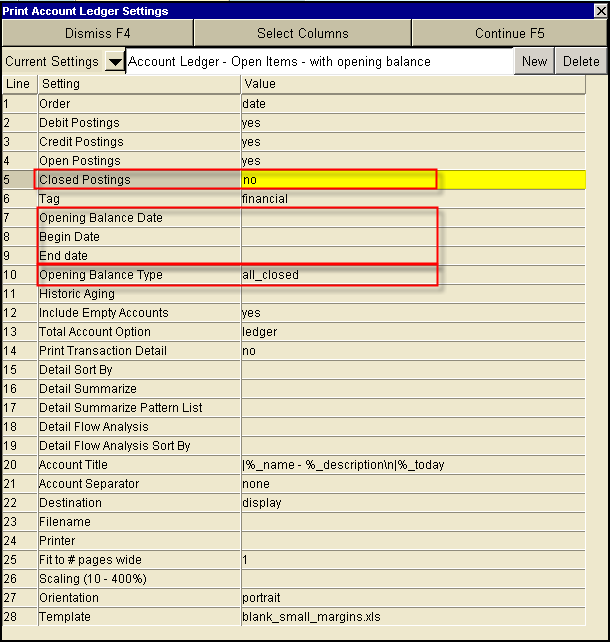
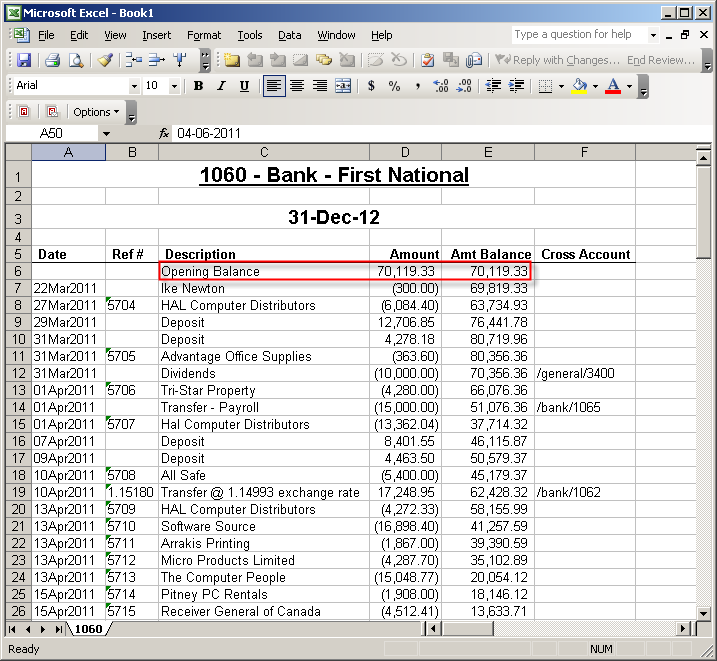
A Print>Account Ledgers>Advanced options window is shown below. Notice the three dates that control the opening balance and the range of items printed (option rows 7, 8, 9) are blank. This, together with the selection of Open Postings and an Opening Balance Type of all_closed, will print an open view with the opening balance and running balance as expected.
No. You can start a reconciliation right away.
This question is understandable because in other accounting systems it is very important that you have made all the necessary adjustments to your books before you start the reconciliation process. You have to identify and correct transactions that may not have been properly entered into the books, and also make adjustments to reflect interest income or payments, bank fees, and credit card charges. In these systems you must make two passes on the account in order to reconcile it.
No. You can make corrections and adjustments on the spot.
Correcting discrepancies in other accounting systems usually involves a special pre-reconciliation correction capability, or else requires that you go elsewhere such as an adjustments journal to make the corrections by adding separate adjusting transactions. Again, this must be done before the reconciliation can be started. Often this is necessary because a transaction is missing altogether, but differences are also sometimes due to simple data-entry errors. In NewViews you can make such corrections immediately, during the reconciliation itself, by adding new transactions, or by editing existing transactions, and then without leaving the new or corrected item, you can reconcile it.
Yes.
Actually they are sorted according to the reconcile values that you enter, but when you follow the protocol described in this page, such as using values like 2007-05-38, the reconciled bank account will correspond exactly to the bank statement. This feature helps you find the source of any discrepancy very quickly. The problem will always be where the running balances of the account and the statement cease to line up with each other.
You can "unreconcile" items.
Mistakes happen. For example, you might inadvertently reconcile the wrong item. The solution is to switch to the middle pane (where the item moved when you reconciled it), and clear it's reconcile field. This will unreconcile the item and it will move back to the bottom pane.
Statements do not need to line up with the end of the month.
For example, a bank statement might cover items say up to the 15th of the month. In any case a unique statement date, say May 15, 2007 will appear on the bank statement and you can use the statement date in a consistent manner for the reconcile prefix, i.e. 2007-05 in this case.
Print the open view of the bank account.
You can use Print Account Ledgers Advanced to print a custom report with an opening balance and the columns that you prefer. On the Printing prompt, set the date on the Print Account Ledgers Advanced to the month that you have just reconciled. Set Closed Postings to NO. Set Closed Balance to all_closed. To select custom columns see Selecting Columns to be Printed.