Installing the Attachments View
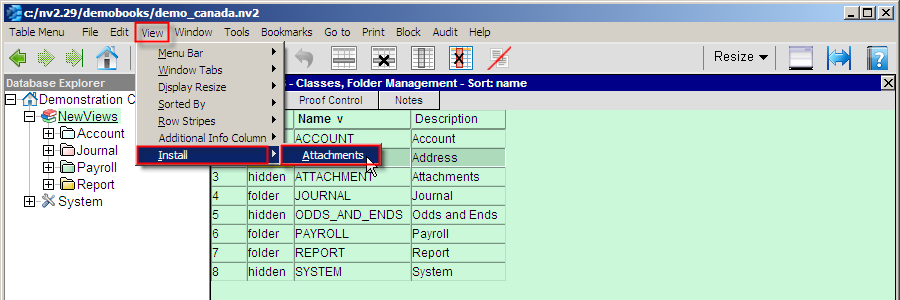
To install the Attachments View:
-
In the Database Explorer, navigate to the window pane for which you would like to add an Attachments View.
-
Issue the View>Install>Attachments menu command to add the Attachments View to the window pane.
-
The Attachments + tab will be added as shown below.
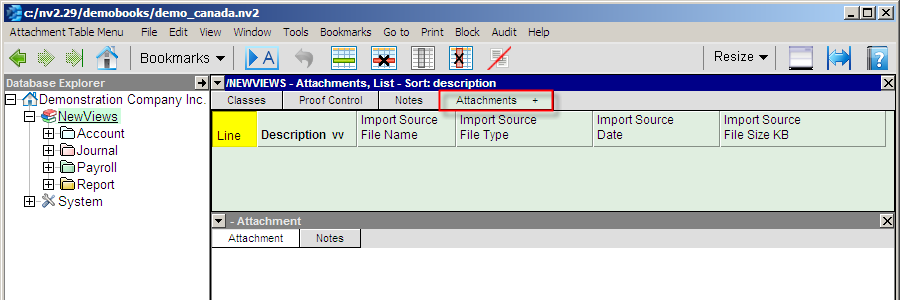
In the example shown above the attachments tab was added to the NewViews folder.
It's a natural first place to add the tab because this is where all attachments in the entire database can be found in one complete, sort-by-anything list.
This is where you can find "lost" attachments, perform housekeeping and cleanup operations, etc.
Typically, attachment tabs are added to detail panes.
For example, if you want to manage attachments for individual vendors you would install the tab in the vendor detail pane (i.e. where the Ledger tab is).
To see all attachments for all vendors in the folder, you can also install the attachments tab in the database explorer detail pane (i.e. where the Accounts tab is).
You can import attachments in either place.
If they are vendor specific, then import them into the individual vendor account detail pane.
If they are vendor "generic" (standard, re-useable documents), then import them into the vendor folder detail pane.
Copyright (c) 2003-2026 Q.W.Page Associates Inc., All Rights Reserved.