Adding Attachments
There are two ways to import attachments.
You can import one or more attachments in the table of attachments,
or you can import a single attachment in the detail pane.
In the table case, attachments are appended, and there is no prevention of duplicates.
In the detail pane case, only one attachment at a time can be imported and the current attachment content is replaced by the imported content.
Appending One or More Attachments in the Table Window
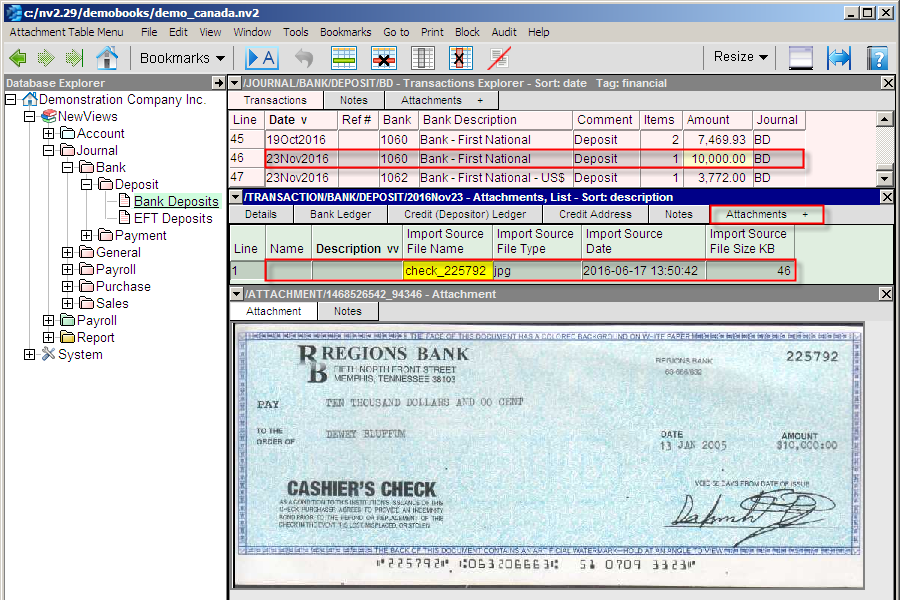
Shown below is an example of importing an attachment to a bank deposit transaction's attachments.
It is a scanned image of a check for a long overdue payment.
(Never mind the image details - for example the check is dated in 2005 - it's just a sample poached from the Internet)
Once the Attachments View has been installed,
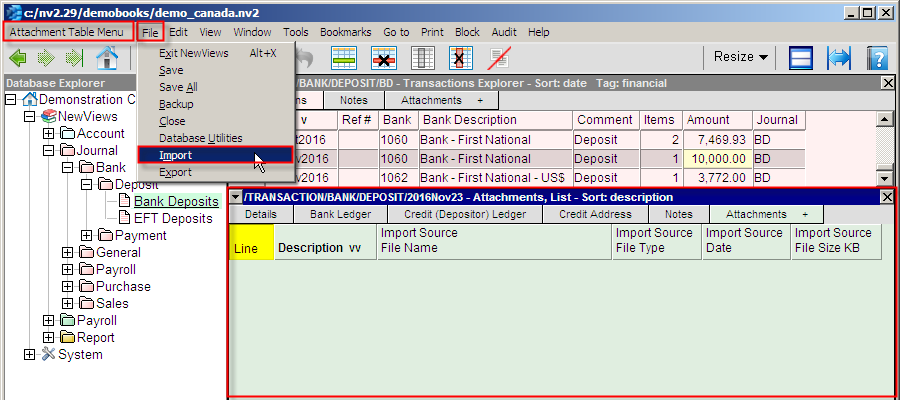
the File>Import command is used to import an attachment.
-
In the Database Explorer, navigate to the item for which attachments are to be imported (e.g. a bank deposit transaction).
-
Position in the attachments table of the detail window and issue the File>Import command
(e.g. a scanned check corresponding to a bank deposit).
-
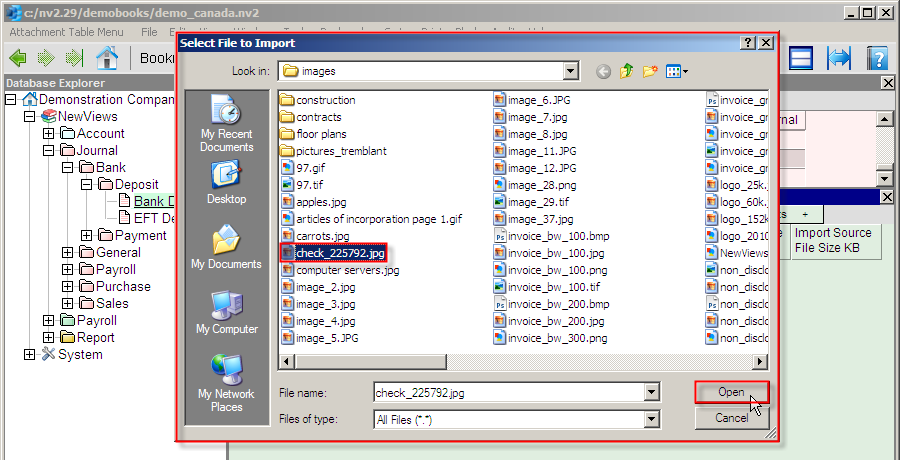
Navigate the file selection dialog to the attachment file and double click (or click Open) to import it.
(When importing into a table of attachments you can mark a selection of files for import in one batch).
-
If the attachment is an image (.jpg .png .gif or .tif) which is less than 8 Mb, it can be viewed directly.
Importing or Replacing a Single Attachment in the Detail Window
Shown below is an example of importing one attachment in the attachment detail window.
This is how you can first populate the data of a new attachment, or replace the data of an existing attachment.
-
In the Database Explorer, navigate to the item for which attachments are to be imported (e.g. a bank deposit transaction).
-
Position in the attachments table of the detail window and create a new item or navigate to an existing item.
In the attachment detail window issue the File>Import command.
-
Navigate the file selection dialog to the attachment file and double click (or click Open) to import it.
(When importing into an attachment detail window you can select only one file).
-
If the attachment is an image (.jpg .png .gif or .tif) which is less than 8 Mb, it can be viewed directly.
Attachment Names and Descriptions
Attachment items can have an optional Names and Descriptions.
This provides additional ways to organize "blocks" of related attachments,
since when you sort attachments by Name (or Description) items with identical values will appear together as a block.
For example, all attachments for a project might be named with the project code.
Naming and describing the content of attachments will make them easier to find in the NewViews folder's list of all attachments in the database.
Copyright (c) 2003-2026 Q.W.Page Associates Inc., All Rights Reserved.