Attachments can be files of any type. You can attach image files, scanned documents, Excel spreadsheets, Word documents, etc.
If the attachment is an image file (type .jpg, .png, .gif, or .tif) which is less than 8 Mb, it can be viewed directly in the Attachment View.
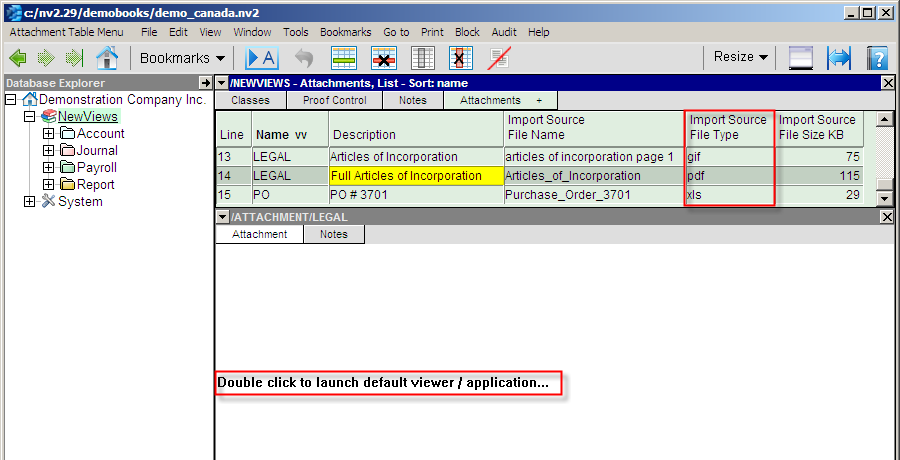
If the attachment is a PDF, Excel or Word file, the following message appears:
Double click to launch default viewer / application....
When you double click, NewViews will open the appropriate application so you can view the attachment.
Note: When the default viewer/application is launched, a temporary file is created (via automatic export) and this file name is passed to the application. If you edit this file and you want to synchronize it with the data stored in NewViews then you must execute the application's File>Save As command and re-import this modified file back into NewViews.
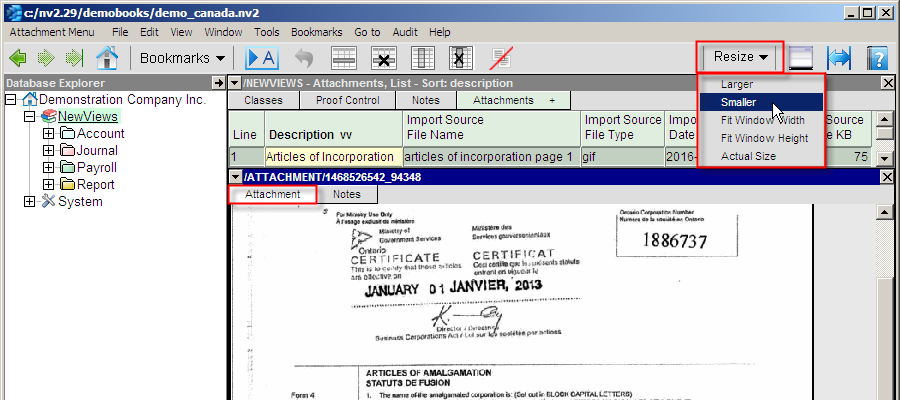
All image attachments that can be displayed directly by NewViews are loaded and initially sized to "Fit Window Width".
Resizing images can be done one of two ways.
Roll the mouse scroll wheel up or down while holding the <Ctrl> key.
Rolling the mouse wheel away from you will increase the image size; rolling it towards you will decrease the image size.
Any table of attachments can be sorted by any column. This is especially useful when combined with the closure indexes that "ripple up" the data object hierarchy. For example, you can see all attachments for an individual account in the account detail window (i.e. where the Ledger tab is). If you install the attachments view in the account folder detail window (i.e. where the Accounts tab is) you can see in one list all attachments for all accounts in the folder.
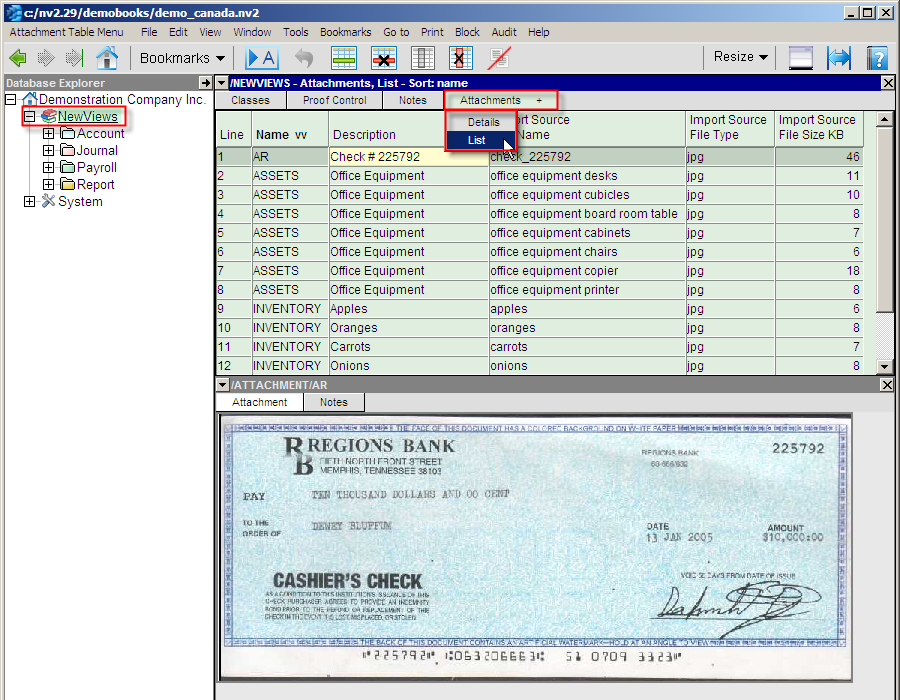
A table listing all the attachments in a set of books can be displayed by activating the NewViews folder and installing the Attachments tab in the detail window.
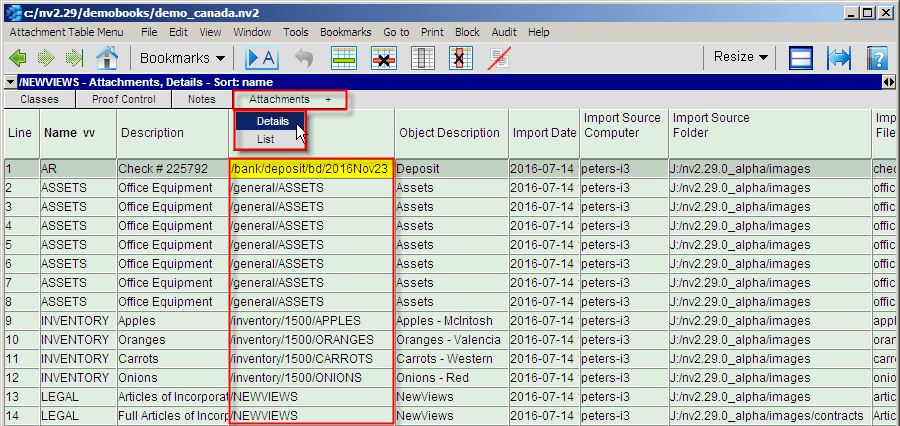
The table of attachments can be sorted by description, name, date, size, etc. Refer to the chart below to see all the columns that may contain information for each attachment. The Sort column indicates whether the table can be sorted by that field.
| Attachments View | ||
| Table column | Sort | Comments |
| Line | Yes | Line number. |
| Name | Yes | Category with which the attachment is associated. |
| Description | Yes | Description of the attachment. |
| Object | Yes | Path to the account with which the attachment is associated. |
| Object Description | Yes | Description of the account with which the attachment is associated. |
| Import Date | Yes | Date and time the attachment was imported. |
| Import Source Computer | Yes | Name of the computer from which the attachment was imported. |
| Import Source Folder | Yes | Drive and folder from which the attachment was imported. |
| Import Source File Name | Yes | Attachment file name. |
| Import Source File Type | Yes | Attachment file type. |
| Import Source Date | Yes | Date and time the attachment was created. |
| Import Source File Size | Yes | Attachment file size. |
| Total KB | | Running balance of attachment file sizes. |
Attachments can be cut and pasted using the same keyboard shortcuts used to cut and paste items in other Windows programs.
To cut an attachment:
To paste an attachment after it has been cut:
There are two ways to export attachments. You can export one or more attachments from the table of attachments, or you can export a single attachment from the detail pane.
In the table case, you are prompted for a destination folder for the exported attachment(s). The resulting file name(s) will be identical to the originally imported file name(s), and the date and time stamp(s) are also preserved. In the detail pane case, only one attachment at a time can be exported and you are prompted with a File>Save As style dialog.