To view/edit default trade tax settings for Purchase Journals:
Click NewViews/Journal/Purchase in the NV2 Database Explorer.
Use the window tab Default Trade/Tax Info or window list button at the left of the title bar that reads /JOURNAL/PURCHASE to select the Default Trade/Tax Info window.
Make any required changes to the settings to make them suitable for most purchase invoices.
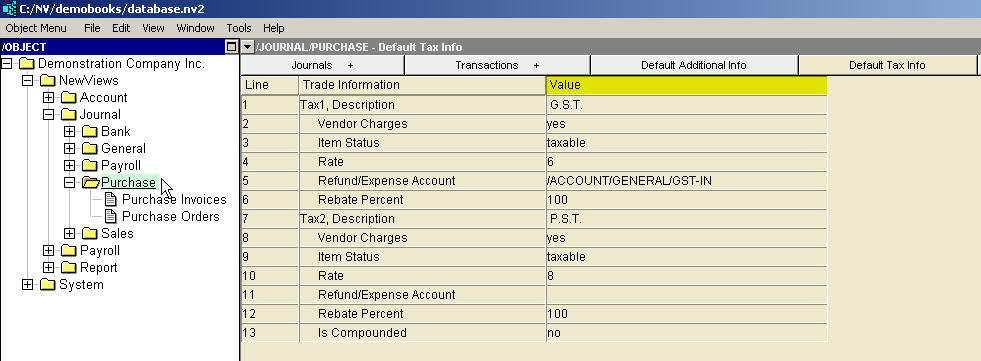
See Trade Tax Information for current rates.
| Purchase Journal Trade/Tax Information | |||
| | Line | Field | Description |
| Tax 1,2 | 1,7 | Description | This field describes the tax and the value entered here is displayed in the purchase invoice column title for the tax. The default titles are "Tax 1" and "Tax 2" but in this example the invoice column titles will display "G.S.T." and "P.S.T." for Tax1 and Tax2. |
| 2,8 | Vendor Charges | yes - the tax will be charged. no - the tax will not be charged. empty - the tax will not be charged. The Vendor Charges setting on the journal can be overridden by the Is Charged setting on any or all vendor accounts. If most vendors charge the tax, set this field to yes. This journal setting is only used when the vendor's Tax Is Charged setting is empty. | |
| 3,9 | Item Status | taxable - the tax will be charged. exempt - the tax will not be charged. empty - the tax will not be charged. The Item Status setting on the journal can be overridden by any or all inventory/expense accounts. This journal setting is only used when the inventory/expense account Is Charged setting is empty. | |
| 4,10 | Rate | The tax, if charged, will be charged at this rate, i.e. six percent for GST/HST and eight percent for PST in this example. The Rate setting can be overridden by the inventory/expense account. This journal setting is only used when the inventory/expense account Rate setting is empty. See Trade Tax Information for current rates. | |
| 5,11 | Refund/Expense Account | The tax is posted to the account specified by this setting. This journal setting can be overridden by the inventory/expense account. If the inventory/expense setting and the journal setting are both empty, so that no account has been specified, then the tax is posted to the inventory/expense account. This effectively allocates the tax paid as part of the cost of the inventory, or expenses it. | |
| 6,12 | Rebate Percent | The tax is posted to the refund/expense and the inventory/expense according to this percent. Usually this setting is set to 100 and the entire tax is posted to the refund/expense account. Some non-profit organizations are refunded only 50% of GST/HST and in that case this setting should be 50. Then 50% of the tax is posted to the refund/expense account (the part which the government will refund), and the other 50 percent is posted to the inventory/expense account. This setting is not found on vendor or inventory/expense accounts, and must be set on the purchase journal. | |
| Tax 2 | 13 | Is Compounded | yes - Tax2 is compounded on Tax1. no - Tax2 is not compounded on Tax1. empty - Tax2 is not compounded on Tax1. When Tax2 is compounded, it means that Tax1 is added to the invoice amount before the Tax2 rate is applied to the total. Although this may appear unusual to many, jurisdictions do exist where compounded trade taxes are in use. For example, in the province of Quebec, GST (goods and services tax) is added before applying QST (Quebec sales tax). Therefore, in Quebec Tax1 must be used for GST and Tax2 for QST. Note that Tax1 has no corresponding is compounded field. |
Default trade taxes that have been set for Purchase Journals can be overwritten for a specific Purchase Invoices or Purchase Orders journal by accessing the Trade/Tax Info window for that journal and changing the settings.