To view/edit default trade tax settings for expense accounts:
Activate NewViews/Account/Expense in the NV2 Database Explorer.
Use the window tab Default Trade/Tax Info or window list button at the left of the title bar that reads /ACCOUNT/EXPENSE to select the Default Trade/Tax Info window.
Make any required changes to the settings, to make them suitable for most expense items.
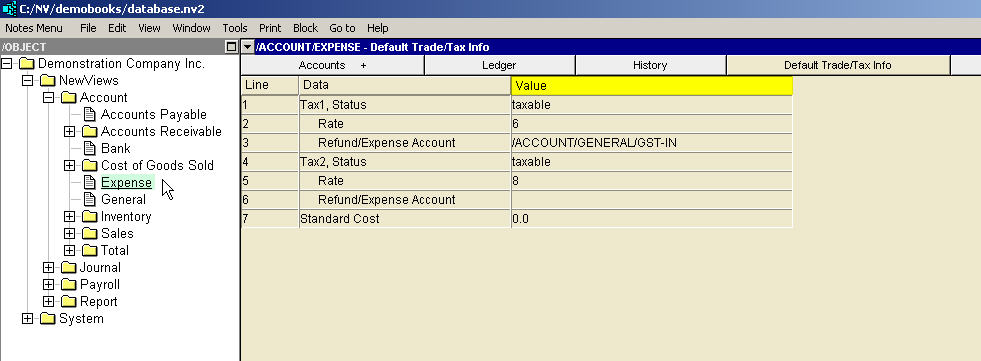
See Trade Tax Information for current rates.
| Expense Account Trade/Tax Information | |||
| | Line | Field | Description |
| Tax 1,2 | 1,4 | Status | taxable - the tax will be charged. exempt - the tax will not be charged. empty - the journal Status is used. The purchase journal has a corresponding setting for the status of each tax. But the setting on the expense account has higher priority than the journal so it provides the ability to override the journal setting on an expense-by-expense basis. |
| 2,5 | Rate | If this field is specified, the tax will be charged at this rate. If this field is empty then the journal tax rate is used. The setting on the expense account has higher priority than the journal so it provides the ability to override the journal setting on a expense-by-expense basis. See Trade Tax Information for current rates. | |
| 3,6 | Refund/Expense Account | If charged, the tax will be posted to the account selected here. This will often be a tax refund or expense account. If this field is empty then the journal refund/expense account for the tax is used. If the journal setting is also empty then the tax is posted to the inventory/expense account. The setting on the expense account has higher priority than the journal so it provides the ability to override the journal setting on a expense-by-expense basis. | |
| Costing | 7 | Standard Cost | This is the fixed cost you set (apply) to the item being sold. |
Default trade taxes that have been set for expense accounts can be overwritten for a specific expense account by accessing the Trade/Tax Info window for that expense account and changing the settings.