To view/edit default trade tax settings for vendor accounts:
Click NewViews/Account/Accounts Payable.
Use the window tab Default Trade/Tax Info or window list button at the left of the title bar that reads /ACCOUNT/AP to select the Default Trade/Tax Info window.
Make any required changes to the settings to make them suitable for most of your vendors.
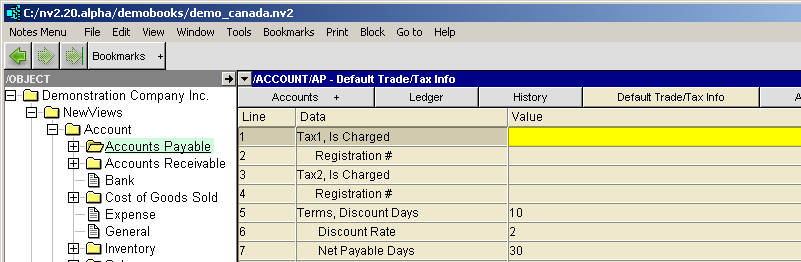
| Vendor Trade/Tax Information | |||
| | Line | Field | Description |
| Tax 1,2 | 1,3 | Is Charged | yes - the tax will be charged. no - the tax will not be charged. empty - the journal Is Charged setting is used. The purchase journal has a corresponding Vendor Charges setting for whether or not each tax is charged. But the setting on the vendor has higher priority than the journal so it provides the ability to override the journal setting on a customer-by-customer basis. |
| 2,4 | Registration # | The vendor's tax registration number. | |
| Terms | 5 | Discount Days | The number of days for which a discount is given by most vendors for early payment of invoices. |
| 6 | Discount Rate | The rate (in percent) at which invoices are discounted by most vendors if paid within the discount day period. | |
| 7 | Net Payable Days | The number of days in which payment for invoices is due for most vendors. | |
Default trade taxes that have been set for vendors can be overwritten for a specific vendor by accessing the Trade/Tax Info window for that vendor and changing the settings.
In addition to the trade tax settings described above, the trade tax settings for individual vendors contain settings pertaining to Electronic Fund Transfer (EFT). You only need to complete these fields if you will be paying the vendor by EFT.
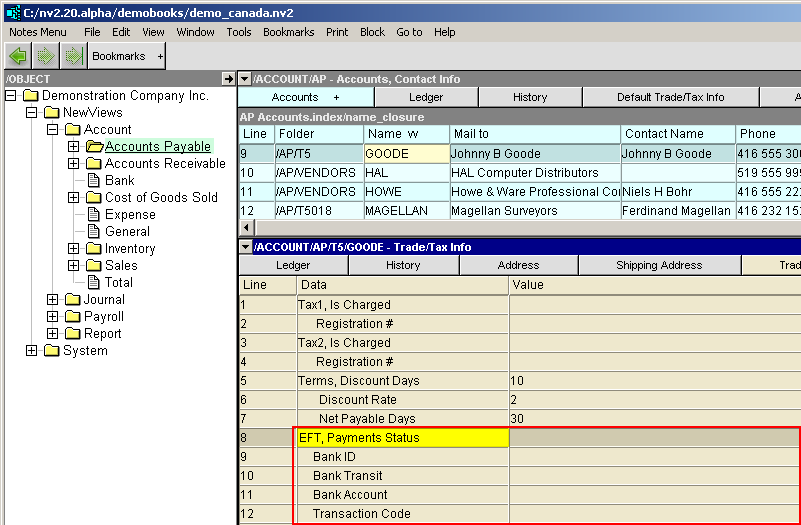
| Vendor Trade/Tax and EFT Payments Information | |||
| Line | Trade Information | Canadian EFT setup | USA EFT setup |
| 1 to 4 | Taxes | Optional settings to Tax 1 and Tax 2 for purchase transactions | Used in Canada and other countries to set additional Trade Tax options for purchase transactions |
| 5 to 7 | Terms | Set Terms: Discount Days, Discount Rate and Net Payable Days for a vendor | |
| 8 | EFT Payments Status | When the EFT Payments Status is set to Active, EFT / ACH transactions are created in the EFT file. Also the printing of checks is disabled, and the printing of EFT Payments Advisories is enabled. | |
| 9 | EFT, Bank ID | The 3 or 4 digit number of the vendor's bank | leave blank, see line 10 below |
| 10 | Bank Transit | The 5-digit number of the vendor's bank | Receiving DFI Identification, the 9-digits of Transit Routing Number of the vendor's bank. The first 8-digits of Transit Routing number of bank plus the ninth check digit. |
| 11 | Bank Account | The 7 to 12 digit number of the vendor's bank | The DFI Account Number, up to 17-digit of the vendor's bank account |
| 12 | Transaction Code | leave blank | see "Transaction Codes" table below |
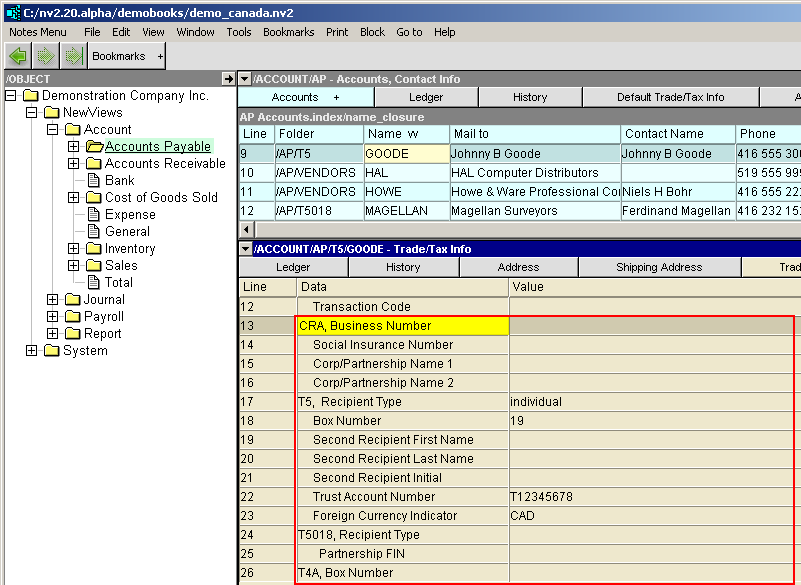
| Vendor Trade/Tax and CRA Information Slip Information | ||||
| Line | Form | Field | Description | |
| 13 | CRA | CRA, Business Number | Enter the recipient's 15-character Account Number that consists of three parts; the nine-digit Business Number, a two-letter Program Identifier and a four-digit reference number. | |
| 14 | CRA | Social Insurance Number | Enter the recipient's SIN if required to submit a T4A, T5 or T5018. | |
| 15, 16 | CRA | Corp/Partnership Name 1/2 | Enter the recipient's corporation or partnership name on line 1. Use line 2 if the name is longer than 30 characters or Trading name (if different from Line 1). | |
| 17 | T5 | Recipient Type | <F3> to select | individual, joint, corporation, partnership or government. |
| 18 | T5 | Box Number | <F3> to select | See list for selection, boxes 10 to 41. |
| 19, 20, 21 | T5 | Second Recipient Name | Enter the second recipient's first name, last name and initials. If there is only one recipient, leave this line blank. | |
| 22 | T5 | Trust Account Number | Enter the recipient's trust account number, it must correspond to the Trust account number assigned by the CRA. | |
| 23 | T5 | Foreign Currency Indicator | <F3> to select | Used if you are reporting in a foreign currency, see list for selection, CAD, EUR, USD, etc. |
| 24 | T5018 | Recipient Type | <F3> to select | individual, corporation, or partnership. |
| 25 | T5018 | Partnership FIN | Enter the partnership filer identification number. e.g. HA0000000 | |
| 26 | T4A | Box Number | <F3> to select | See list for selection, boxes 016 to 190. |