Account Explorer
Activating (clicking on) an Account folder in the Database Explorer will display a table of account folders or
a table of accounts, depending on two things:
-
Does the active account folder have any sub-folders?
-
How is the account table sorted?
If the active account folder has sub-folders:
-
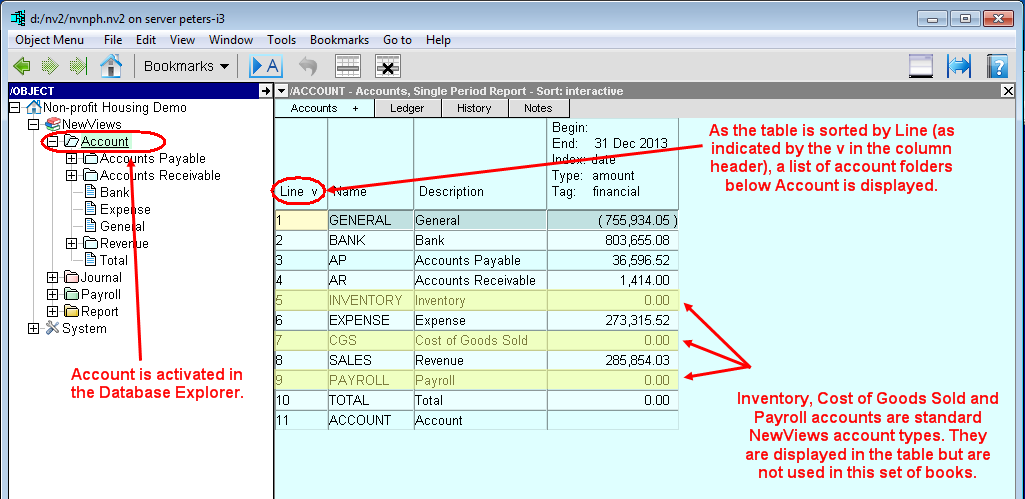
Sorting the table by Line will display a list of account sub-folders.
For example, activating Account in the Database Explorer and sorting the accompanying table by Line
will display a list of sub-folders below Account.
-
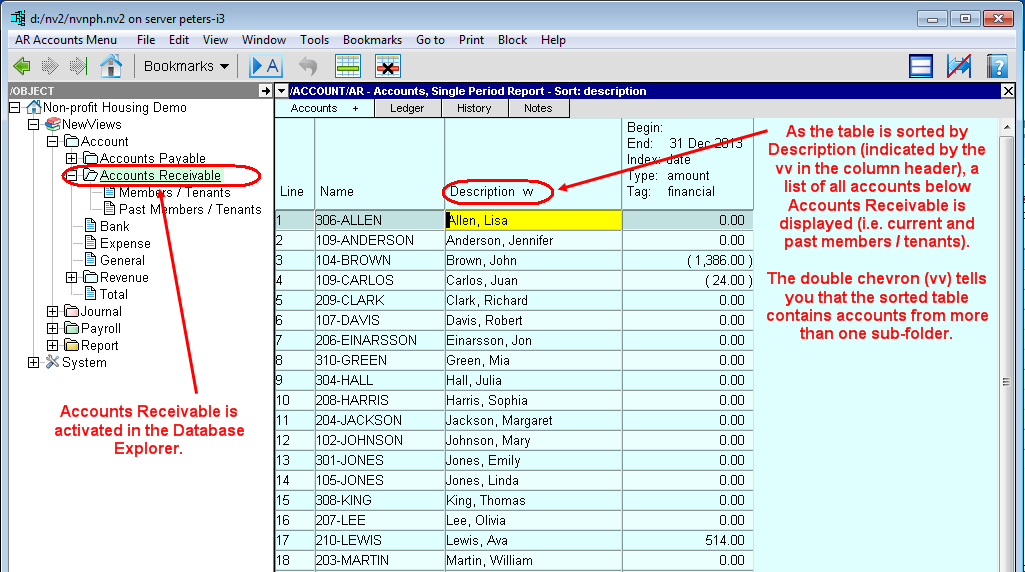
Sorting the table by any other column (e.g. Name or Description) will display a consolidated list of
all the accounts in all the sub-folders below Account.
-
Note: When a consolidated table of accounts is being displayed, a double chevron (vv or ^^) will
be shown in the header of the sorted column.
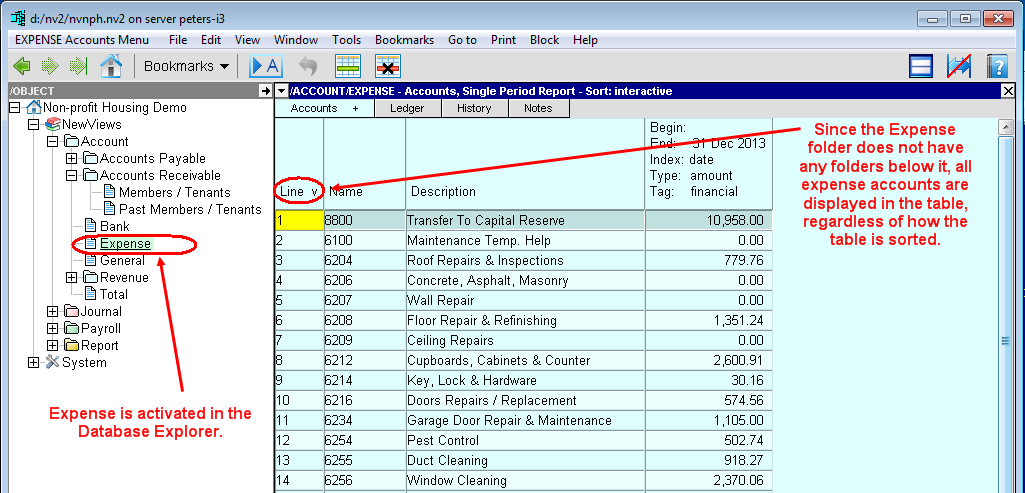
If the active account folder does not have any sub-folders:
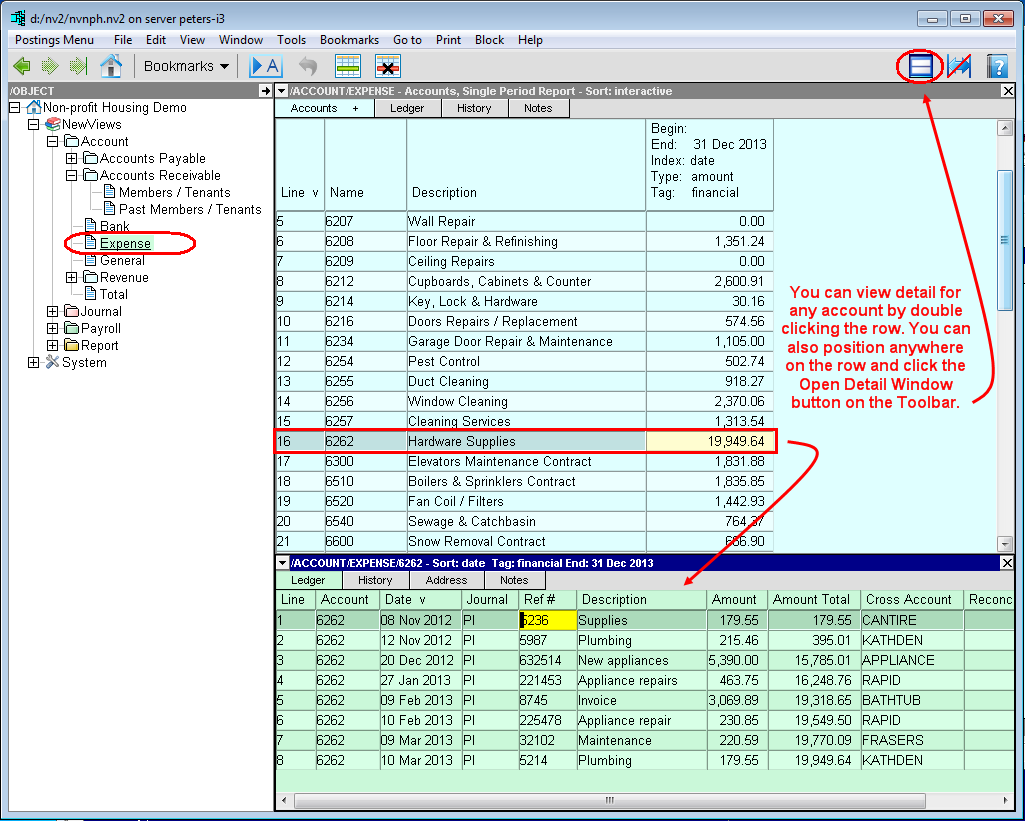
You can view additional detail for any account in a table by double clicking that row, or by positioning on the row and clicking
the <Open Detail Window> on the toolbar.
Accounts Folder Management Window
The Accounts Folder Management window displays a table of all the accounts in a set of books.
If the top right window is not the Accounts, Folder Management window, click the window list
button at the left of the title bar, and choose Accounts, Folder Management.
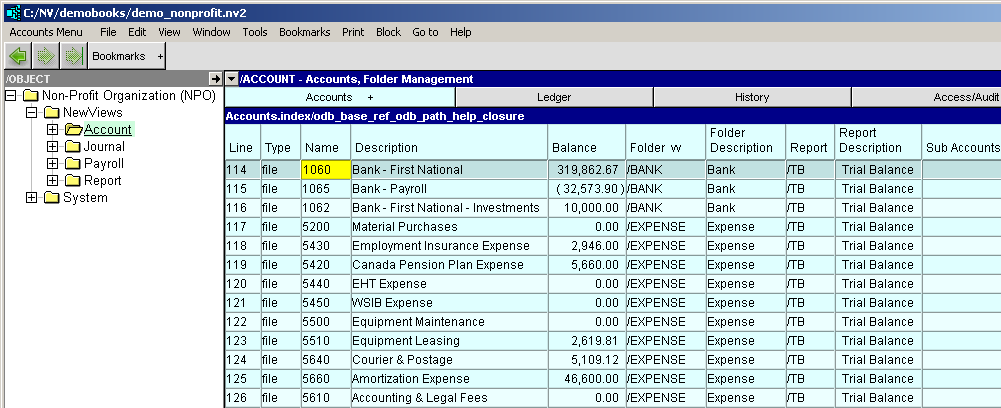
Accounts, Folder Management
|
Table column
| Sort
| Comments
|
Line
| Yes
| The line number.
|
Type
|
| When this field is set to folder the row will appear in the tree as a folder, otherwise it does not appear in the tree. This field is only used when creating and setting up sub-folders in order to decide which accounts appear in a tree.
|
Name
| Yes
| The account name.
|
Description
| Yes
| The account description.
|
Folder
| Yes
| The path of the folder the account is in. This account is a sub-account of the parent folder (which happens to be an account).
|
Folder Description
|
| The description of the folder the account is in.
|
Report
| Yes
| The path of the report that the account is on.
|
Report Description
|
| The description of the report that the account is on.
|
Sub Accounts
|
| The number of sub-accounts below this account.
|
Copyright (c) 2003-2026 Q.W.Page Associates Inc., All Rights Reserved.