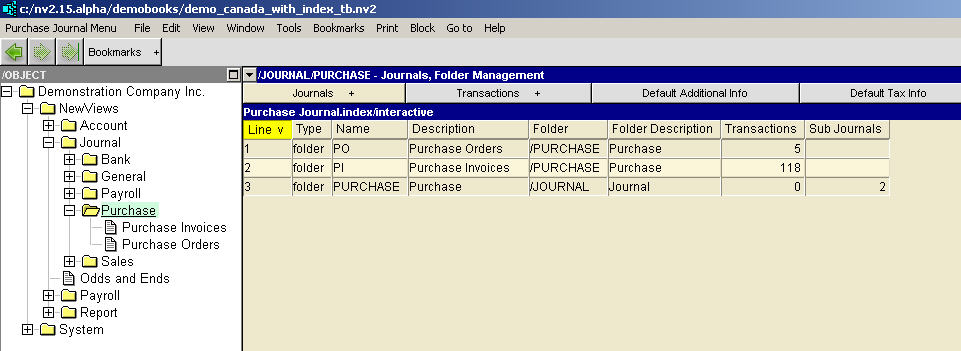
This window displays a table of sub-journals. Any type of journal can have an unlimited number of sub-journals. This ability is extremely useful, and allows you to organize transactions of the same type into different folders. You might, for example, add several journals of type GENERAL - one to record the opening account balances for a new set of books, another to record recurring entries, another to record an accountant's adjusting entries, and so on.
NOTE: Every journal folder displays all transactions from all journals "below". In the example given here for the purchase journal, activating the folder "above" the two sub general journals and using the window list button to switch to the Transaction Explorer provides a list of all transactions from both journals, merged together.
In fact, by activating the "root" journal folder, you can display every journal entry in database. The only caveat is that they will be displayed as general journal entries (i.e. the extra information displayed by specialized journals below is dropped).
NOTE: For more information on Adding Journals please see Adding Journals.
| Table column | Sort | Comments |
| Line | Yes | The line number. |
| Type | | When this field is set to folder the row will appear in the tree as a folder, otherwise it does not appear in the tree. This field is only used when creating and setting up sub-journals in order to decide which journals appear in a tree. |
| Name | Yes | The journal name. For more information see Adding Journals. |
| Description | Yes | The journal description. For more information on journal descriptions, see Adding Journals. |
| Folder | Yes | The path of the folder the journal is in. This journal is a sub-journal of the parent folder (which happens to be an journal). |
| Folder Description | | The description of the folder the journal is in. |
| Transactions | | The number of transactions on the journal. |
| Sub Journal | | The number of sub-journals below this journal. |
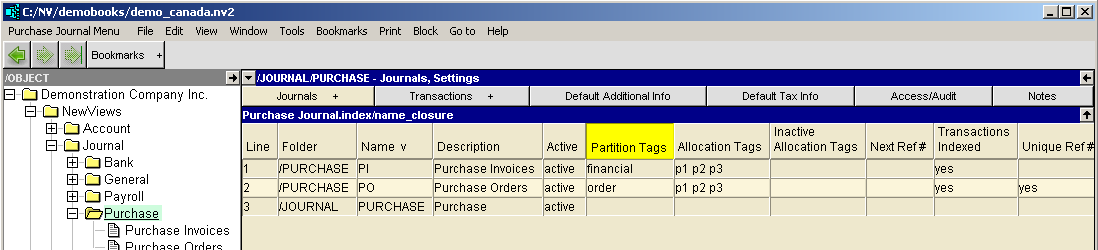
| Table column | Sort | Comments | |
| Folder | Yes | The journal folder. | |
| Name | Yes | The journal name. For more information see Adding Journals. | |
| Description | Yes | The journal description. For more information on journal descriptions, see Adding Journals. | |
| Active | | default | This will use the systems default setting for sub-journals. By default it is set to active. |
| active | The Sub-Journal must be set to active to allow the user to post transactions to it. If it is not set to active you will not be able to enter transactions. | ||
| inactive | When a Sub-Journal is set to inactive the system will not allow you to post transactions to it. When you specify a Sub-Journal as inactive you cannot make it active again. | ||
| Partition Tags | | Used to restrict the transactions that are used to generate amounts, quantities or counts to those that have a specific partition tag (the default partition tag is financial). For more information on setting the Partition Tag field, see Partitions and Allocations. | |
| Active Allocation Tags | | Used to allocate individual transactions or transaction details to different projects, funds, departments, activities, profit centers, branches, divisions, or any other criteria that applies to your organization. For more information on setting the Active Allocation Tag field, see Partitions and Allocations. | |
| Inactive Allocation Tags | | A list of inactive allocate tags. When an allocation tag is set to inactive, postings can no longer be made to the project, division, department, branch, profit center, activity, fund, or any other criteria that applies to your organization. For more information on setting the Inactive Allocation Tag field, see Partitions and Allocations. | |
| Next Ref # | | By entering a Next Ref # field, the Take Next Reference feature is enabled. When positioned in a transaction Ref # column, <F3> will display a Take Next Reference prompt. Accepting the next reference will consume it and increment the journal's Next Ref #. (Multi-user issues demand this approach). | |
| Transactions Indexed | | Indicates whether the journal displays transactions. | |
| Unique Ref #s | | Enforce unique transaction Ref #s. See Unique Ref #s for more. | |
| Move to Journal Path | | Path used by the Backorder/Partial Shipments feature. See Backorders/Partial Shipments for more. | |