United States Payrolls are accessed through NewViews/Payroll/USA Payroll.
To view a list of payrolls:
Click on NewViews/Payroll/USA Payroll in the NewViews Database Explorer.
In the top right window, use the window tab below the title bar that reads /USA/PAYROLL to choose the Payrolls window.
If you did not convert from the DOS version of NewViews (or the DOS books you converted did not have Payroll) there will be one payroll in the list called Employees. You can change the name and/or description of this payroll if you like, and use it to add your employees. To change the description, go to Windows List>Sub Payrolls move to the description field and type in the new description.
You can also add additional payrolls to the table if you want to split your employees into separate payrolls (e.g. office and production payrolls, or management and staff payrolls).
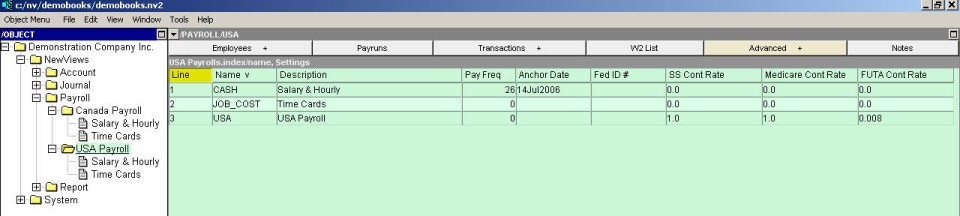
To add a new payroll:
Issue the command Edit>Append or Edit>Insert to add a new item to the Payrolls table.
Enter a name and description for the payroll in the Name and Description fields, respectively.
In the Pay Frequency field, enter the number of pay periods in the year (press <F3> to select).
In the Anchor Date field, enter the ending date of one of your pay periods. For example, if the payroll is weekly and the pay periods end on Fridays, the anchor date is any Friday you wish to enter. NewViews uses the anchor date to automatically calculate the begin and end date for each pay period when you process payroll. For more information see Anchor Date.
Fill in your Federal Identification Number.
When the new payroll is recorded (by issuing the File>Save command or moving off the line), it will automatically appear in the NewViews Database Explorer under USA Payroll.