"Documents" refer to accounting documents such as checks, invoices, purchase orders and statements that you print either on plain paper or on pre-printed forms,
When you installed NV2, over 250 document templates were installed in the print_templates folder. (The print_templates folder is located in the NV2 installation folder.)
Instructions on printing each type of document are found using the links below:
Most documents are the standard letter size of 8½" by 11". However there are multipart NCR forms such as checks and invoices that are only 7" long. Your computer's print server must be set to use 7" long paper. For more, see Troubleshooting Printing & Templates.
Issuing a print command for a document will cause NewViews to display a printing prompt. There are several common fields in each document printing prompt.

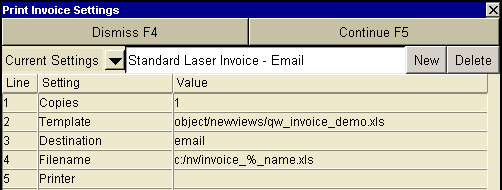
Use the User Option, Prompt Display Style to switch between modern and classic styles.
| Common Print Document Settings | |||
| Line | Field | Values | Comments |
| 1 | Copies | The number of copies to be printed. | |
| 2 | Template | The template to be used to print the check(s). Press <F3> to select the template from an explorer (double click to select). Check templates supplied with NV2 contain the words "check" in their names. For example, "safeguard_check_sf5001.xls". | |
| 3 | Destination | Used to control the destination of the output. | |
| display | exports to Excel and opens Excel for a preview. | ||
| email | creates a file specified in Filename as an attachment to an email. | ||
| file | sends output to the file specified in Filename. | ||
| printer | sends output to the printer specified in Printer. | ||
| 4 | Filename | The output file type must be {".xls"}, {".xlt"} or {".pdf"}. Important see note on Output File Names options. | |
| 5 | Printer | If Destination is printer then output is sent to the printer specified here. If this field is empty then output will be sent to the Windows default printer. Press <F3> to select from a list of available printers. NOTE: To clear the Printer field Press <F3> to select from the list of printers, and click on <Cancel> | |

| Common Print Document email Settings | |||
| Line | Field | Values | Comments |
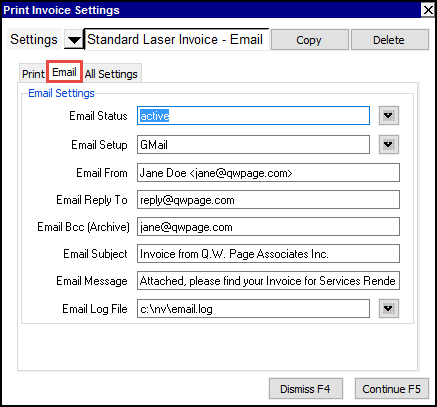
| 6 | Email Status | Controls output based on the Email Status of accounts/employees (i.e. is an email addresses specified for the item). | |
| blank | Include every item, regardless of the value of the email address for the account/employee. | ||
| inactive | Include only items that have no email address. | ||
| active | Include only items that have an email address. | ||
| 7 | Email Setup | Press <F3> and a selection window pops up a listing of all Email SMTP server setups. The Tools>Email Setup command provides the settings table to enter your SMTP server settings. | |
| 8 | Email From | Text that will appear as the Sender of the emails. | |
| 9 | Email Reply To | The account that will receive reply emails. | |
| 10 | Email Bcc (Archive) | Optional list of Blind carbon copy (Bcc) recipients. These are additional email recipients similar to carbon copy (cc), but the names do not appear in the recipient's message. | |
| 11 | Email Subject | Text that will appear in the subject field of the email. | |
| 12 | Email Message | Text that will appear in the body of the email. The text may contain a url to your website (you must include a trailing space). To send an HTML message body, type only the text "filename.%_html". This special file extension trick is necessary to trigger the load of an HTML file and the %_ will be removed prior to opening the file. (A message body text could contain the name of an HTML file, but you don't want to load it) | |
| 13 | Email Log File | File that contains email communication success/failure information. | |