To print an individual ROE, activate the ROE line you wish to print.
To print multiple ROEs, mark the desired ROEs in a block
Issue the command Print>Records of Employment.
Fill in the print settings window as follows:
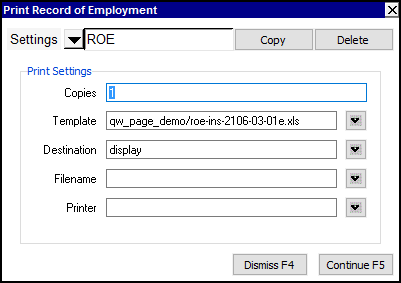
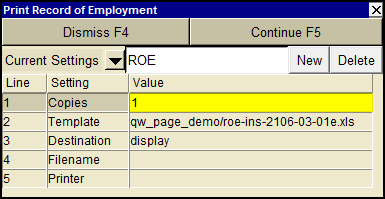
| Print Record Of Employment | |||
| Line | Field | Comments | |
| 1 | Copies | The number of copies to be printed. | |
| 2 | Template | The template to be used to print the ROE(s). Press <F3> to select the template from an explorer (double click to select). ROE templates supplied with NV2 contain the words "ROE" in their names. For example, "ROE-INS-2106-03-01E.xls". | |
| 3 | Destination | display file printer | display - exports to Excel and opens Excel for a preview. file - sends output to the file specified in Filename. printer - sends output to the printer identified by Printer. |
| 4 | Filename | The output file name. The file type must be {".xls"}, {".xlt"} or {".pdf"}. Important see note on Output File Names options. | |
| 5 | Printer | If Destination is printer then output is sent to the printer specified here. If this field is empty then output will be sent to the Windows default printer. Press <F3> to select from a list of available printers. NOTE: To clear the Printer field Press <F3> to select from the list of printers, and click on <Cancel> | |
Click the <Continue> button to print the invoice(s).