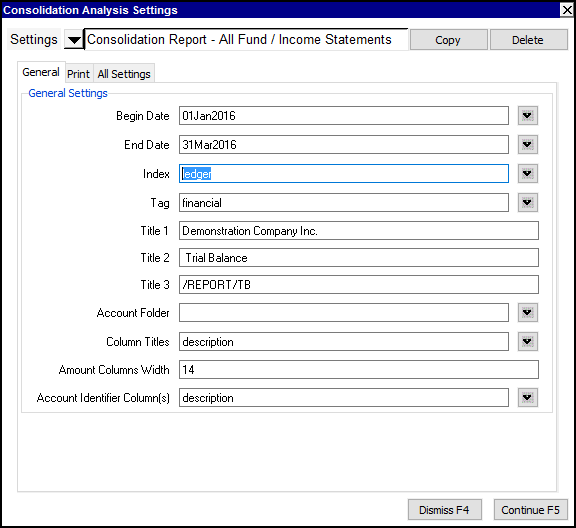
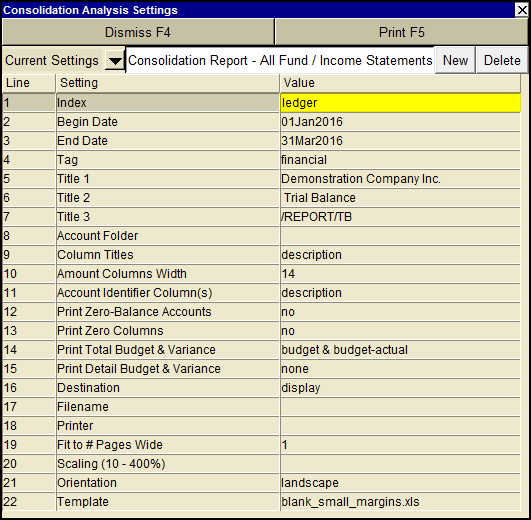
| Consolidation Analysis Settings | |||
| Line | Field | Values | Comments |
| 1 | Index | The index field selects the amounts that are to be included in the amounts. Press <F3> to choose from the following options: | |
| ledger | Ledger - All transactions. | ||
| debit | Debit transactions only. | ||
| credit | Credit transactions only. | ||
| open | Open (unreconciled) transactions (debit & credit) only | ||
| closed | Closed (reconciled) transactions (debit & credit) only | ||
| 2 | Begin Date | Only postings dated on or after the begin date are printed. If the begin date is empty then all postings from the beginning of time up to the end date are printed. | |
| 3 | End Date | Only postings dated on or before the end date are printed. If the end date is empty then all postings from the begin date to the end of time are printed. | |
| 4 | Tag | Allows you to select the type of amounts to print by their tag. If no tag is set, then the default is to print transactions with the tag financial. | |
| financial | Only postings with the tag financial are printed. | ||
| order | Only postings with the tag order are printed. i.e. Purchase and Sales orders. | ||
| budget | Only postings with the tag budget are printed. | ||
| 5, 6, 7 | Title 1 Title 2 Title 3 | Defines up to three titles to be printed at the top of the report. The title lines (if entered) are printed at the top of the table, with Title 1 at the top, followed by Title 2, and finally Title 3. In general, Title 1 is printed using a larger font than Title 2, and Title 2 is uses a larger font than Title 3. (The fonts can be changed by modifying the fonts set in the template.) You can enter title text in any combination of the three Title lines. | |
| 8 | Column Titles | Specifies the source of the titles to be printed at the top of each report column. Press <F3> to choose from the following options: | |
| name | The name of the report is used for its column title. | ||
| description | The description of the report is used for its column title. | ||
| 9 | Amount Column Width | Allows you to specify the width of the amount columns. | |
| 10 | Identifier Column(s) | Allows you to choose any combination of the account's name and description to be printed at the start of each line. Hint: Type "n", "d", "nd", or "dn" and then Enter to change the setting with the least possible keystrokes. | |
| name | Print a name column only. | ||
| description | Print a description column only. | ||
| name description | Print a name and description column. | ||
| description name | Print a description and name column. | ||
| 11 | Print Zero-Balance Accounts | Used to control the printing of accounts. | |
| yes | Include accounts whose balance for the period is 0.00. | ||
| no | Omit accounts with 0.00 balances for the period. | ||
| 12 | Print Zero Columns | Used to control the printing of columns. | |
| yes | Include report columns where all amounts are 0.00. | ||
| no | Omit report columns where all amounts are 0.00. | ||
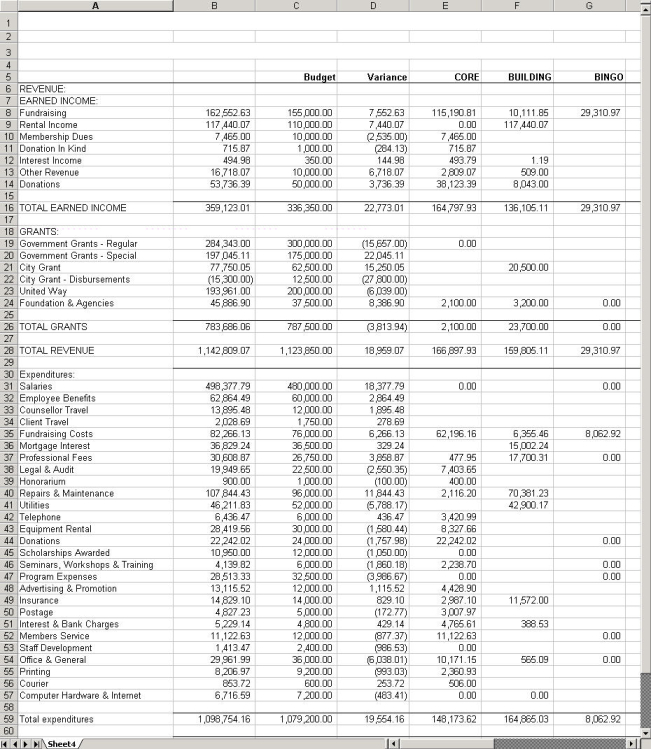
| 13 | Print Total Budget & Variance | Allows you to include the total budget and variance column in the report. (See the example below.) | |
| none | No budget and variance columns will be printed. | ||
| budget & actual-budget | A budget column is printed, and a variance column where the variance amounts are the actual amounts minus the budget amounts. | ||
| budget & budget-actual | As above, but the variance amounts are the budget amounts minus the actual amounts. | ||
| 14 | Print Detail Budget & Variance | Allows you to include the detail budget and variance columns in the report. Note that three columns will appear for each contributing report. | |
| none | No budget and variance columns will be printed. | ||
| budget & actual-budget | A budget column is printed, and a variance column where the variance amounts are the actual amounts minus the budget amounts. | ||
| budget & budget-actual | As above, but the variance amounts are the budget amounts minus the actual amounts. | ||
| 15 | Destination | Used to control the destination of the output. | |
| display | exports to Excel and opens Excel for a preview. | ||
| file | Sends output to the file specified in Filename. | ||
| printer | Sends output to the printer specified in Printer. | ||
| 16 | Filename | The output file name. The file type must be {".xls"}, {".xlt"} or {".pdf"}. Important see note on Output File Names options. | |
| 17 | Printer | If Destination is printer then output is sent to the printer specified here. If this field is empty then output will be sent to the Windows default printer. Press <F3> to select from a list of available printers. NOTE: To clear the Printer field Press <F3> to select from the list of printers, and click on <Cancel> | |
| 18 | Fit to # pages wide | Shrinks the output, if necessary, to fit on the number of pages wide specified here. | |
| 19 | Scaling (10 - 400%) | Stretches the output (shrinks or expands). At 100, the page is printed actual size. Settings below 100 shrink the output, and settings above 100 expand the output. | |
| 20 | Orientation | Used to control the orientation of printed pages. | |
| portrait | Prints pages vertically. | ||
| landscape | Prints pages horizontally. | ||
| 21 | Template | The name of an Excel workbook that contains font and page layout information to be used for the table. (Optional) | |
The image below shows the Consolidation Analysis report with the "Print Budget & Variance" option set to "budget & actual-budget".