You can print T4s from any level of (Canada) Payroll that you can see employees on.
If you activate Canada Payroll you have access to all Canada employees and can print any or all T4s from there.
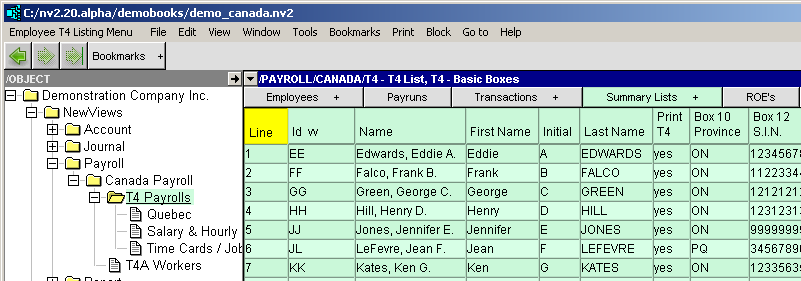
If you activate a sub-payroll you can print T4s for employees of that sub-payroll.
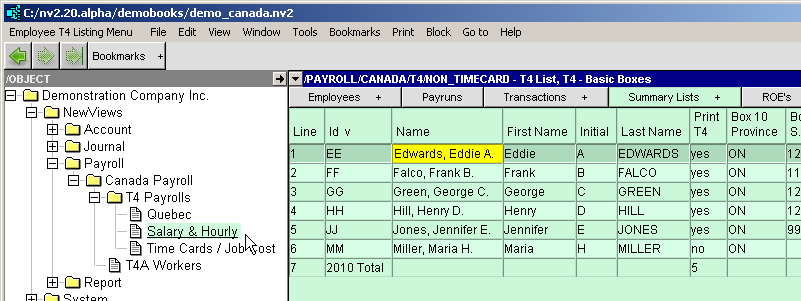
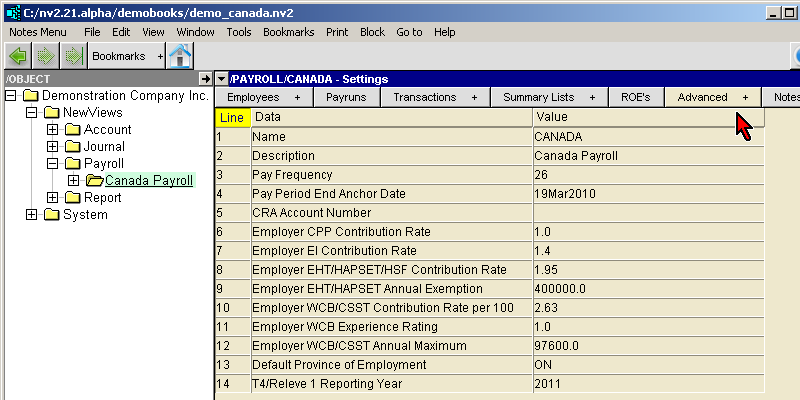
On whatever payroll you decide to print from you must set the T4/Releve 1 Reporting Year
to the year you wish to print T4s for.
To do this:
Setting the T4/Releve 1 Reporting Year.
T4 information can be viewed and/or printed from the T4 List window. .
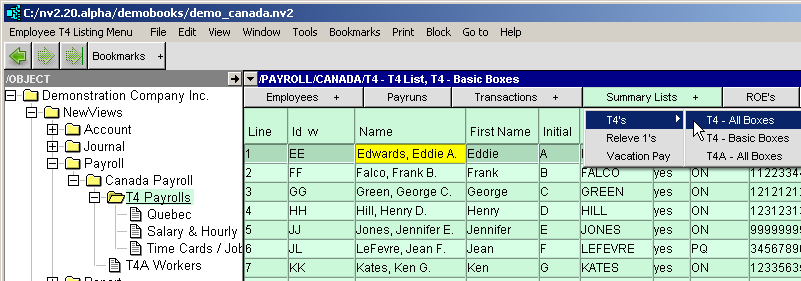
The images below show the T4 List window. The window contains a column for most of the boxes on the T4 slip, and you can see the amounts that will be printed.
Because there are so many columns it is best to set title columns to "lock" a few of the
left-most columns so that you can scroll out to the right without losing track of which employee
line you are on.
To do this:
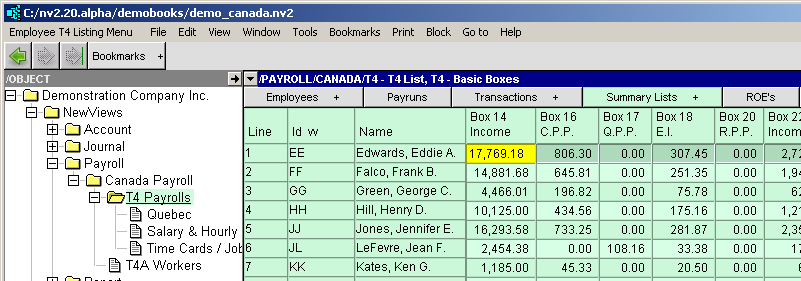
The totals at the bottom of the table provide most of the information required to complete the T4 Summary.
Most of the information in this window is obtained by adding up amounts on employee paychecks for the year displayed. You are not allowed to edit these amounts. The simple reason is this: If you were allowed to edit the information here, then the T4 slips you print would not match the data in your books and the integrity of your payroll system would be called into question.
If there are amounts on this window that seem incorrect then there must be one or more errors in the employee's paychecks. These errors must be addressed at their source to correct the information on this window.
Another alternative (which we do not recommend) is to choose the "display" option when printing T4s, edit the results in Excel, and then print the T4(s) from Excel. Again, this will mean that your printed T4s do not match the data in your books - we can't stop you from doing this, but you are "on your own" if questions arise after the fact.
This column is set by the system to either "yes" or "no" and cannot be edited.
It is set to "yes" if there is information to be reported on a T4 for that employee for the given T4 year. It is set to "no" if there is nothing to report on a T4 for the given year.
(The yes or no value is not related in any way to the employee's active status.)
The total at the bottom of the list reports the number of "yes" lines above.
A few of the columns can be edited. They are: